Client card: find, add, book
Clients live in one list with search by name, phone and email. A new client appears with their first booking. The card holds visits, notes, custom fields and the questionnaire, and “Book” opens a new booking with their details filled in.
यह ट्यूटोरियल अभी अंग्रेज़ी में है — अनुवाद तैयार हो रहा है।
Find a client
All the salon's clients are in one list. You can search by name, phone or email (owners and administrators see these). A specialist by default sees only their own clients, without phone and email.
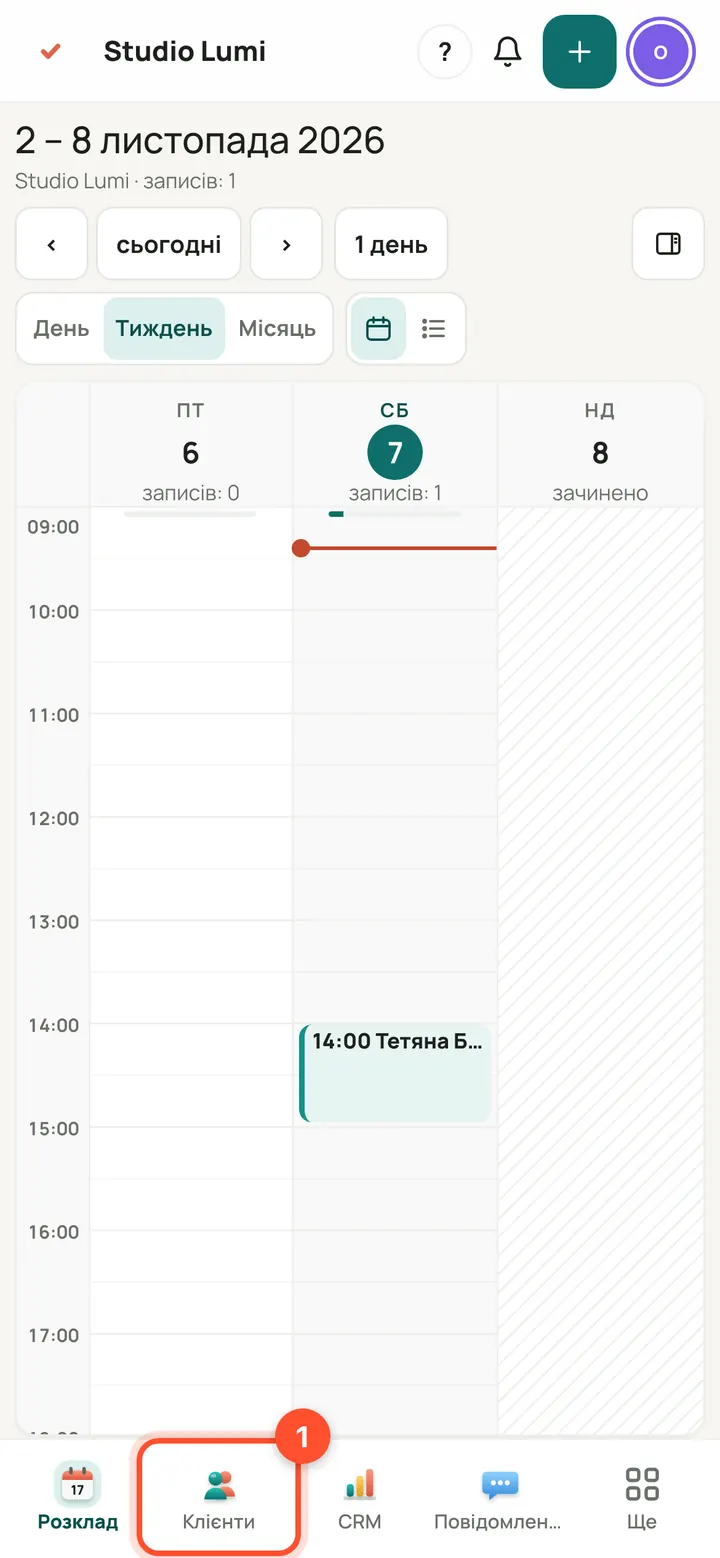
Panel → “Clients” (on a phone, the bottom menu).
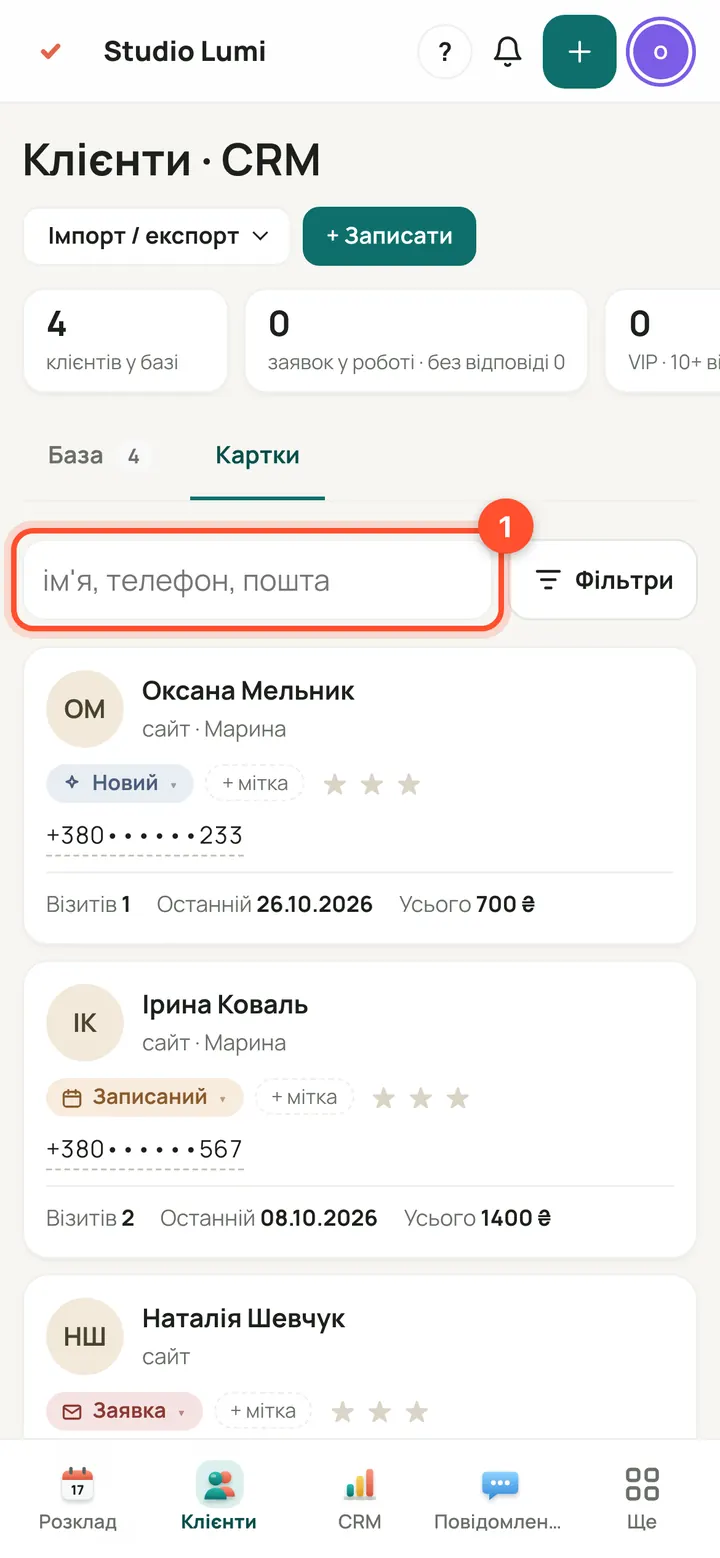
Tap the “name, phone, email” field.
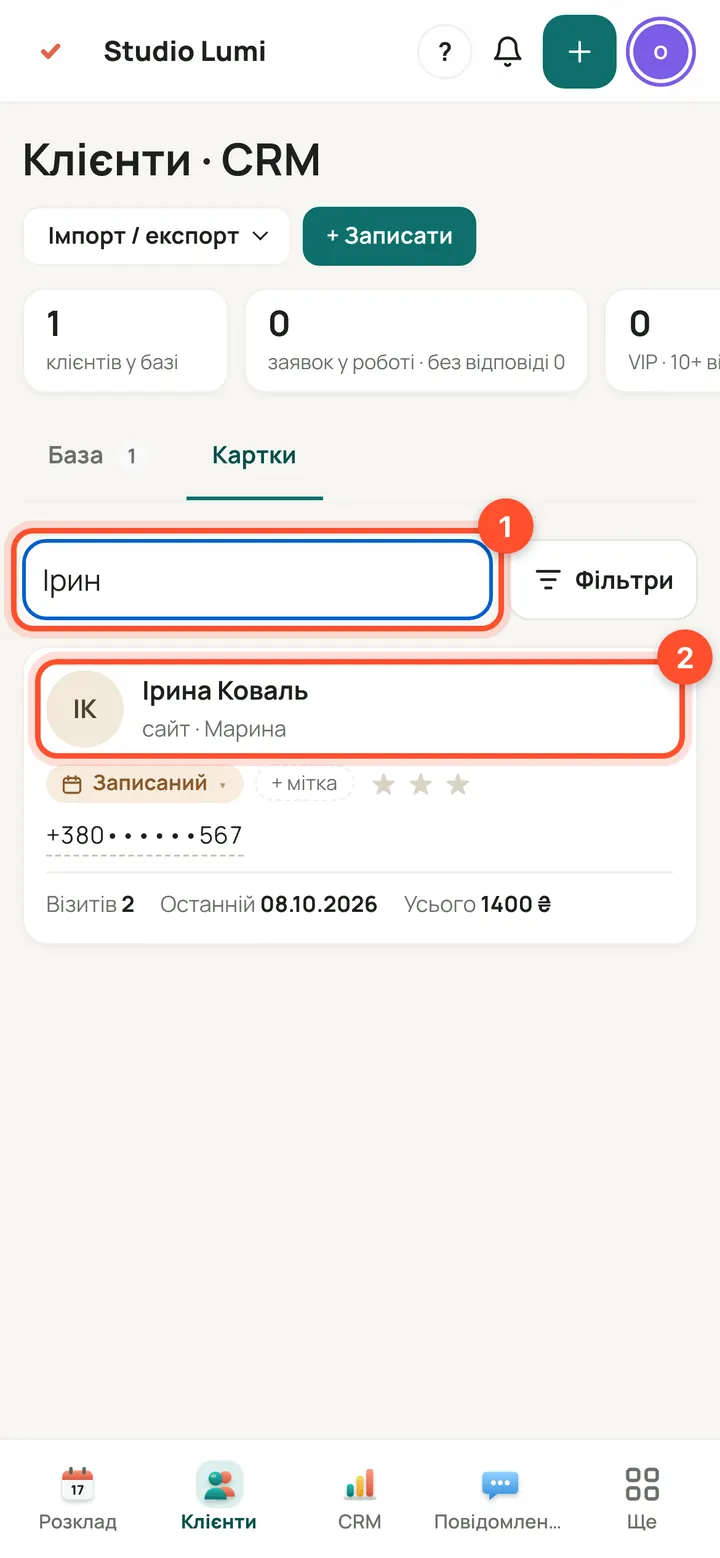
Type: from the second letter the list narrows by itself, no Enter needed. Tap the name to open the client card.
Add a new client
A new client appears together with their first booking: enter a name and phone, the rest is like any booking. There is no separate “create client” button.
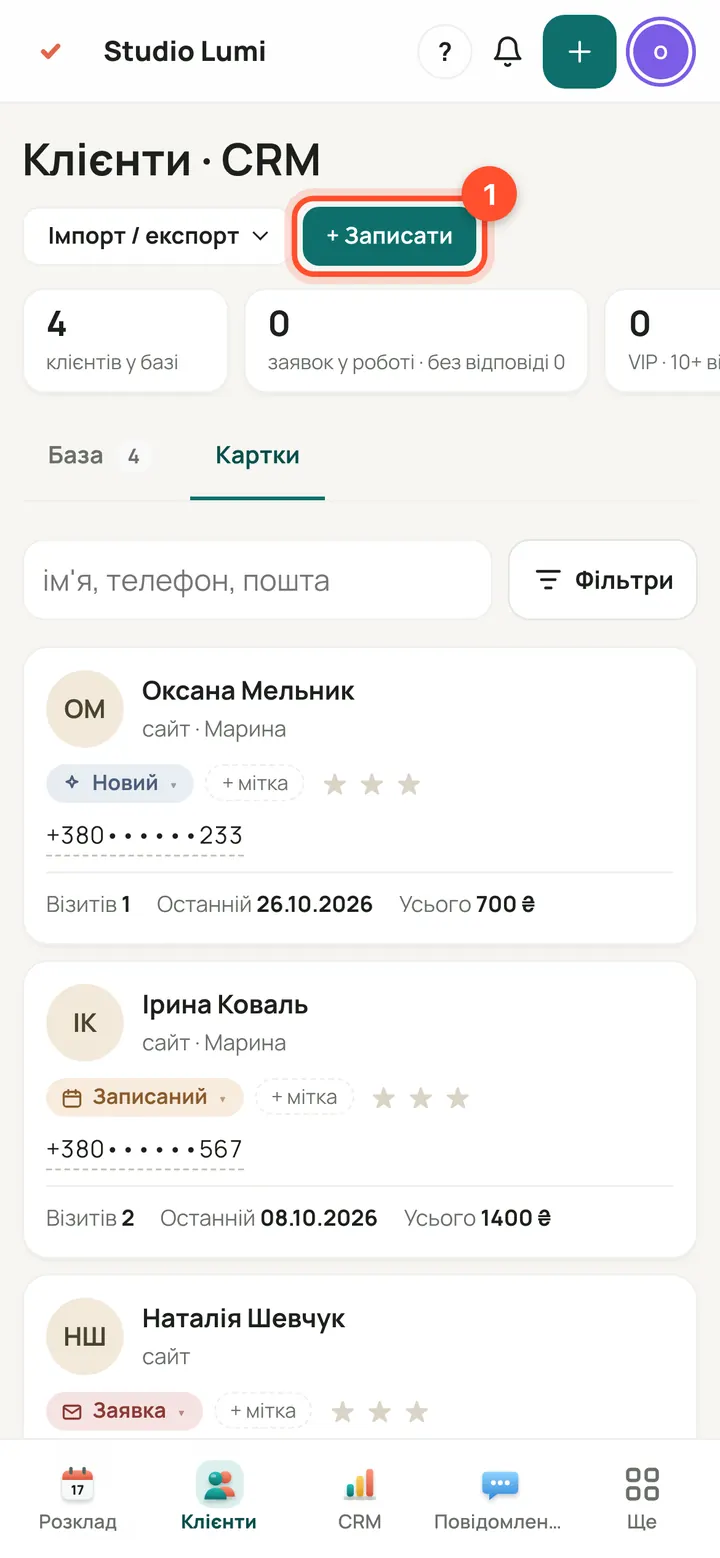
“Clients” → “+ Book”.
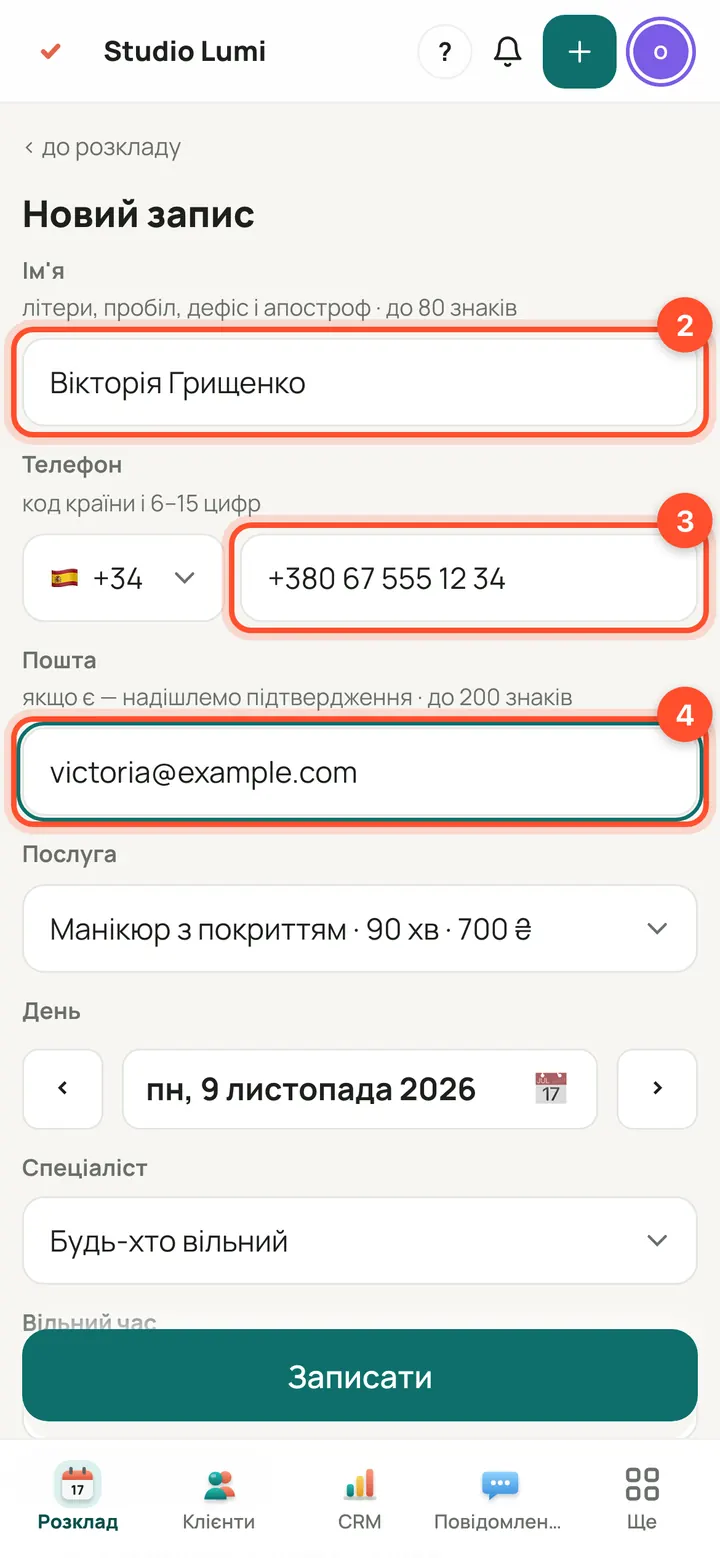
Enter first and last name, phone (with country code) and, if you have it, an email. Email is optional.
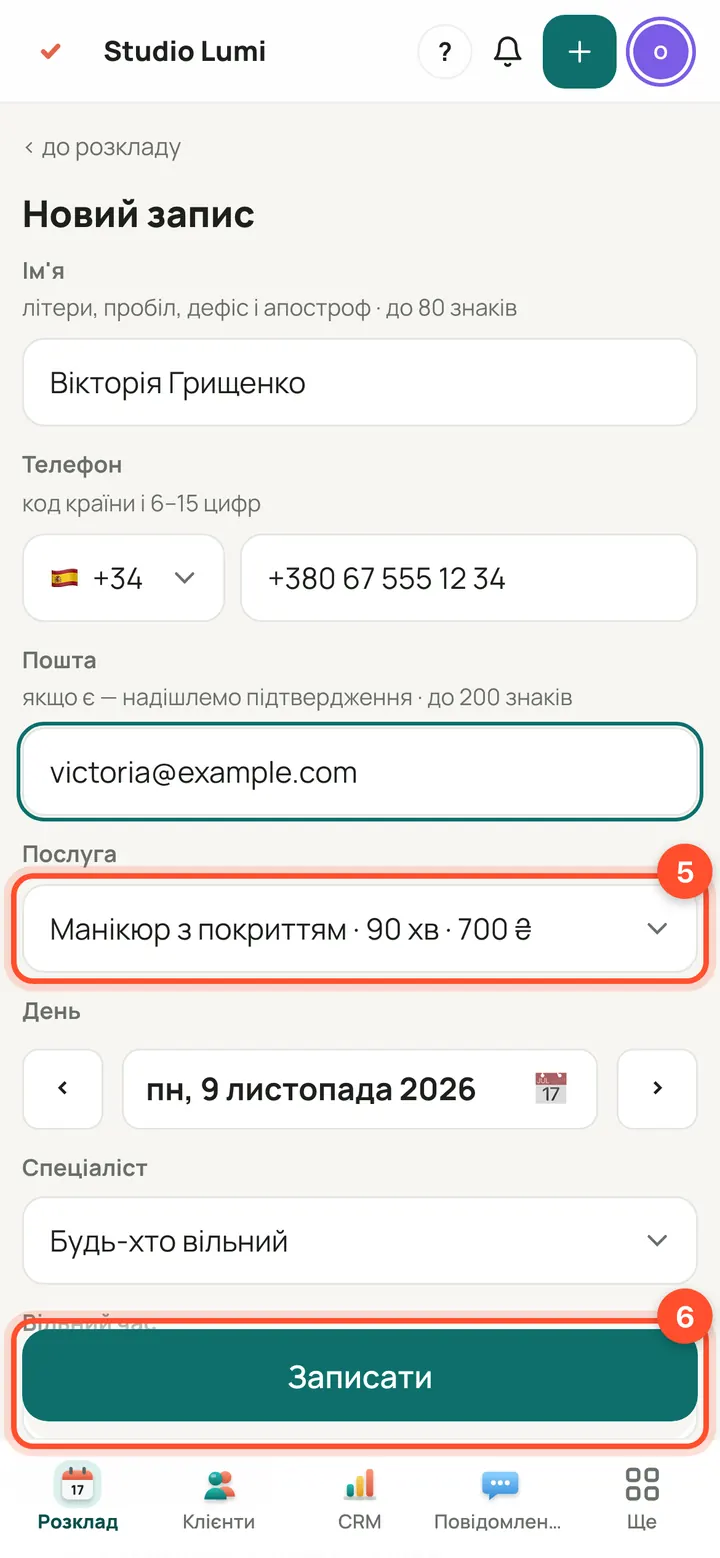
Choose a service, day and time and press “Book”. The client appears in “Clients” straight away. The “Send the client a booking email” box is ticked by default — the email goes out if an email address is given.
What's in the client card
At the top: name, phone, “Book”, “Write” and “Questionnaire”. Below are five tabs.
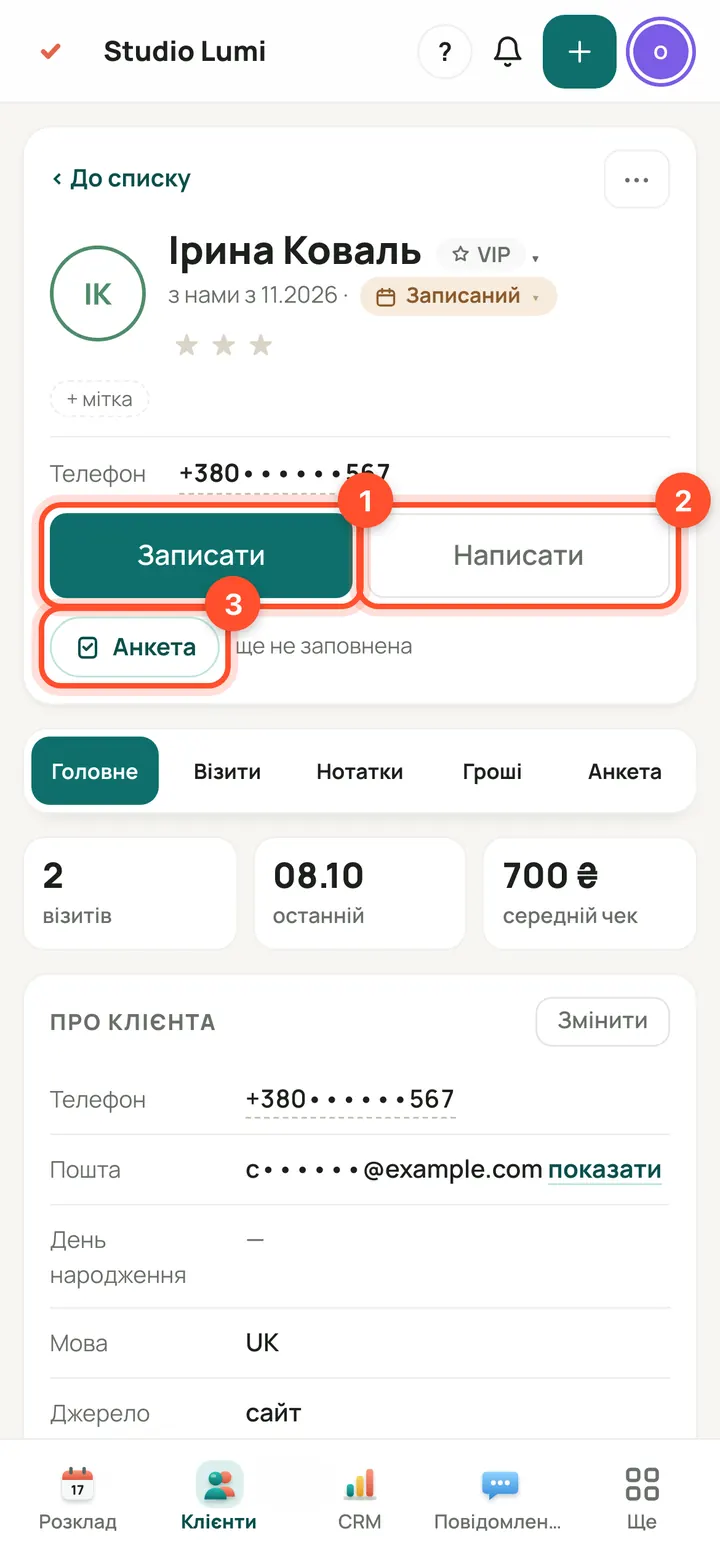
“Book” makes a new booking for this client. “Write” sends the client an email from the salon. “Questionnaire” opens the first-visit questionnaire.
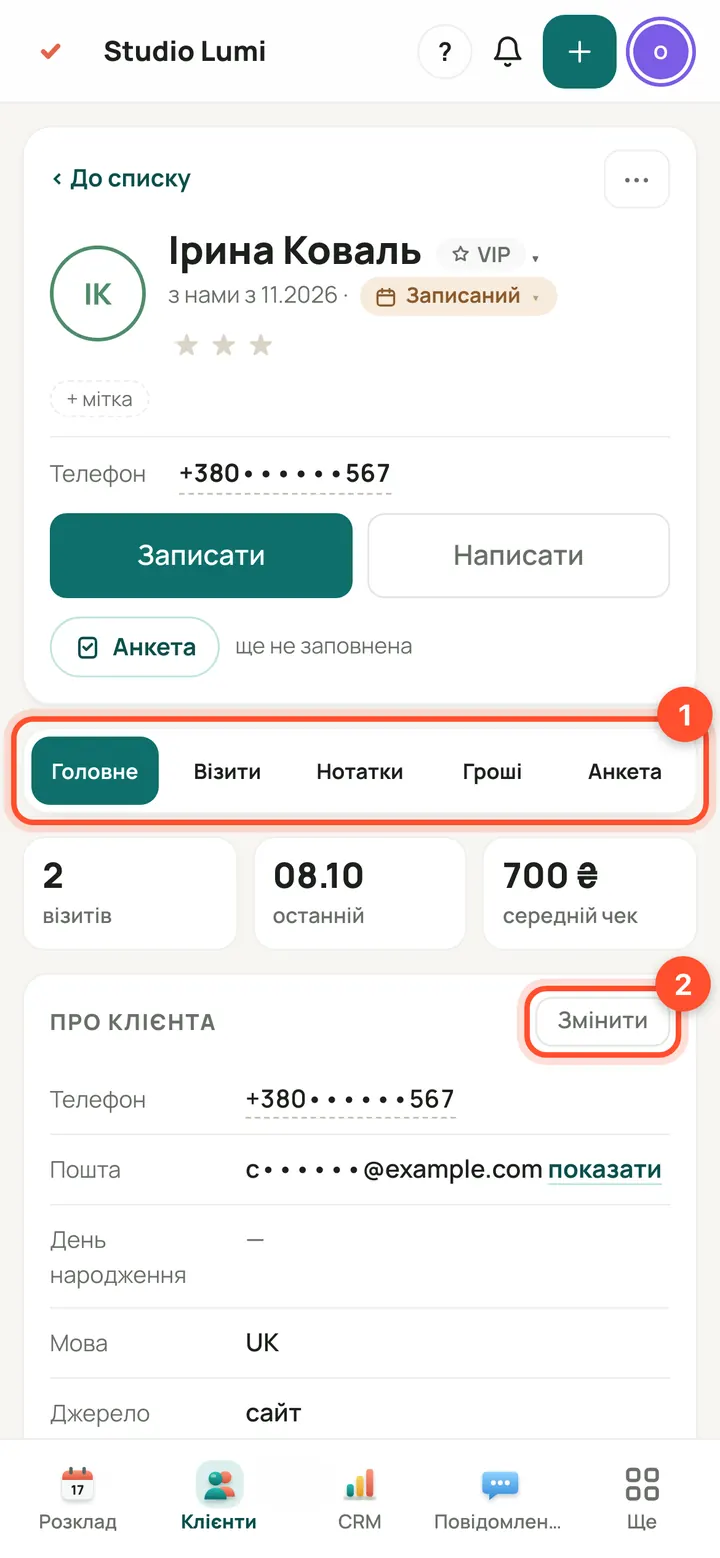
Tabs: “Main” (contacts, language, source), “Visits”, “Notes”, “Money”, “Questionnaire”. Contacts are changed with “Edit”.
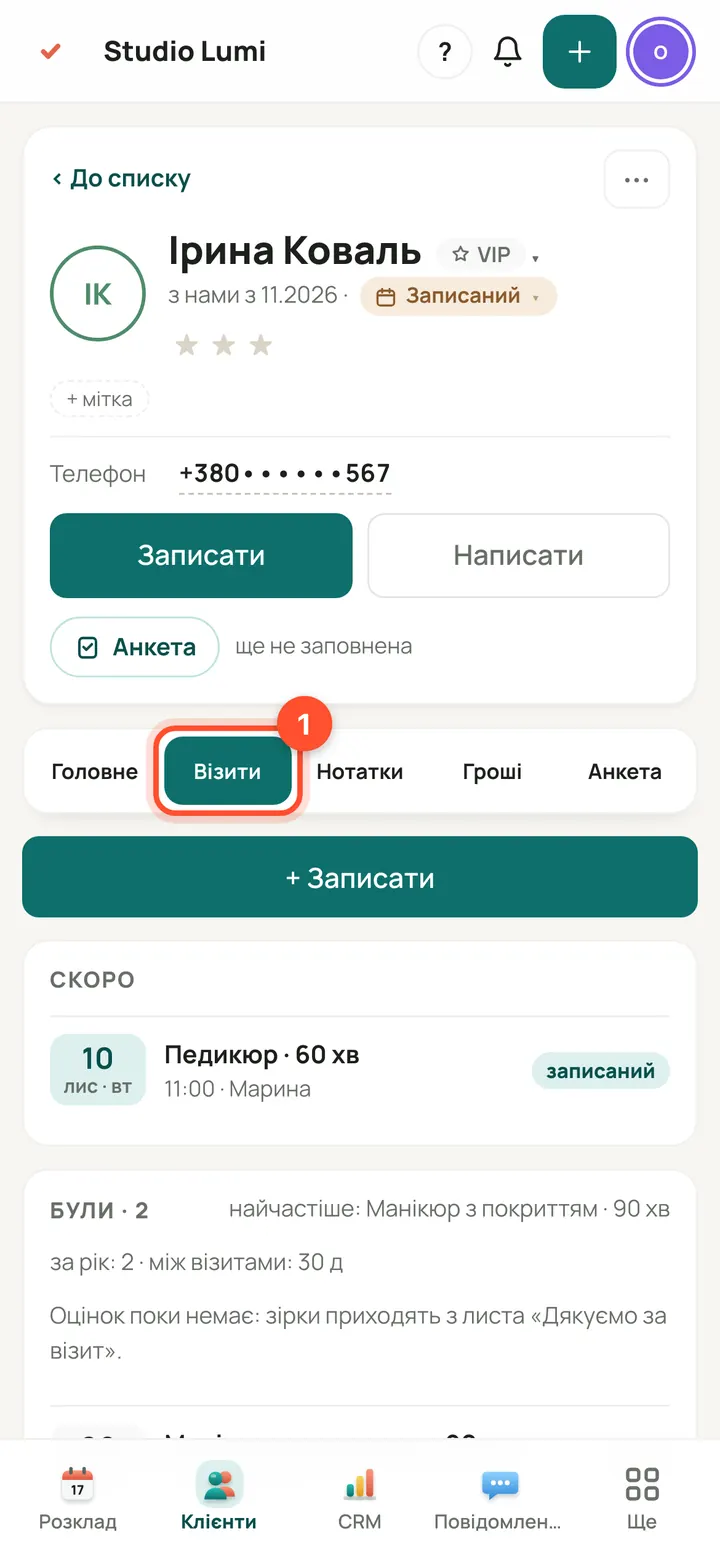
“Visits”: upcoming bookings at the top, the client's past visits below.
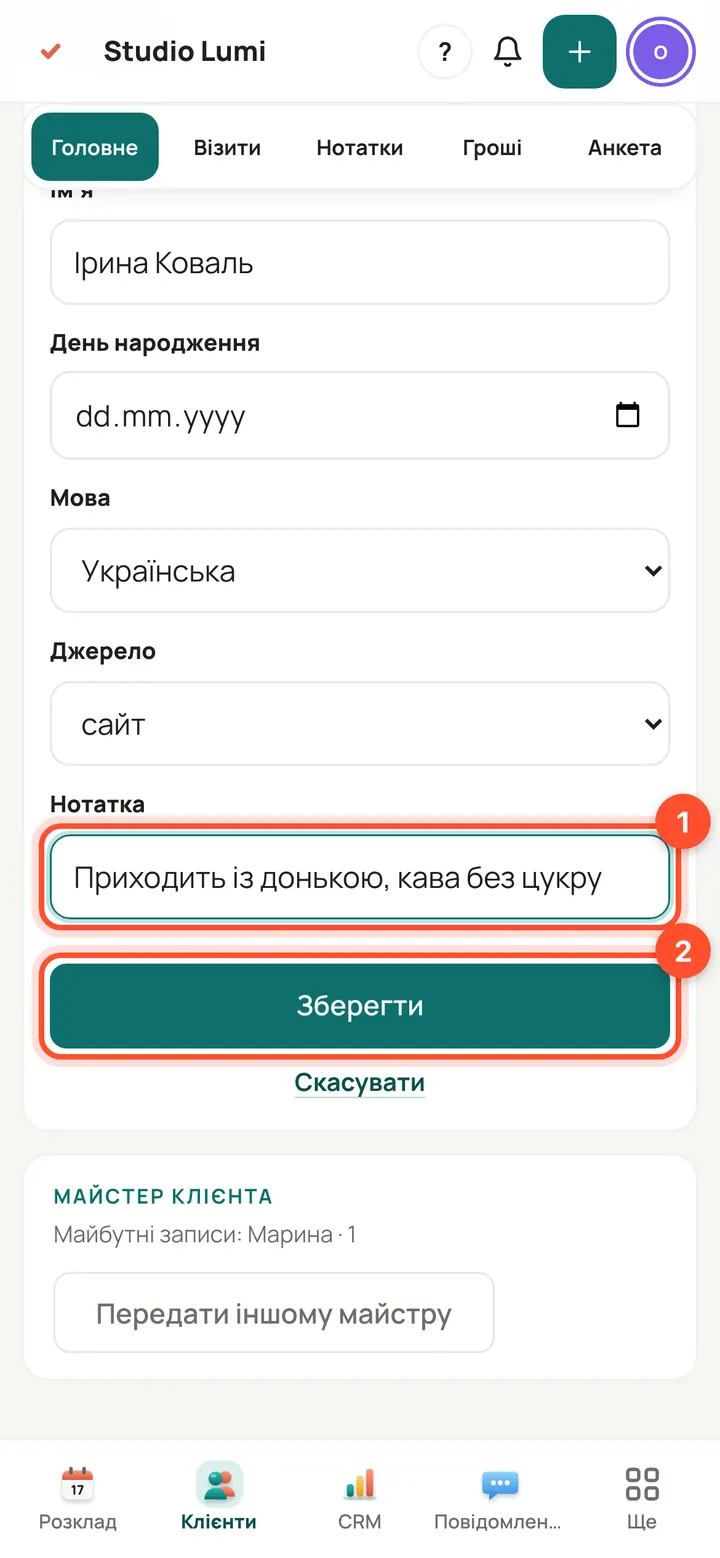
“Main” → “Edit”: fill in “Note” (for example, what's good to know) and press “Save”.
Notes and custom fields
The team sees notes, the client does not. Owners and administrators add custom fields, for example “Favourite tea”.
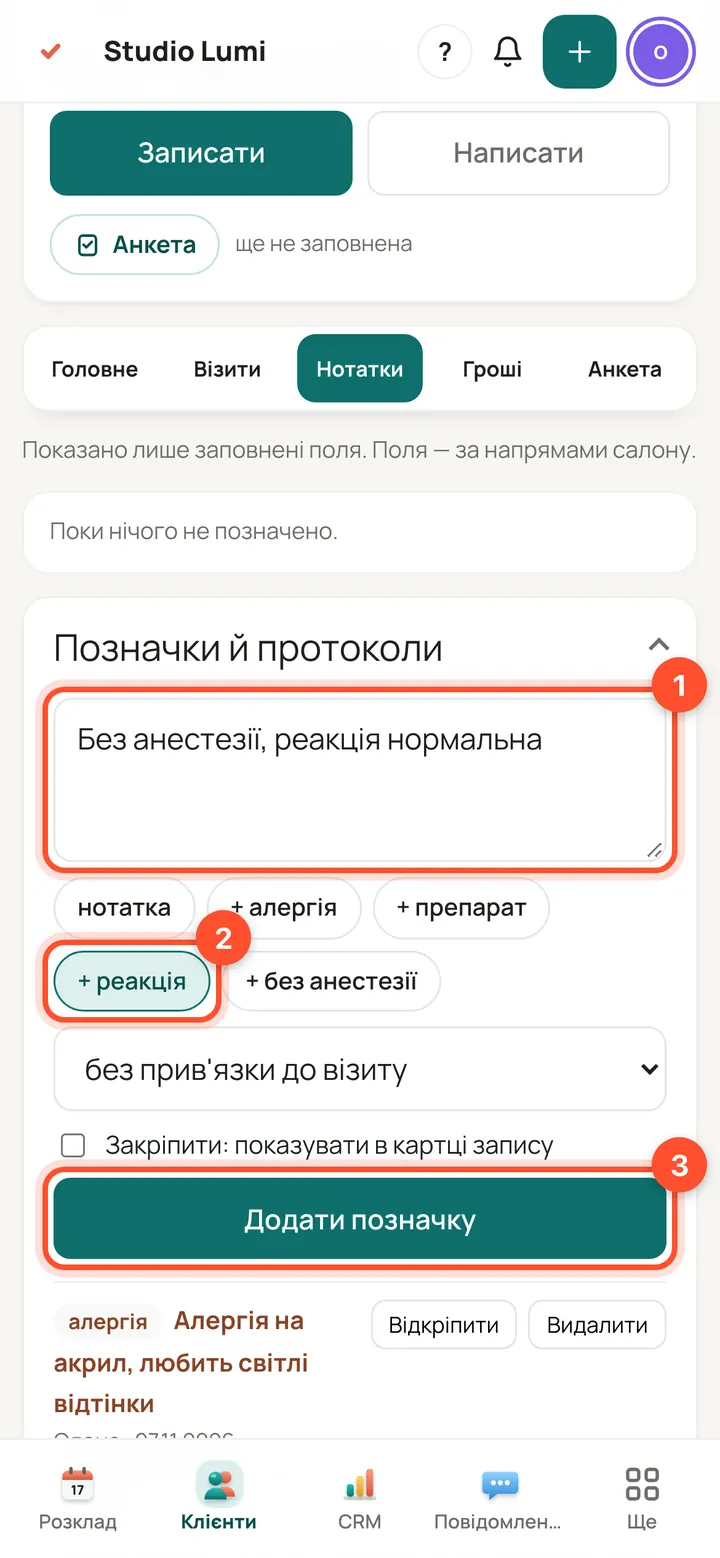
“Notes” → “Notes and protocols”: write the text, pick a kind (note, allergy, product, reaction) and press “Add note”.
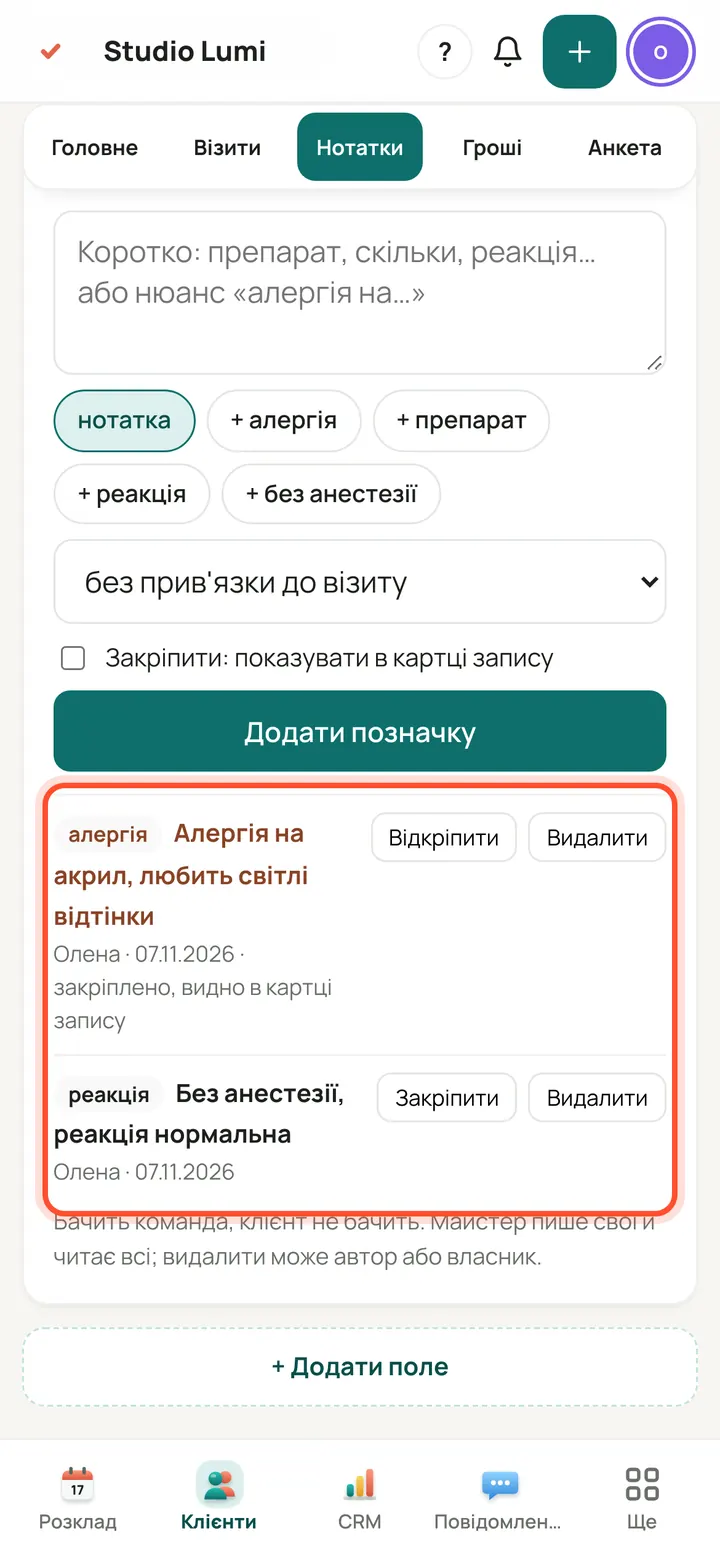
The note is in the list. “Pin” also shows it in the booking card.
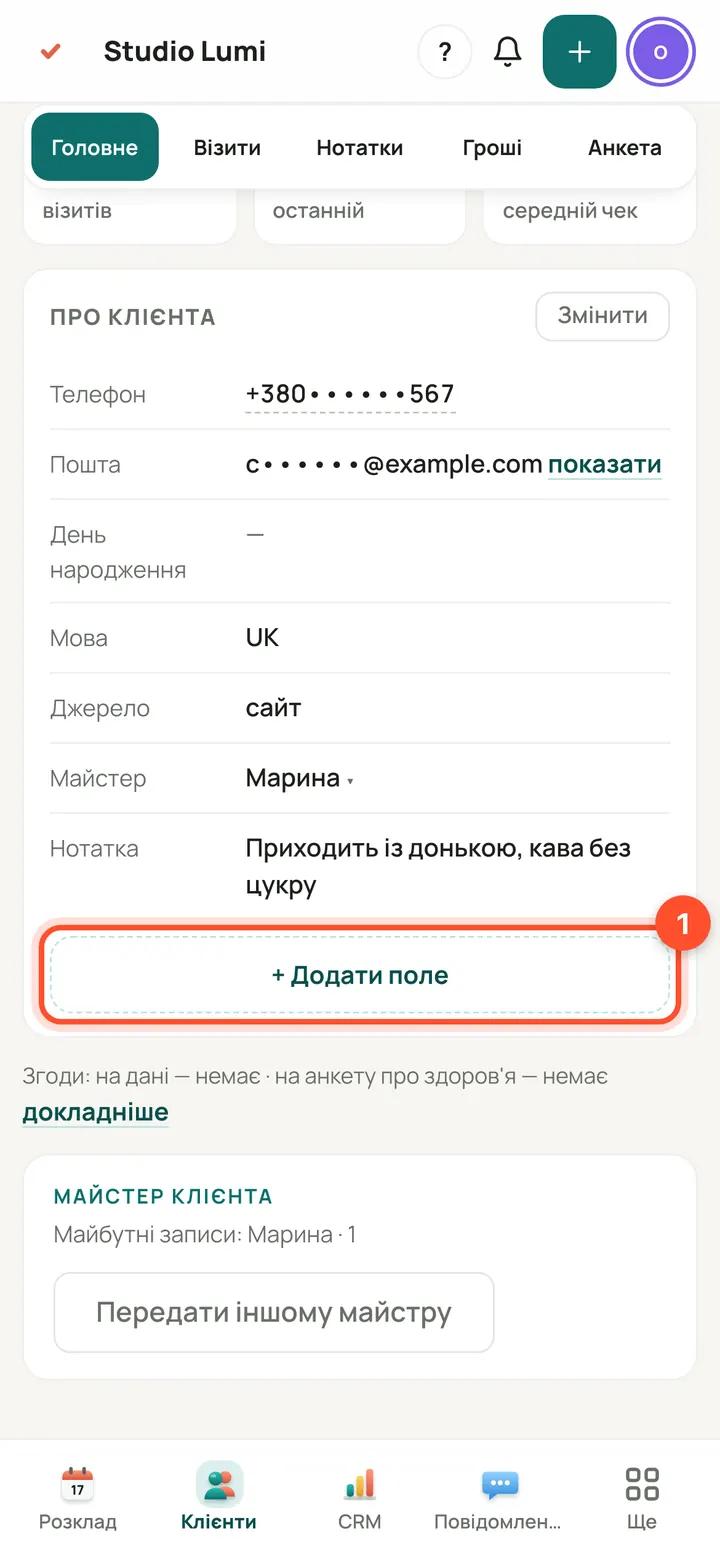
“Main” → “+ Add field”.
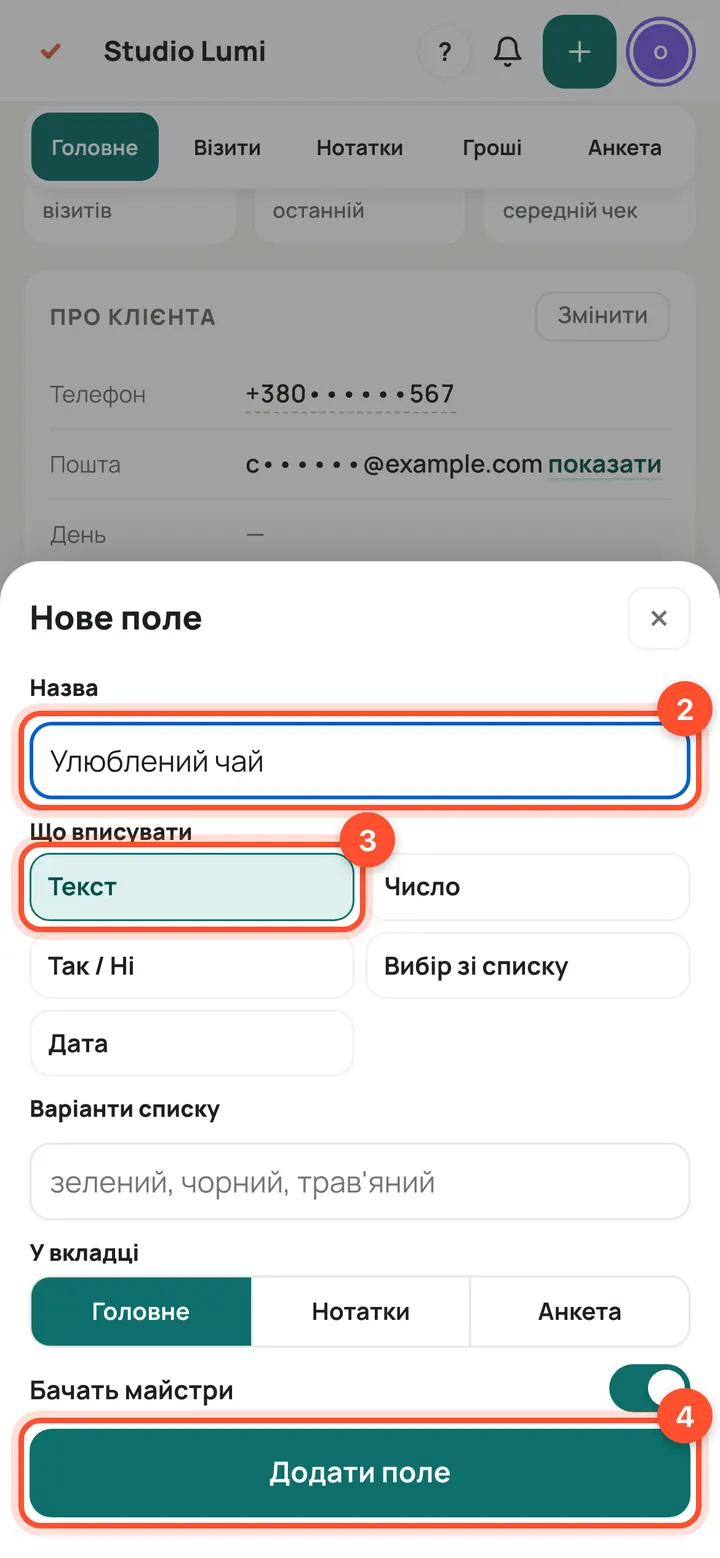
Enter a name, choose what goes in (text, number, yes/no, list, date) and press “Add field”. The same window sets the tab and whether specialists see the field.
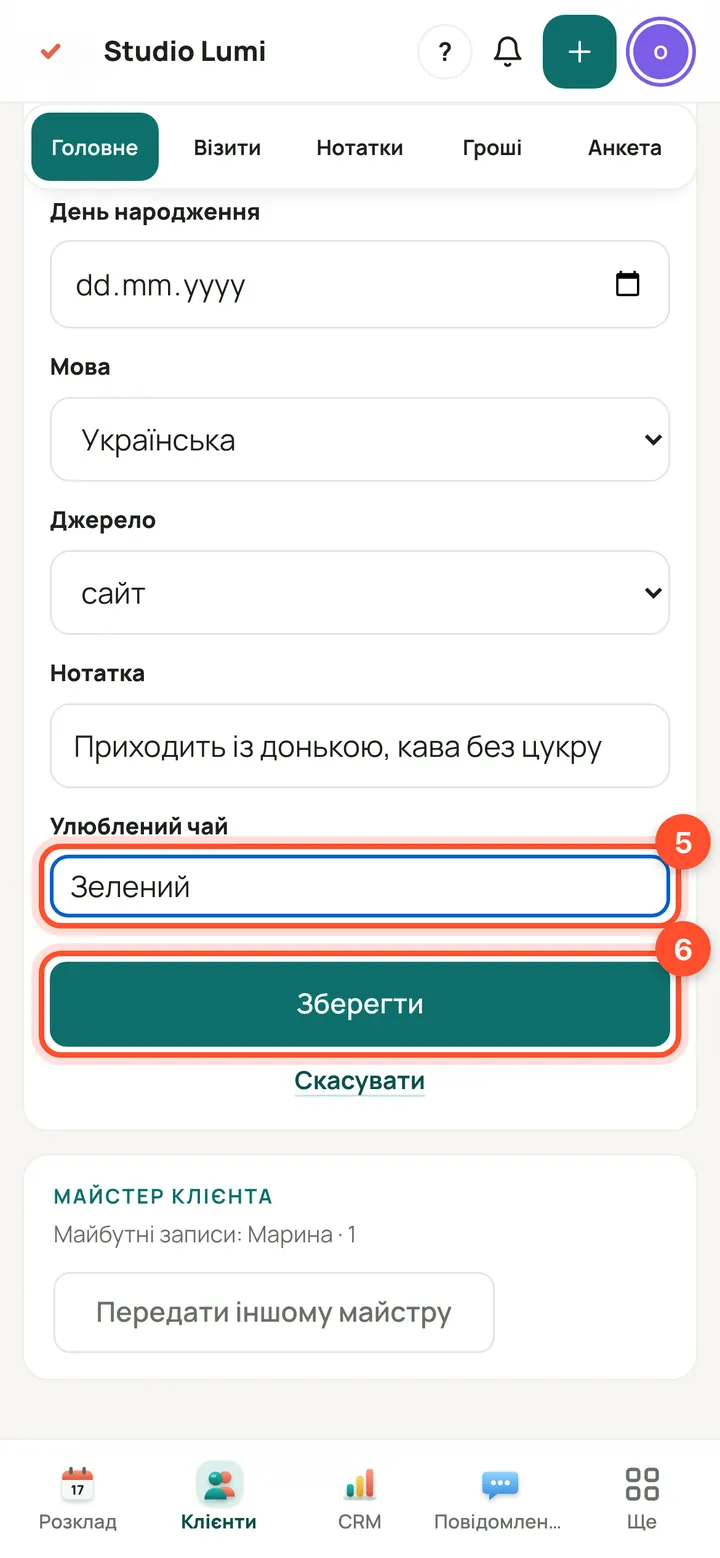
“Edit” → enter the value of the new field → “Save”. The field appears for all clients, the value for this one.
Questionnaire and booking from the card
The first-visit questionnaire is the “Questionnaire” tab. You can book the client again right from the card: name, phone and email are filled in for you.
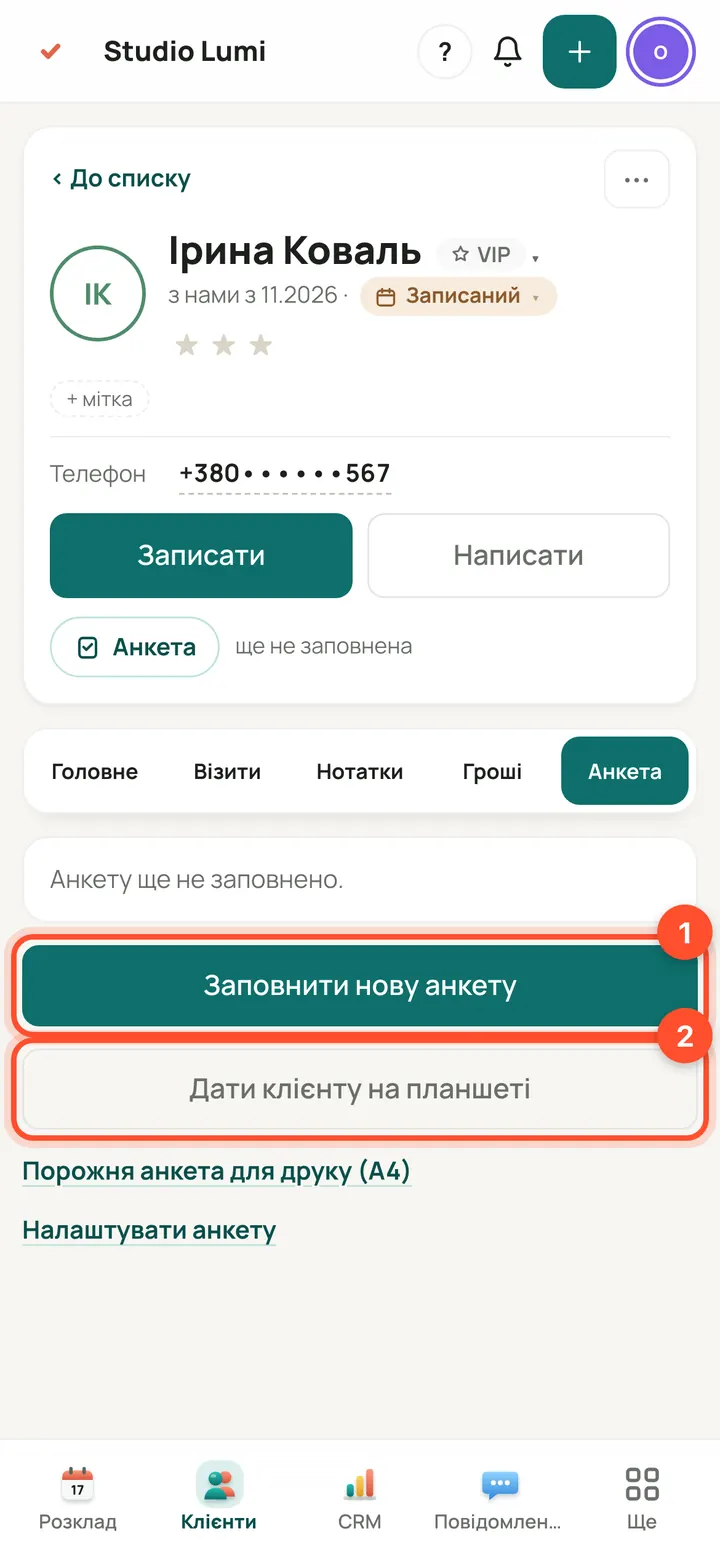
“Questionnaire”: “Fill in a new questionnaire” — you fill it in; “Hand the tablet to the client” — the client fills it in on a tablet. A blank one can be printed (A4).
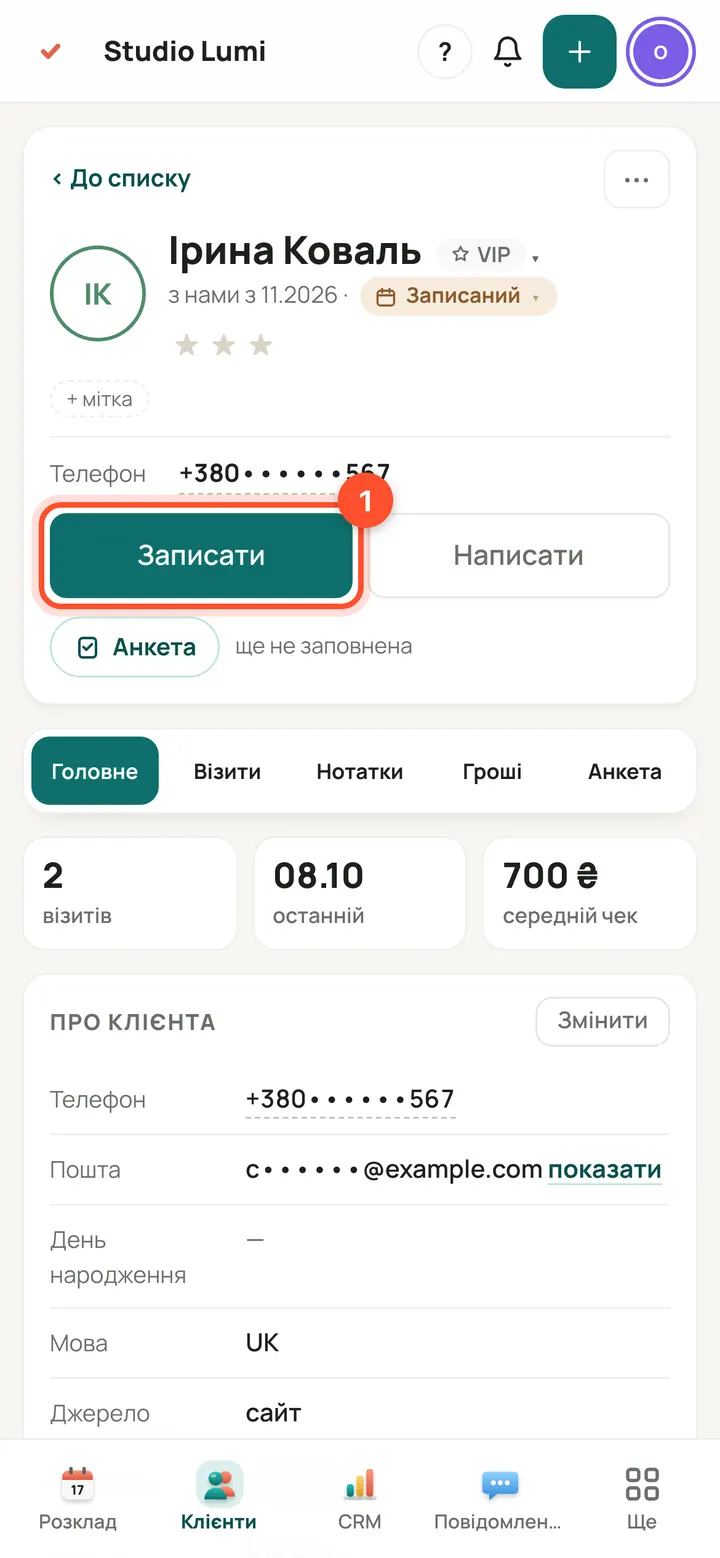
In the card press “Book”.
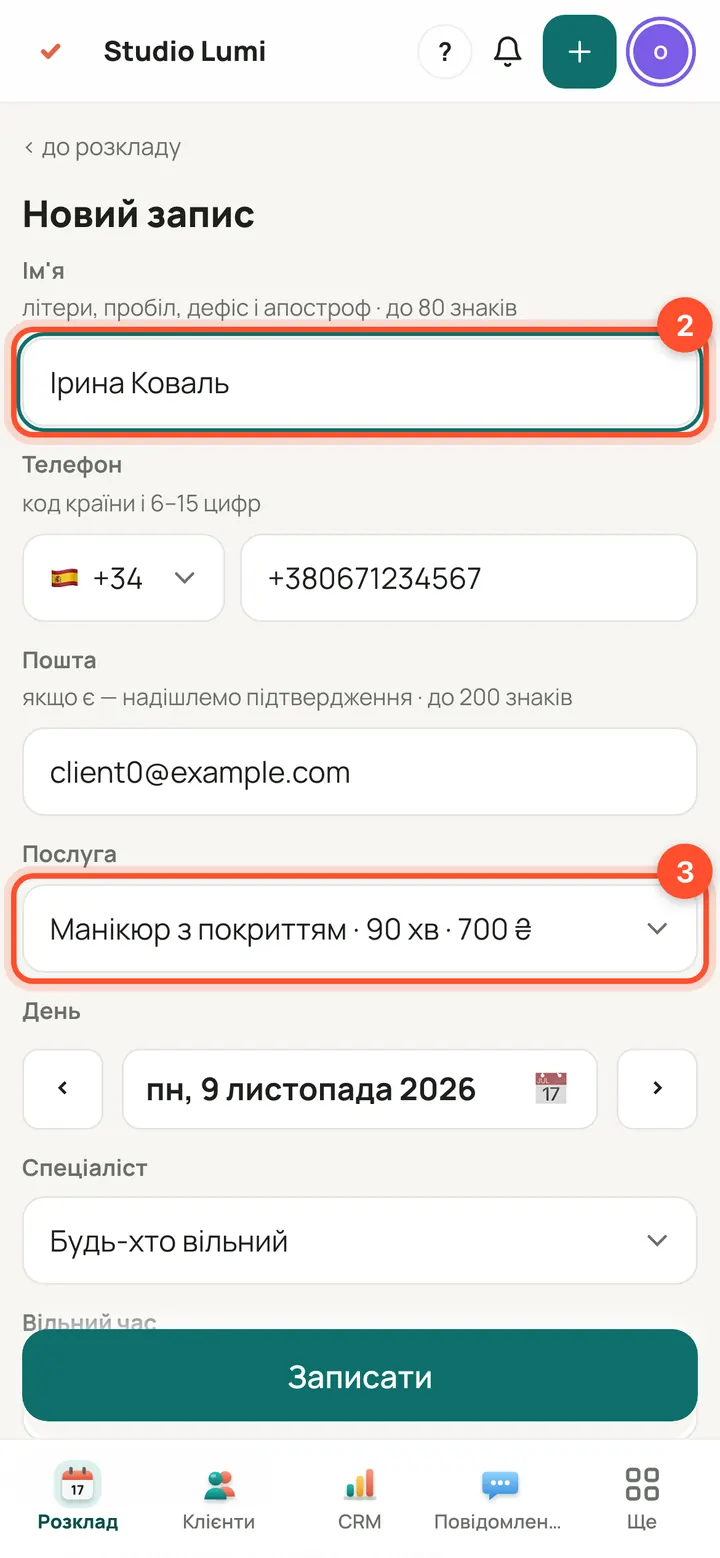
Name, phone and email are already filled in. Choose a service, day and time.
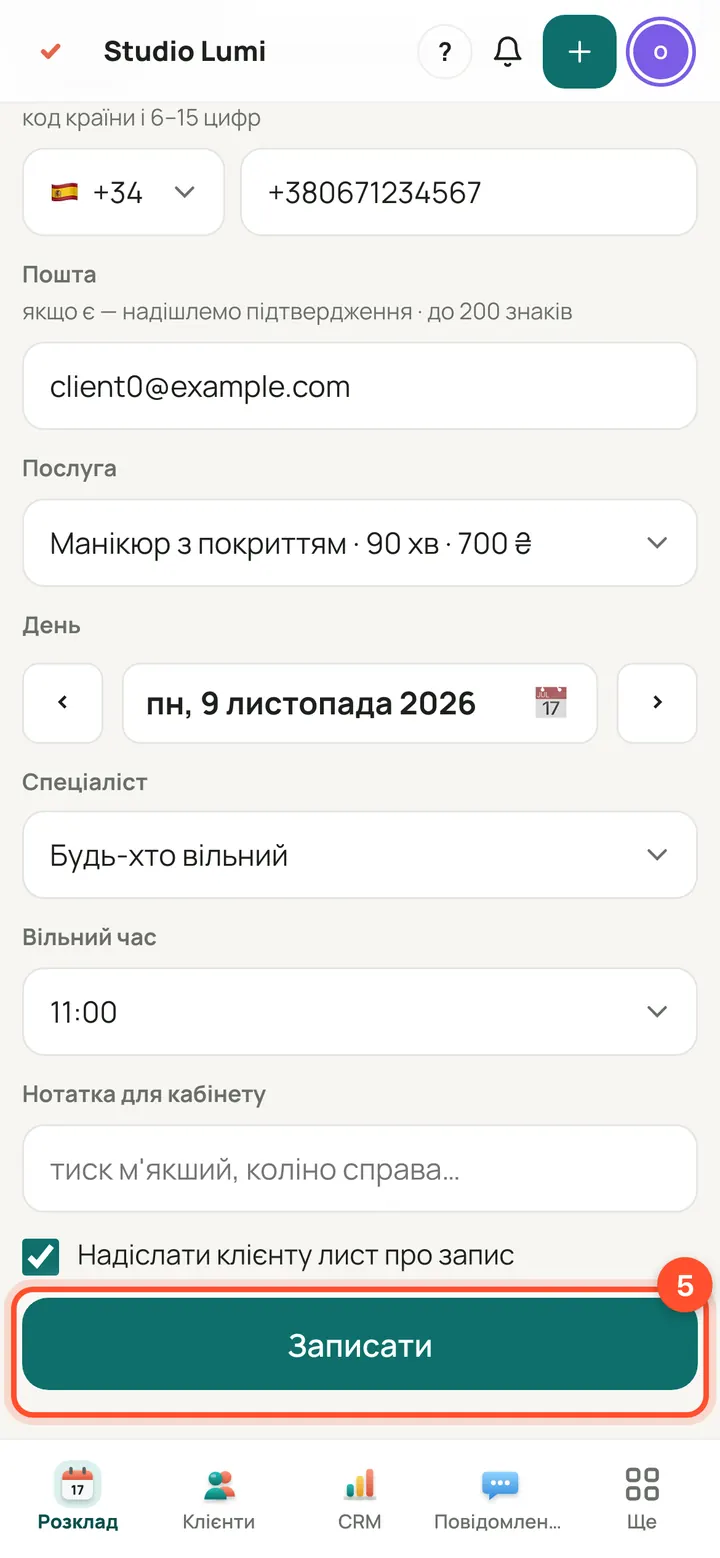
Press “Book”. The booking appears in the schedule and in the client's “Visits” tab.
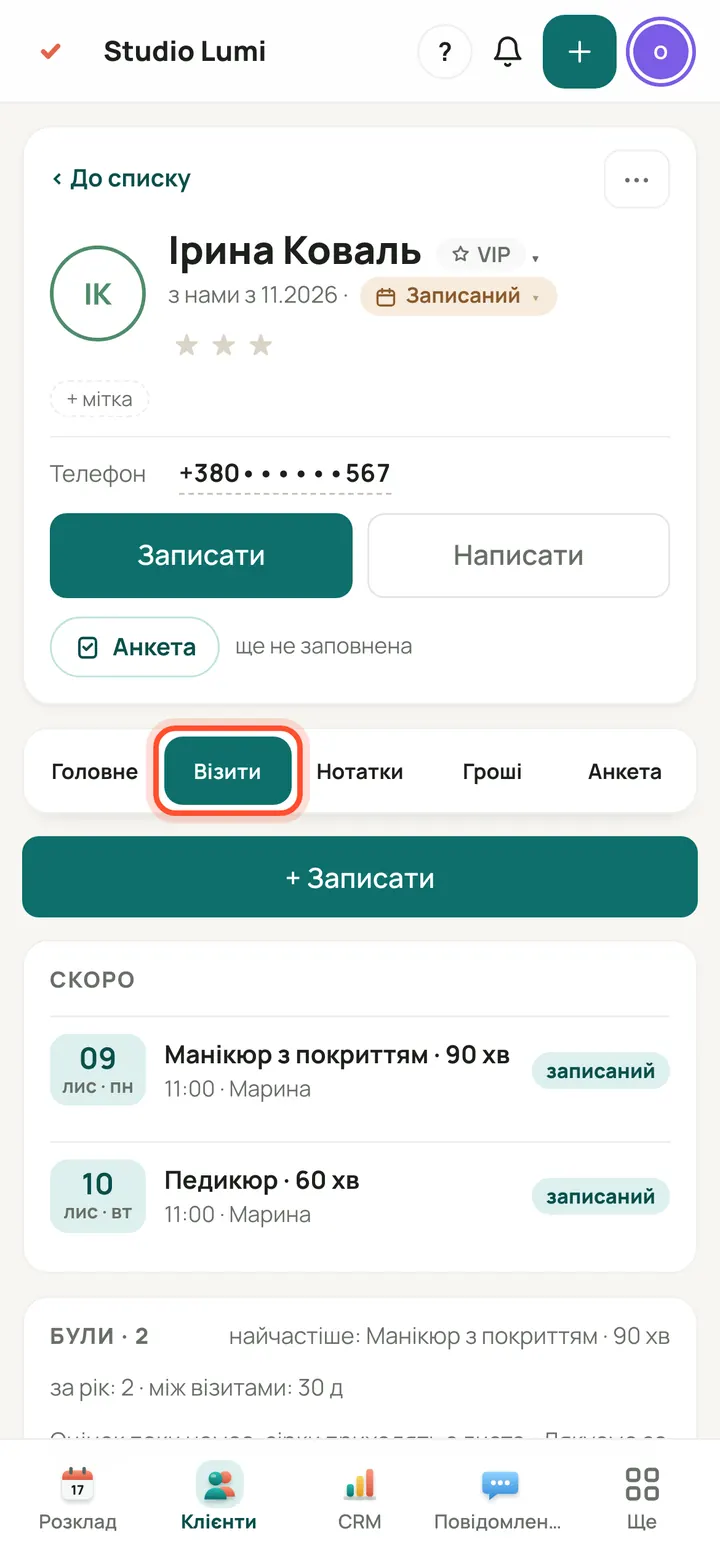
The new booking is under “Upcoming” in the “Visits” tab.
सवाल
Why can't I see the client's phone?
The owner and administrators see the phone and email. A specialist by default sees only their own clients and without contacts; the owner can grant more. The phone is masked — press “show”.
Who sees the “Money” tab?
The owner and administrators. Specialists do not see money in the card.
I booked a known client with the same phone — will there be a duplicate?
No. If the phone or email matches, the booking goes into the existing card. Booking from the panel never renames the found card.
Can I bring clients in from a spreadsheet?
Yes: “Clients” → “Import / export” → “Import clients from a file” (Excel or CSV).
Will the client see my notes?
No. Only the salon team sees notes; a specialist writes their own and reads all, and only the author or the owner can delete.
“Write” doesn't work — what now?
The email goes to the client's address. If the card has none, you can't write — ask them in person and add it with “Edit”. No more than 3 emails a day to one client.