Hours and time off
Salon hours are set in “Opening hours and rooms”, a specialist's hours in their card in “Team”. Time off closes a specialist to new bookings: the client sees “no slots left”, and bookings already made stay.
Esta aula ainda está em inglês — a tradução está a caminho.
Salon opening hours
Online booking shows clients only the hours you set here. A day off is simply a day without hours.
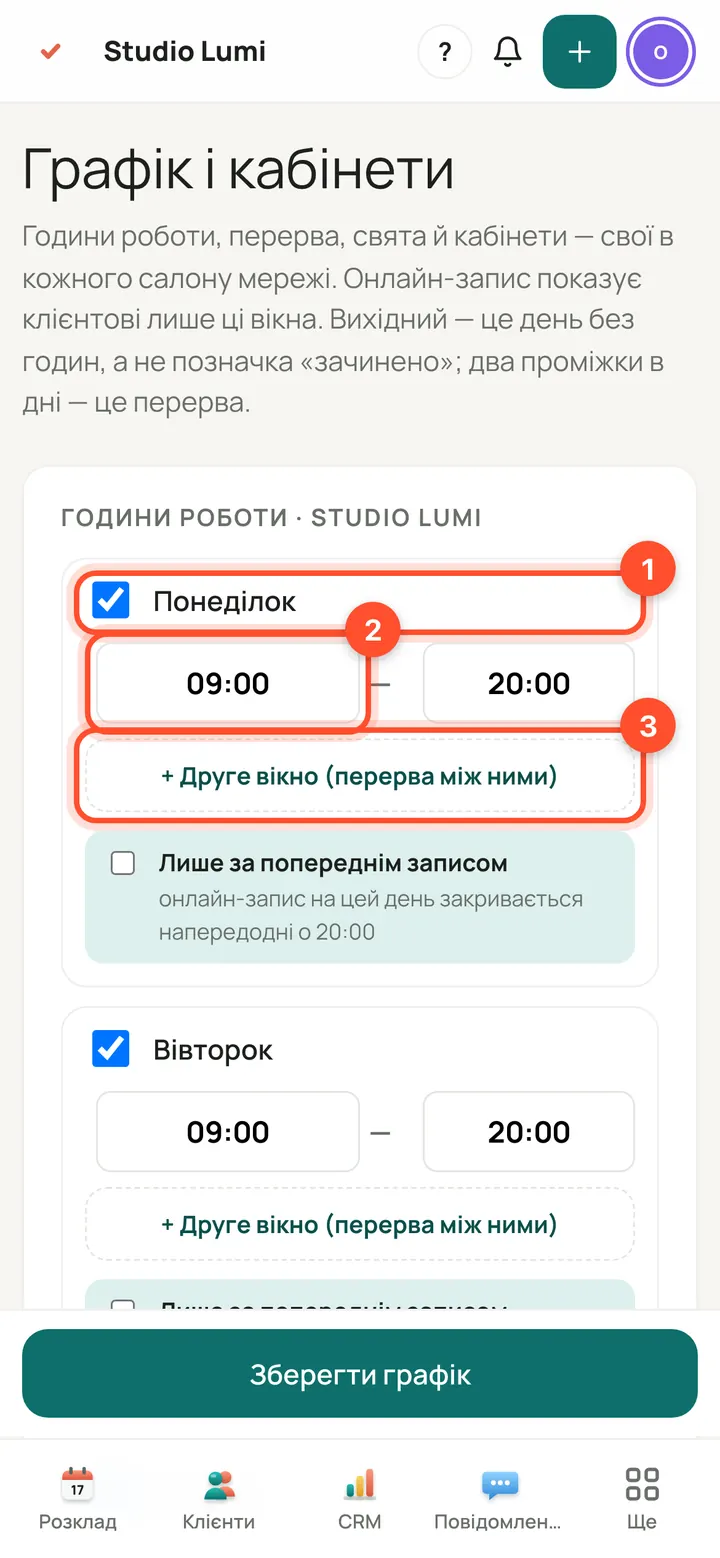
Panel → “Opening hours and rooms” (on a phone, “More”). In the “Opening hours” block each day has a tick (a working day), “from – until” hours and a second window on the right (on a phone, the “+ Second window (break in between)” button). Untick a day to make it a day off.
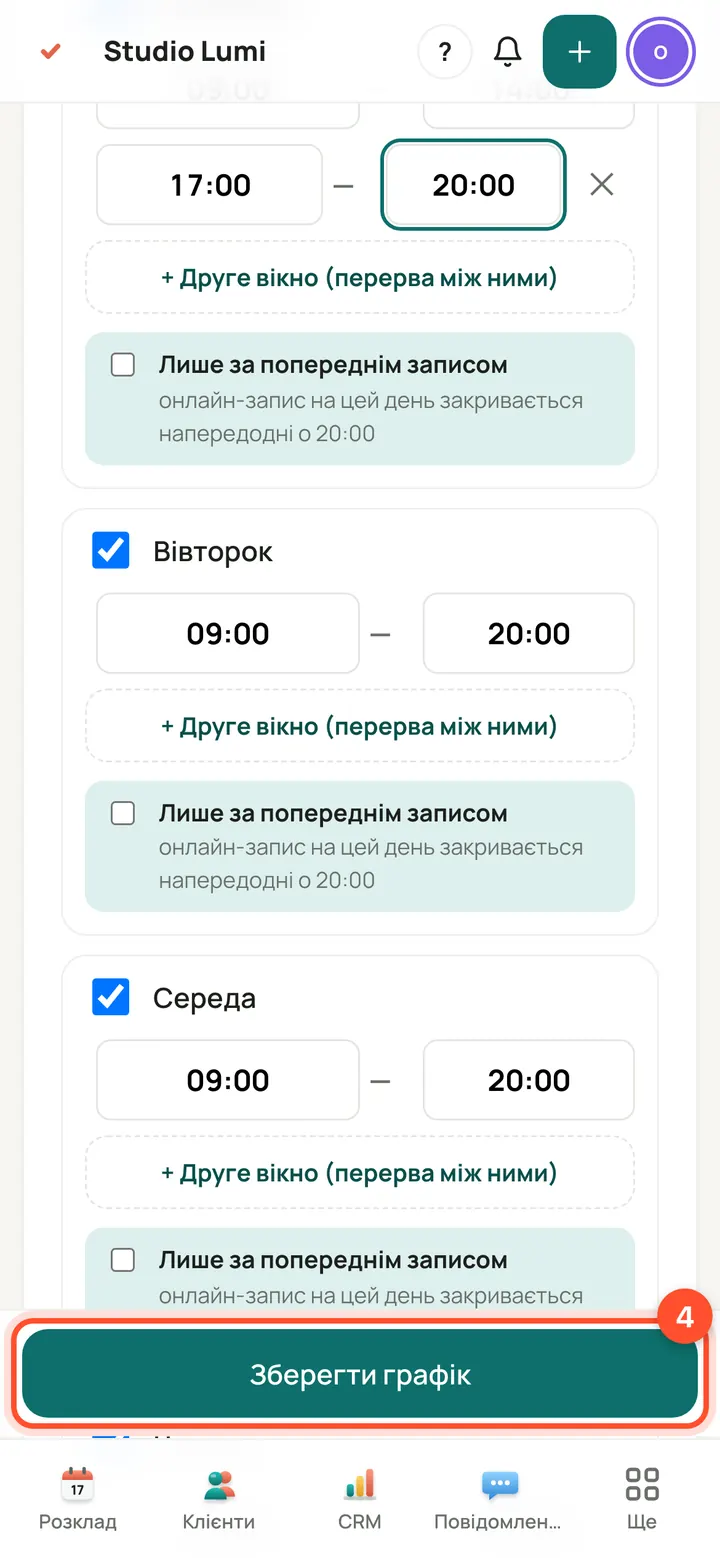
A lunch break is the gap between two windows: for example 09:00–14:00 and 17:00–20:00. The time in between is not offered to clients. Press “Save hours”.
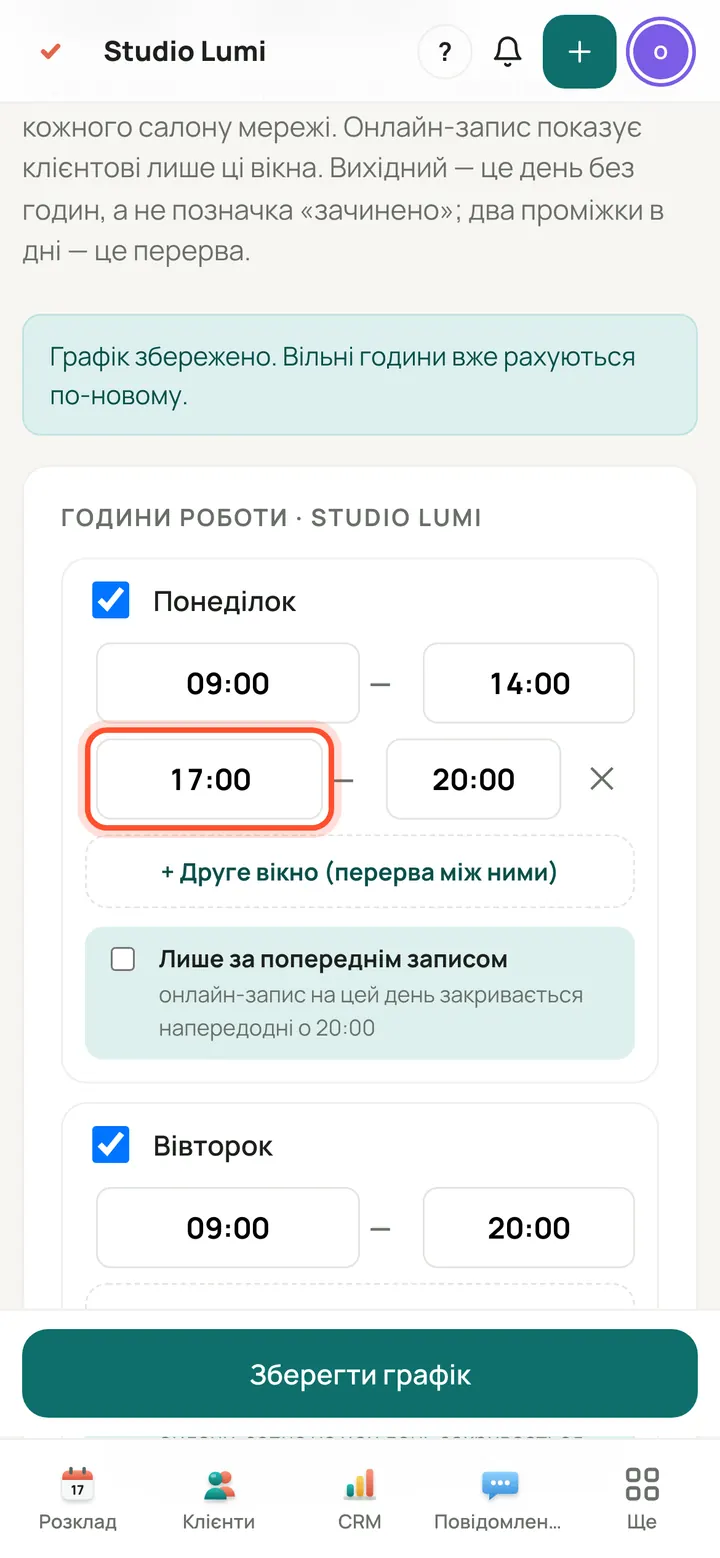
The panel confirms the hours are saved. On the right, a calendar of the coming weeks shows closed days and days off.
Close for a holiday or repairs
Leave, repairs, a holiday: any range of days, without touching the weekly hours.
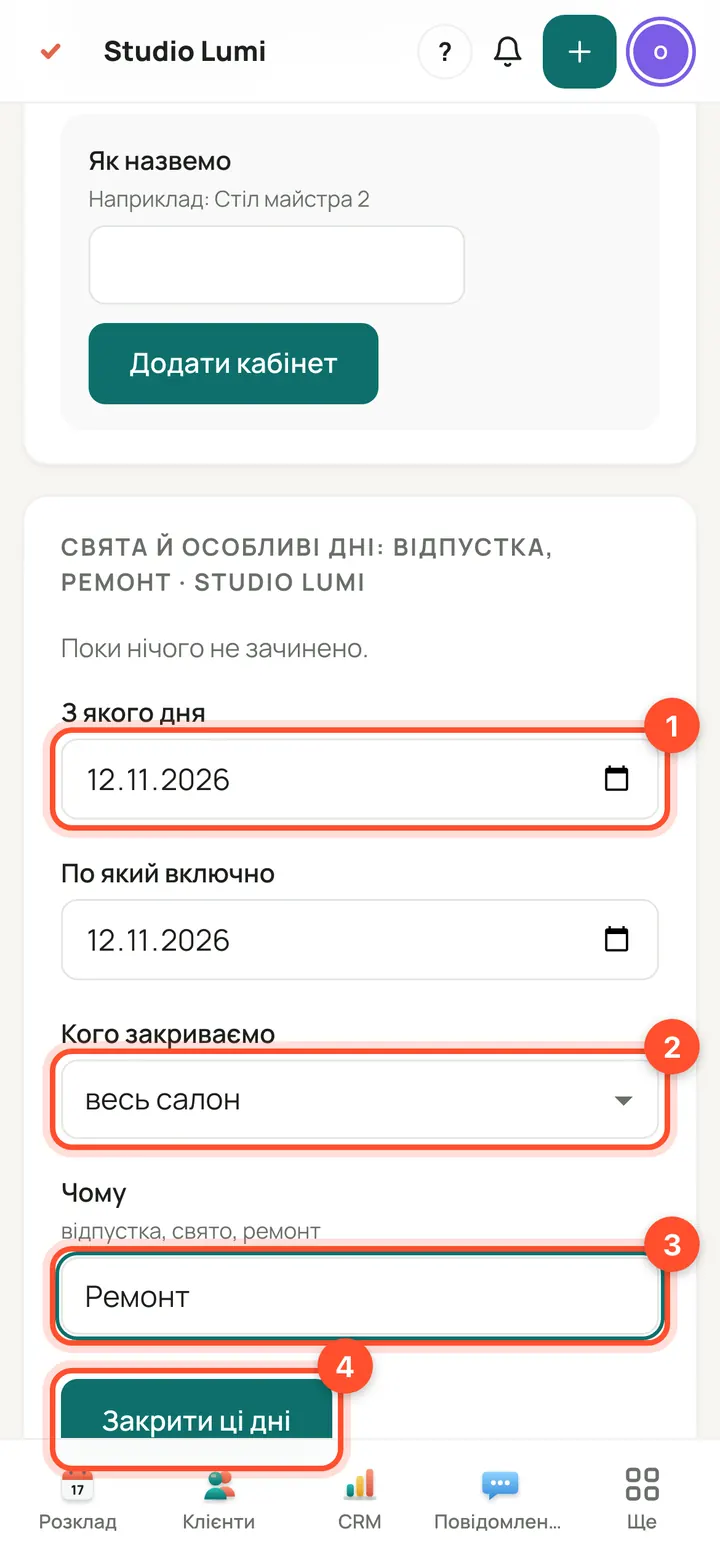
Lower on the same page is the special days block. Set “From” and “Until (inclusive)”, in “Who is closed” choose the whole salon or one specialist, enter a “Reason” and press “Close these days”.
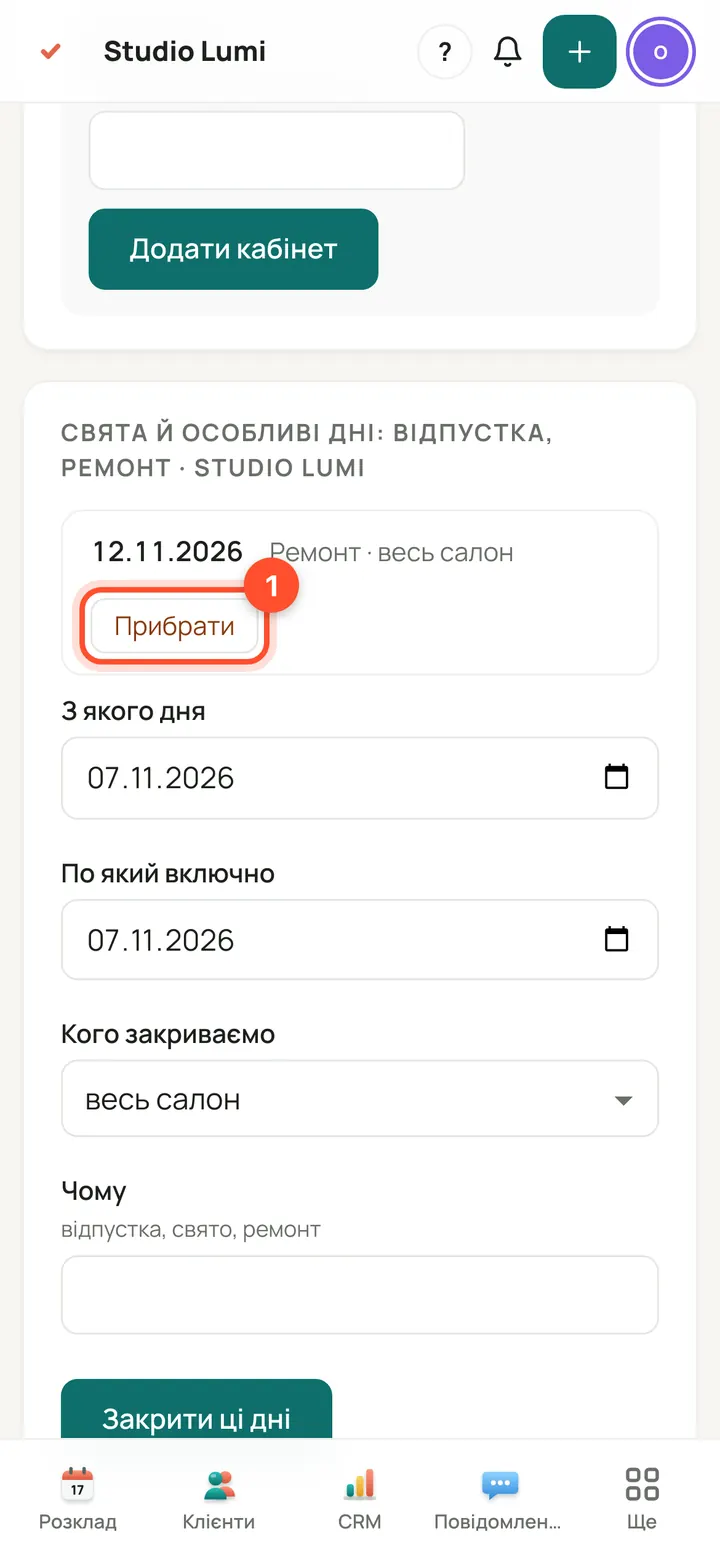
The closed days appear in a list. Made a mistake? Press “Remove”. If there are already bookings on those days, the screen names them: they are not cancelled by themselves.
A specialist's working days and hours
Until a specialist has their own hours, they work the salon's hours. Set your own only if they work differently from everyone else.
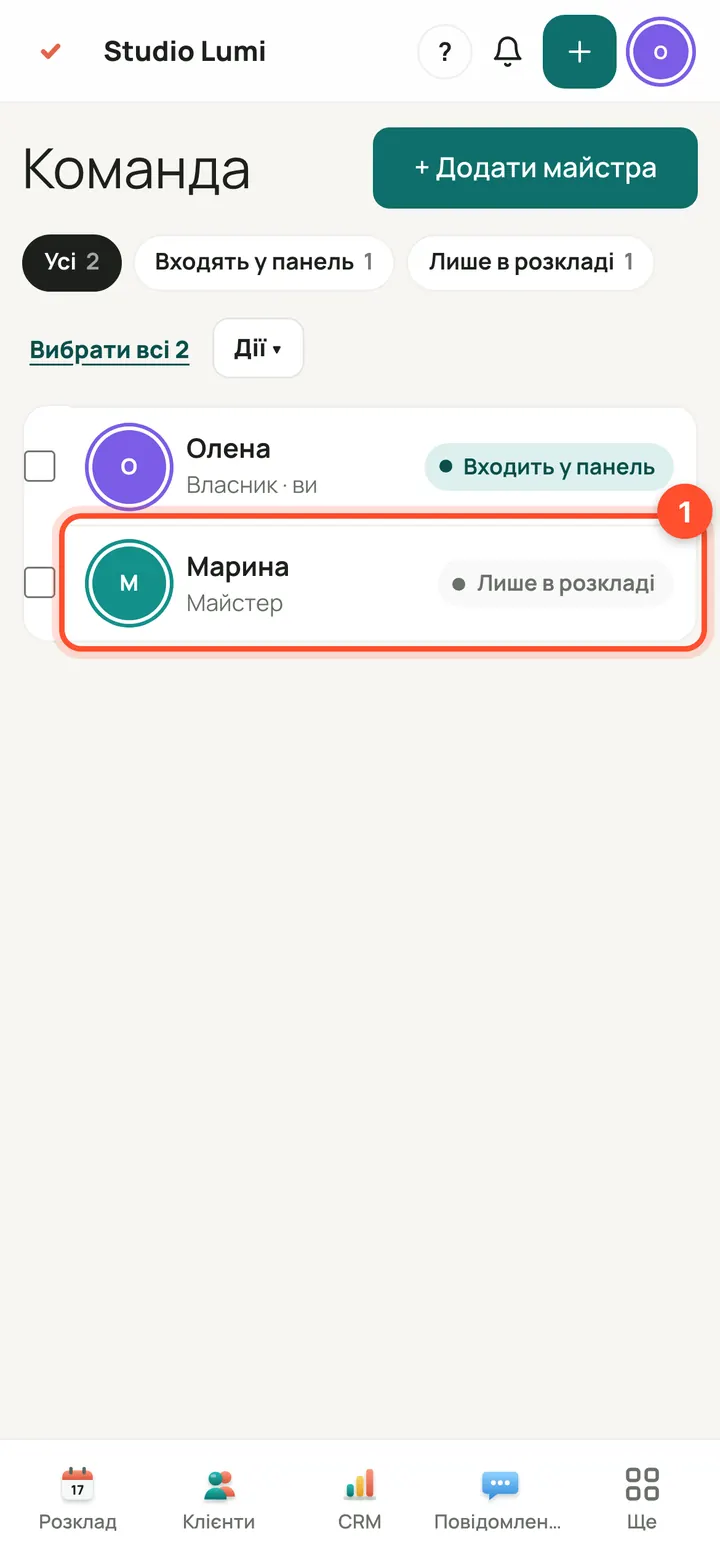
Panel → “Team” (on a phone, “More”) → press the specialist. Their card opens on the right.
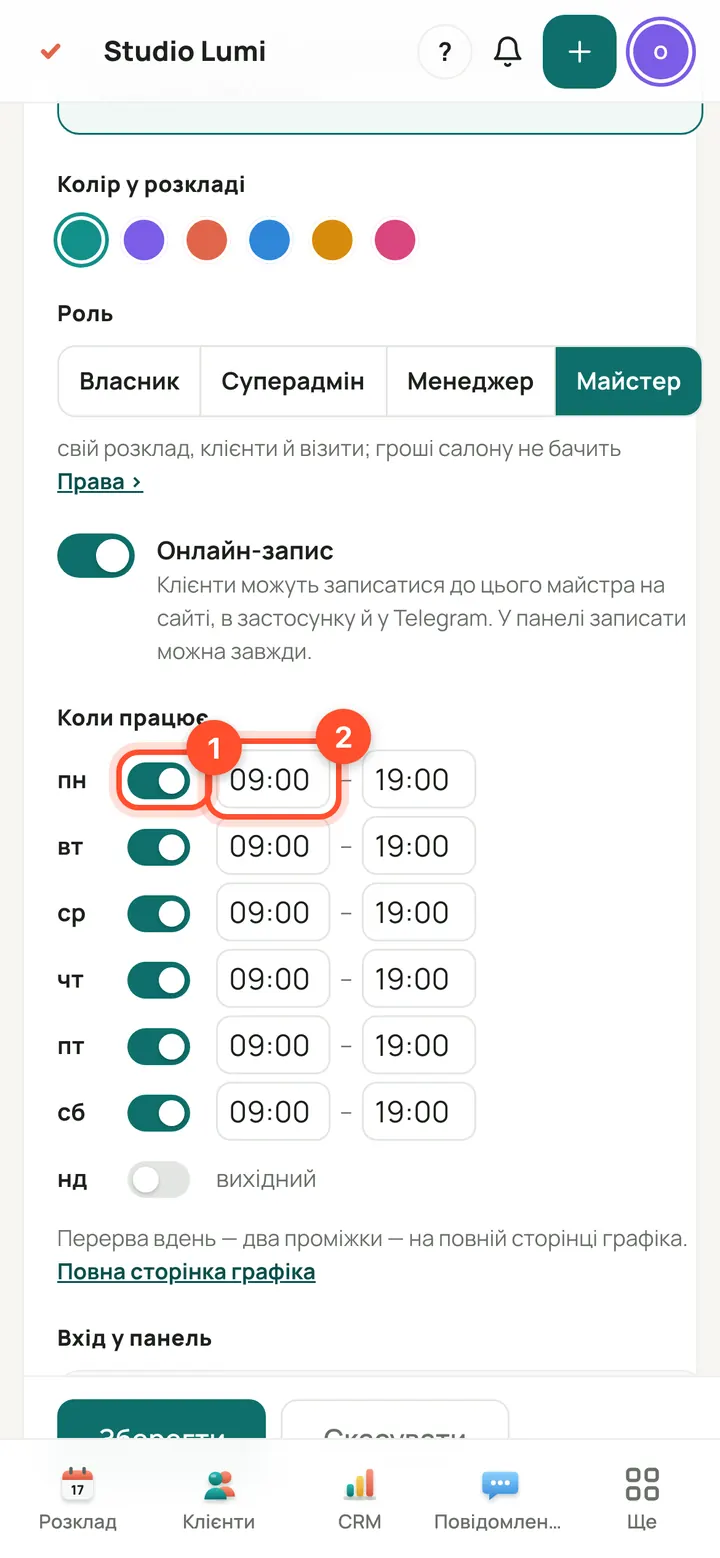
In the card find “Working hours”: the seven days of the week. Each has a switch (works or day off) and “from – until” hours.
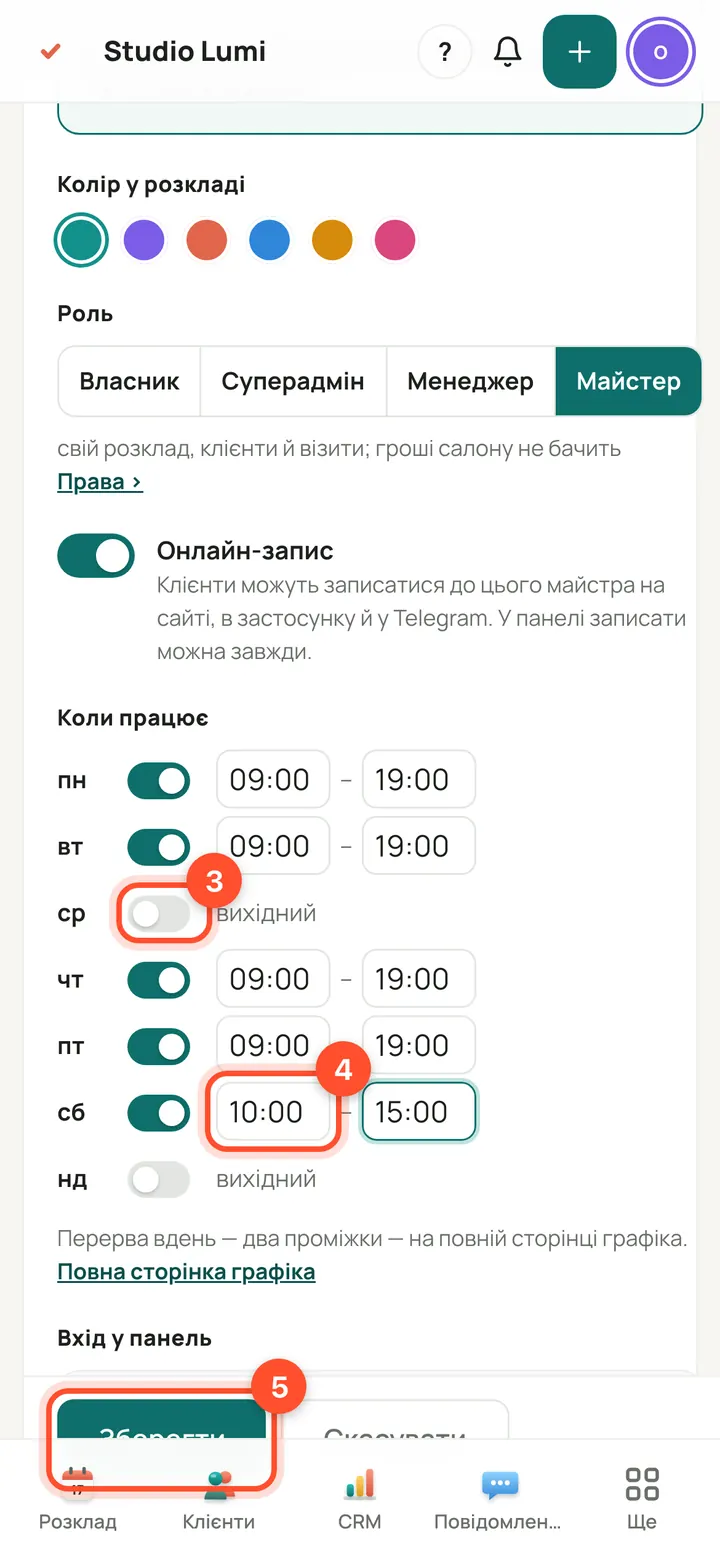
Switch a day off (3): that is the specialist's day off. Change the hours of another day (4). Press “Save” (5). Personal hours work only inside the salon's hours: nobody can book the specialist before the salon opens.
A specialist's time off, leave or sick leave
On those days nobody can book the specialist on the site, in the app or in the bot. Bookings already made are left alone.
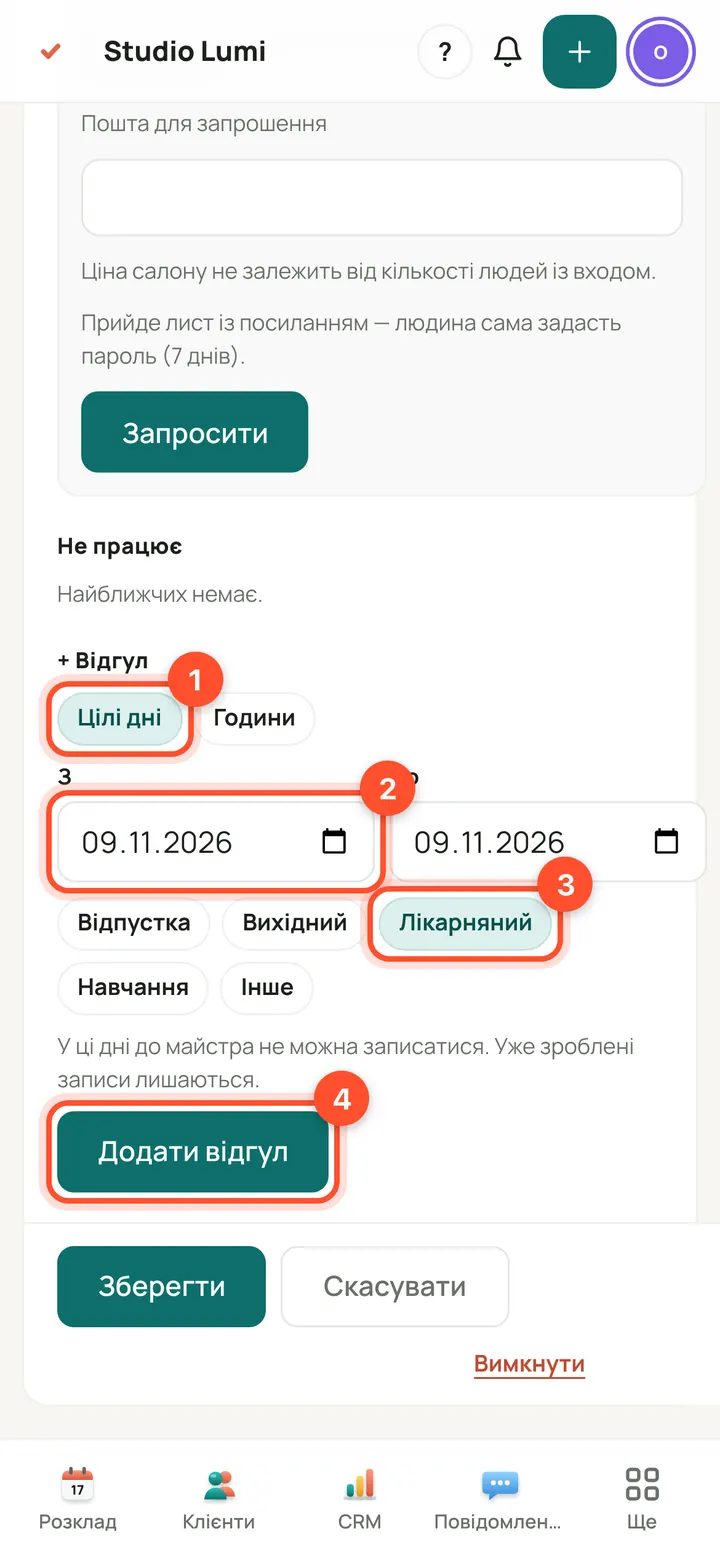
In the specialist's card, lower down, is “+ Time off”. Keep “Whole days”, choose “From” and “To”, a reason (Annual leave, Day off, Sick leave, Training, Other) and press “Add time off”.
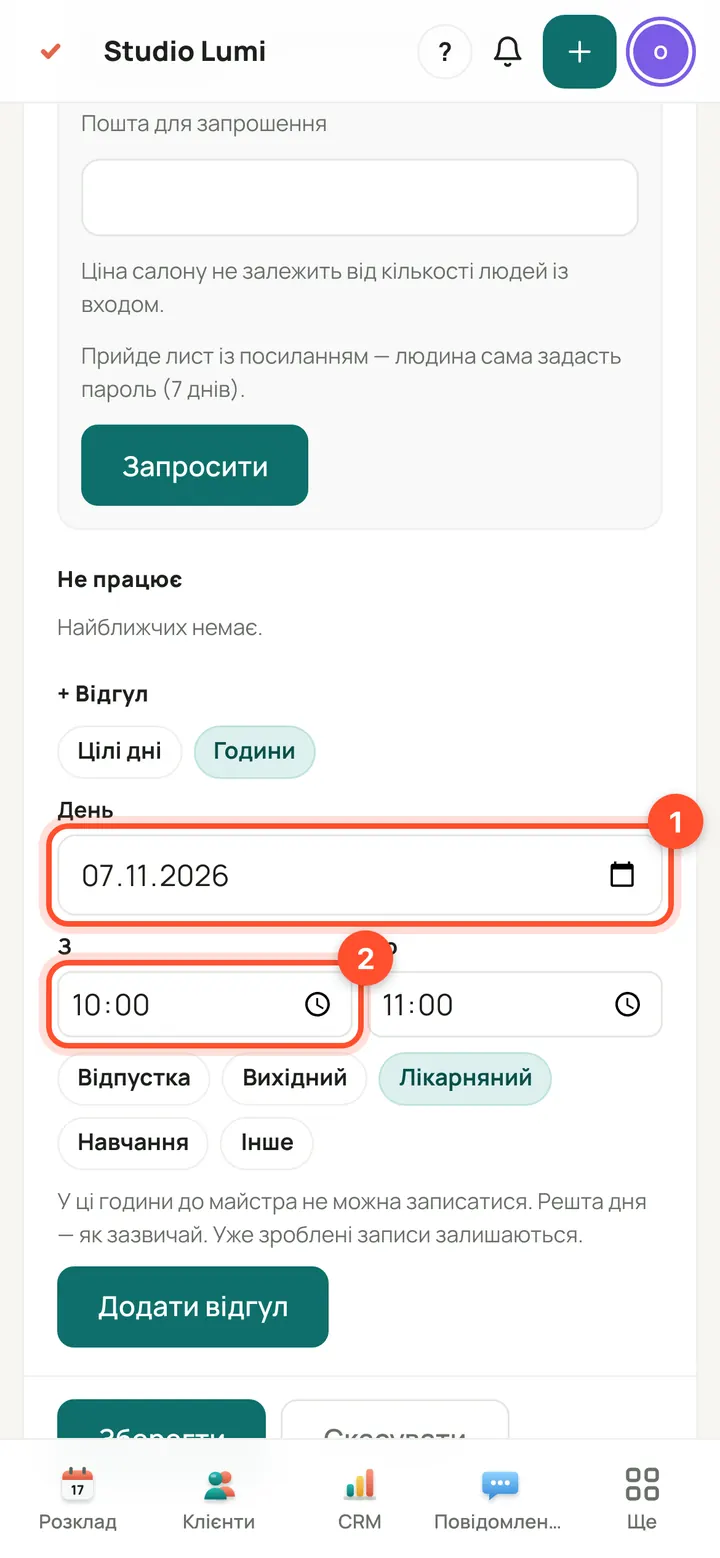
Only part of a day? Choose “Hours”: enter the “Day” and the times “From” and “Until”. Only those hours are closed.
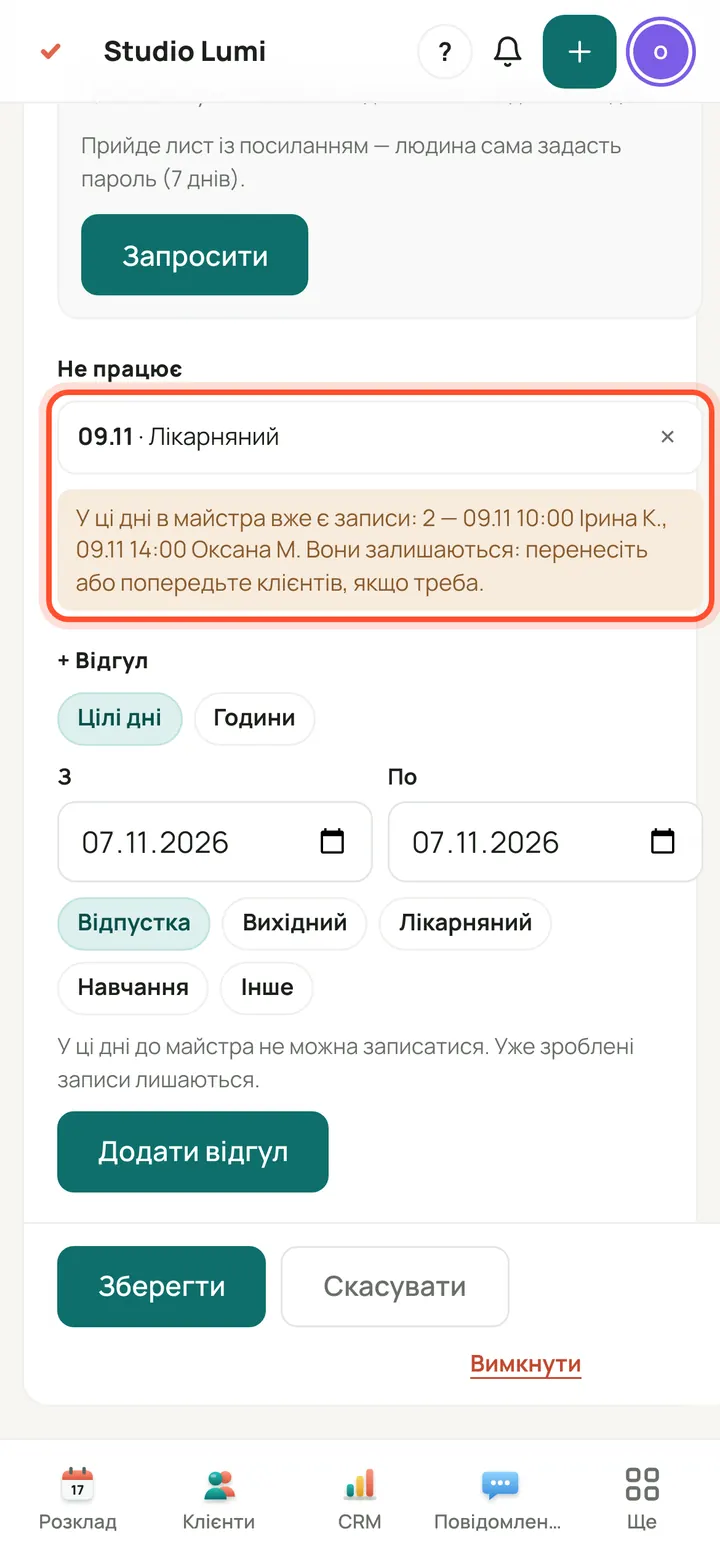
The time off appears in the “Not working” row. If the specialist already has bookings on those days, the card names them: move them or warn the clients. Remove time off with the cross ×.
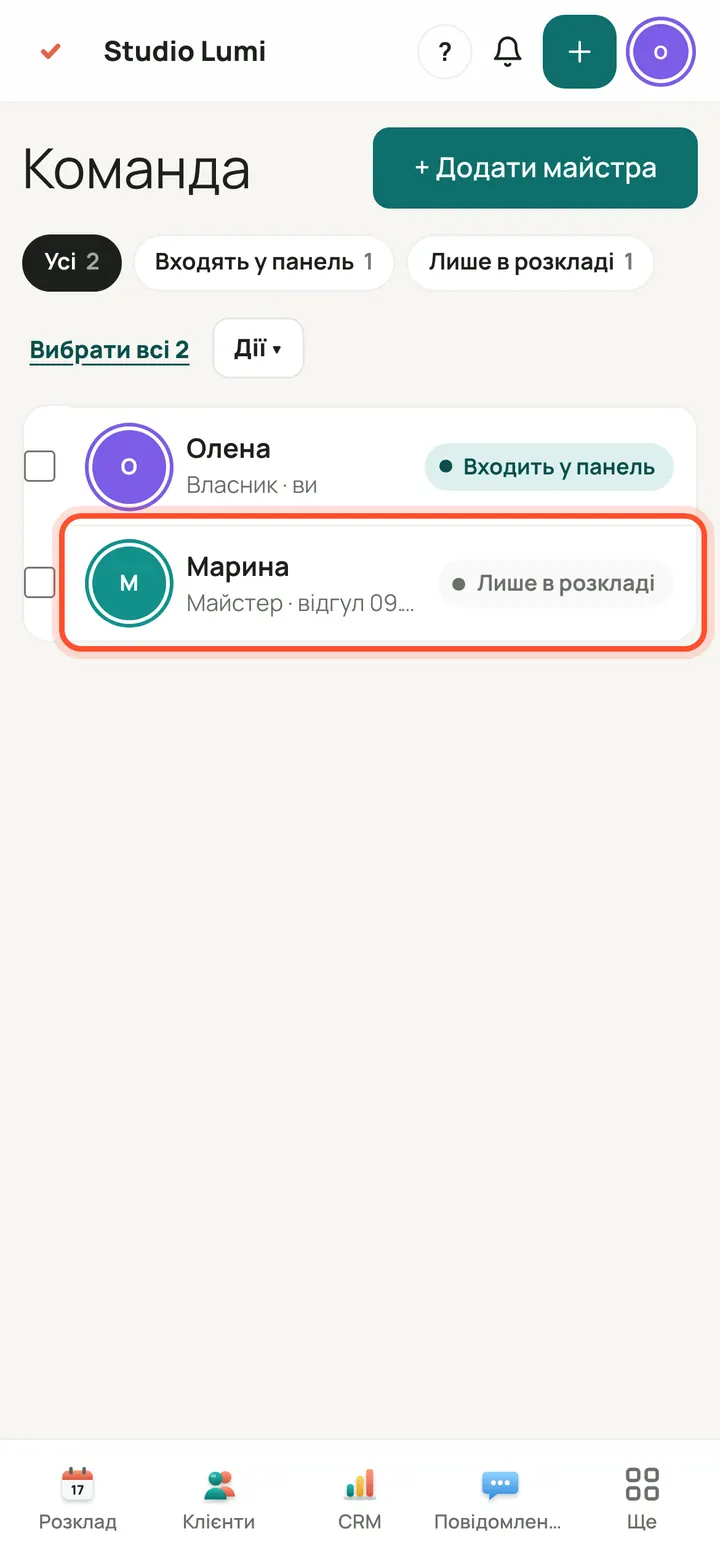
In the “Team” list the specialist's nearest time off is shown (within 30 days).
How it looks in online booking
Closed days, days off and time off cannot be chosen by the client: there is simply no free time.
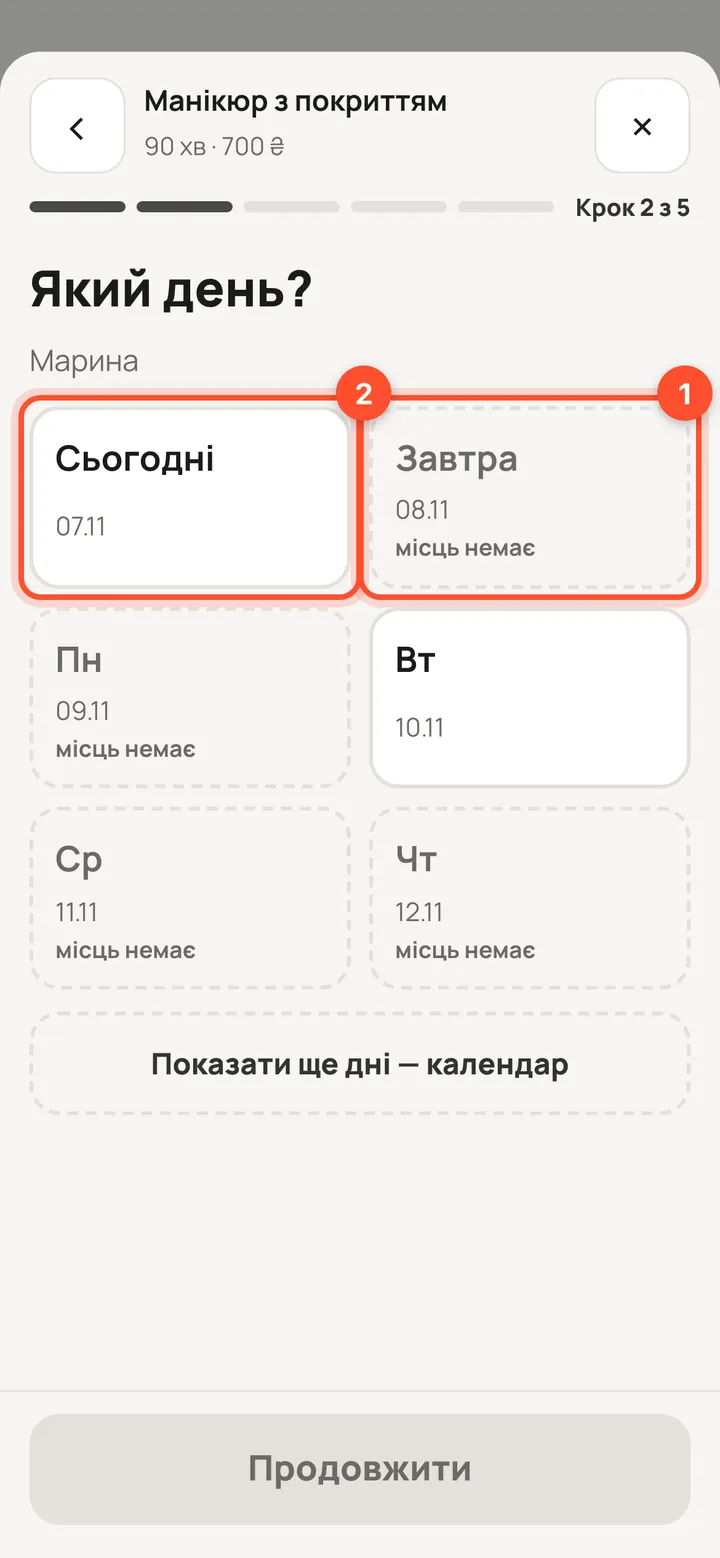
The client picks a service and this specialist → the “Which day?” step. Days with no free time (salon day off, closure, the specialist's time off) are marked “no slots left” (1). The other days can be chosen (2).
Perguntas
How do I make Sunday a day off?
Panel → “Opening hours and rooms” → untick Sunday → “Save hours”. A day off is a day without hours; there is no separate “closed” flag.
What happens to existing bookings if I add time off?
Nothing: the bookings stay. The panel names them in the specialist's card (first name and the initial of the surname) and you decide whether to move them or warn the clients. New bookings for those days are no longer possible.
A specialist works differently from the salon. What do I do?
Open their card in “Team” and set the hours in “Working hours”. Without their own hours a specialist works exactly the salon's hours. Their own hours narrow the working time but do not extend the salon's hours.
How do I set a lunch break?
Give the day two windows: for example 09:00–14:00 and 17:00–20:00. The time between the windows is not offered to clients. A specialist can also have two intervals per day.
How do I add or switch off a room?
On the same “Opening hours and rooms” page, in the “Rooms” block: “+ Room” adds one, the switch turns it on and off. A second room works at once: two people can book the same hour with different specialists. A switched-off room is not offered for new bookings, and existing bookings on it stay.