Online booking on your website
A client books on their own on the salon page: service → specialist → day → time → details → confirm, with no sign-in or password. You decide which services and specialists are available and how far ahead clients can book.
Esta aula ainda está em inglês — a tradução está a caminho.
Where to find the link and QR code
Clients book on the salon's booking page. The owner takes the link to it and a QR code for the door or window.
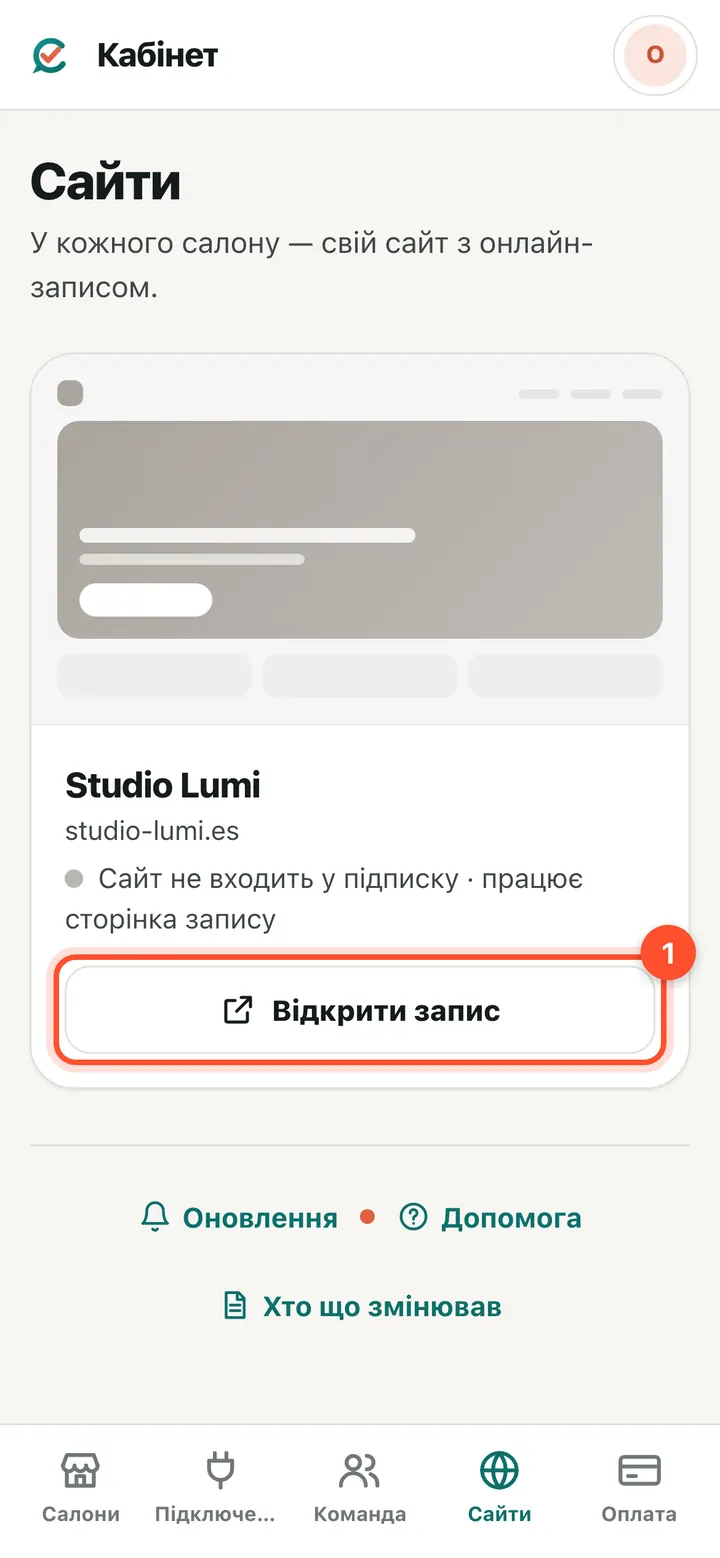
Owner console (app.citamate.com) → “Websites”. The salon's booking address is shown. “Open booking page” opens what the client sees: copy the address from the browser bar and send it to clients.
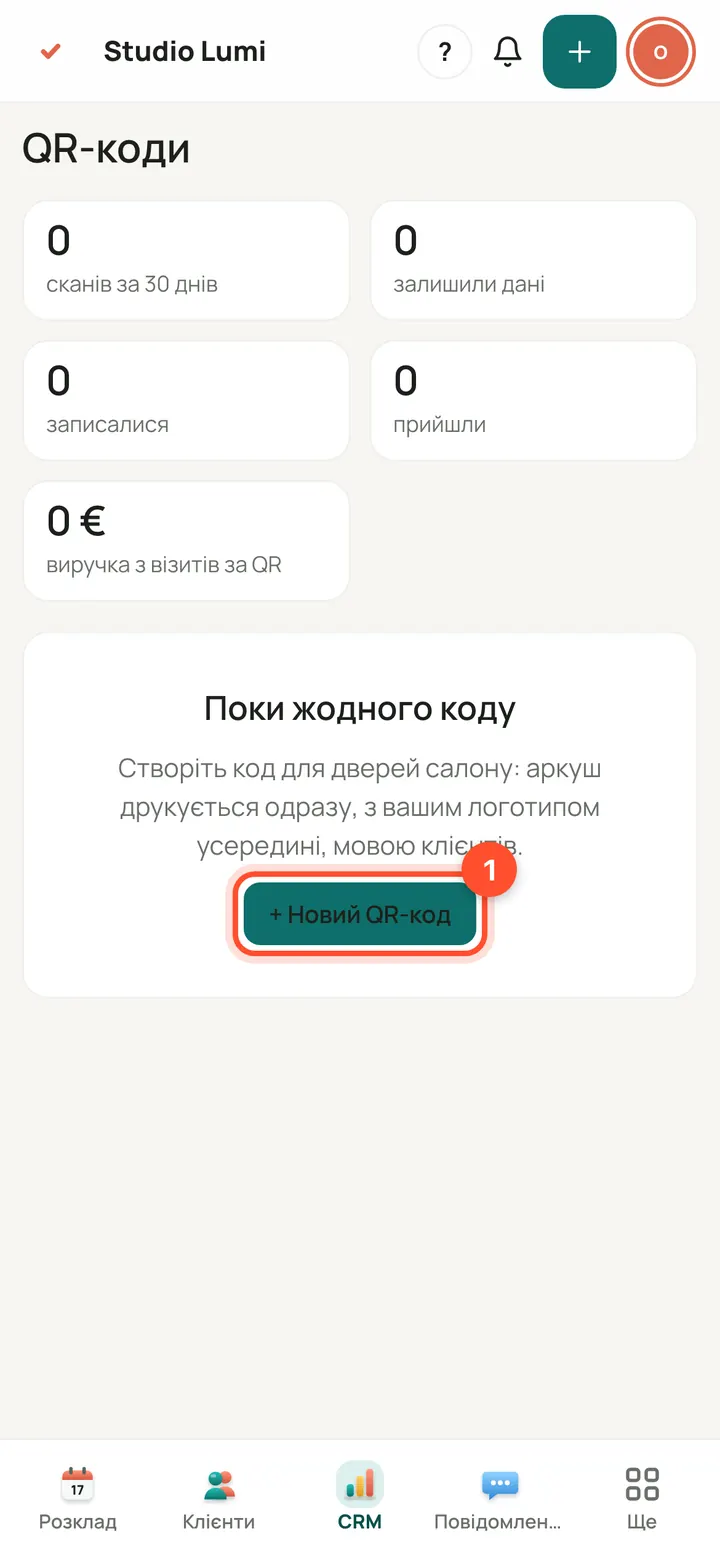
QR code: salon panel → CRM → “QR codes” (on a phone: “More” → “QR codes”). Press “+ New QR code”.
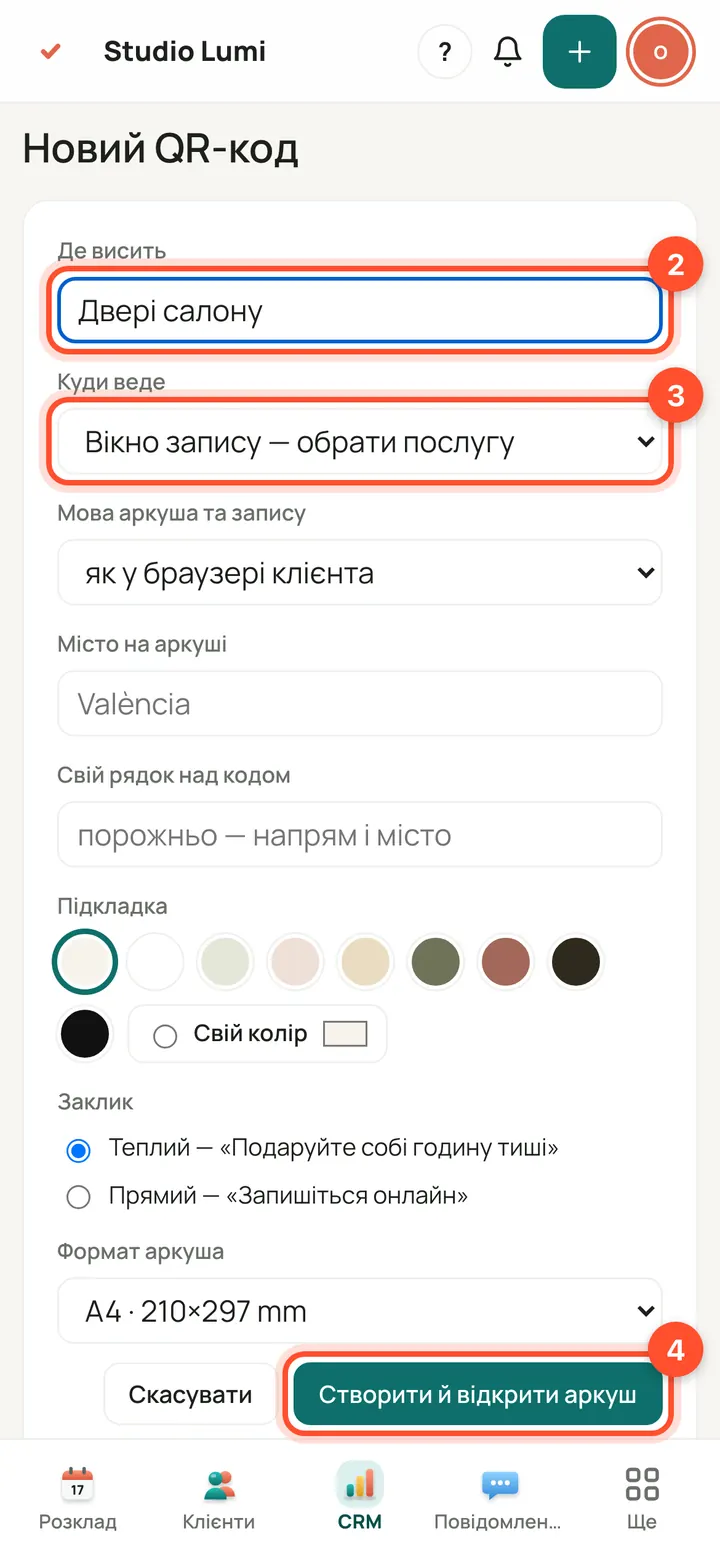
Enter where it will hang (“Where it hangs”), choose “Where it leads” — the booking window, one service or the website home page — and press “Create and open the sheet”.
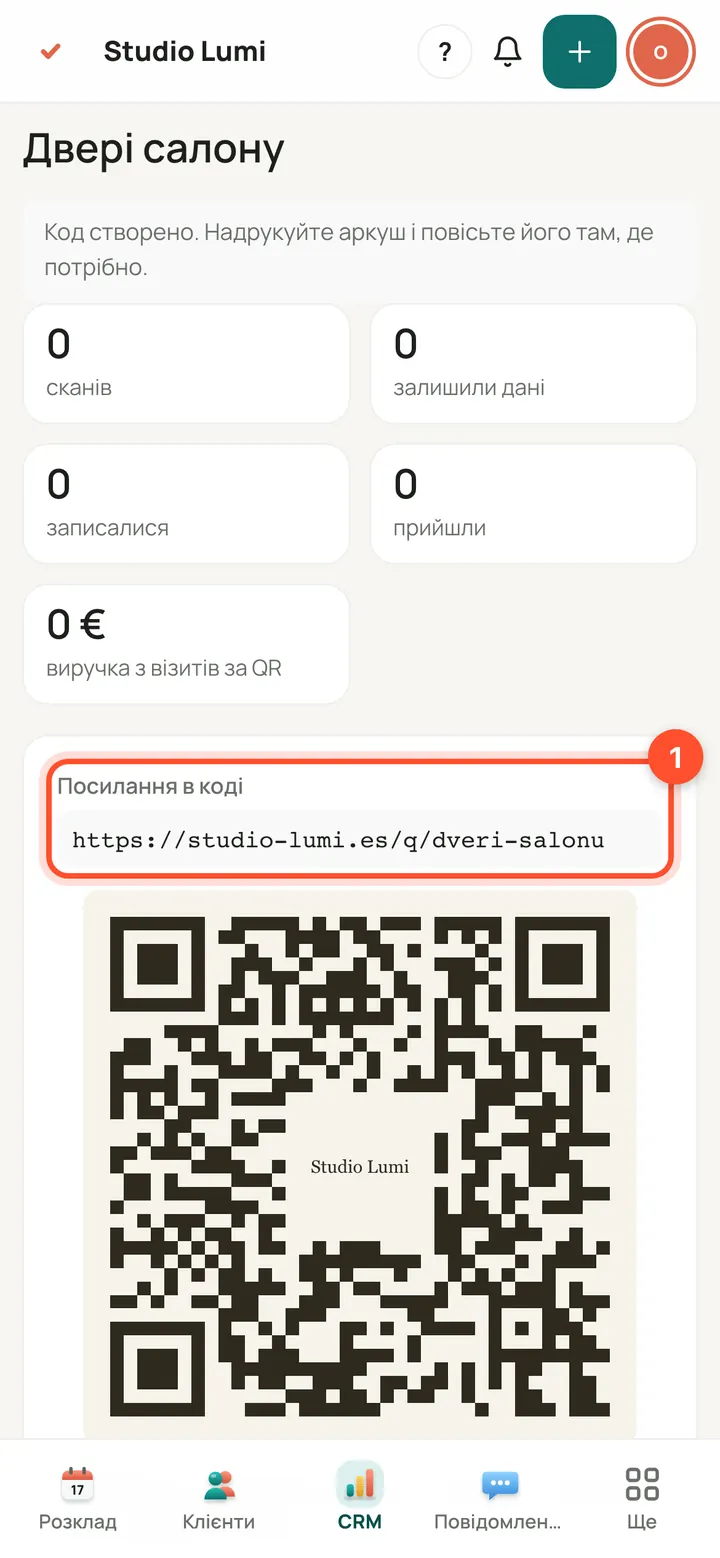
On the code card: “Link inside the code” is where the QR leads. On a computer: “Download QR (SVG)” and “Open the sheet for printing”. Check the code with your phone right from the screen: the camera should open the booking.
How a client books
No sign-in or password. One question per screen; the top shows “Step N of 5”.
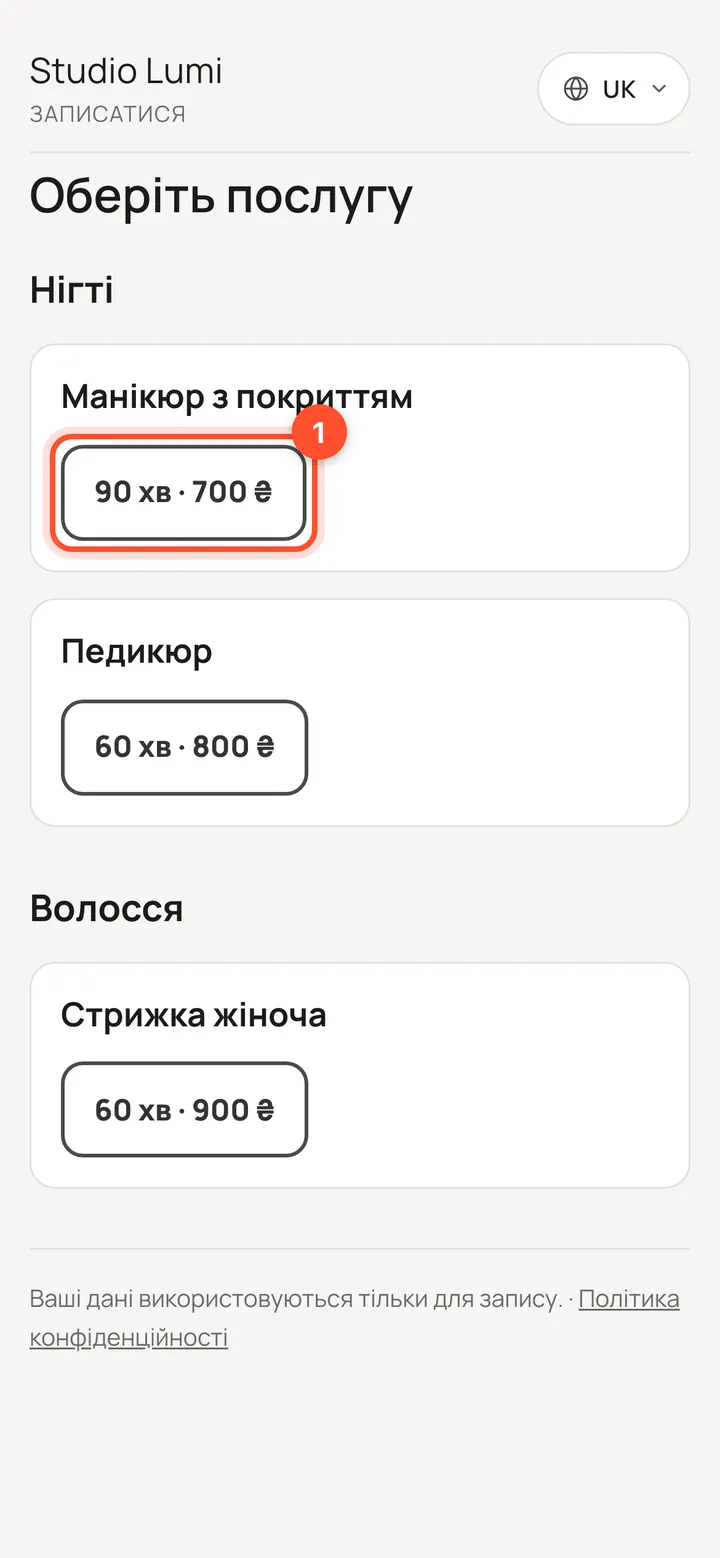
The client opens the booking page and presses the duration of the service they want (e.g. “90 min · 25 €”).
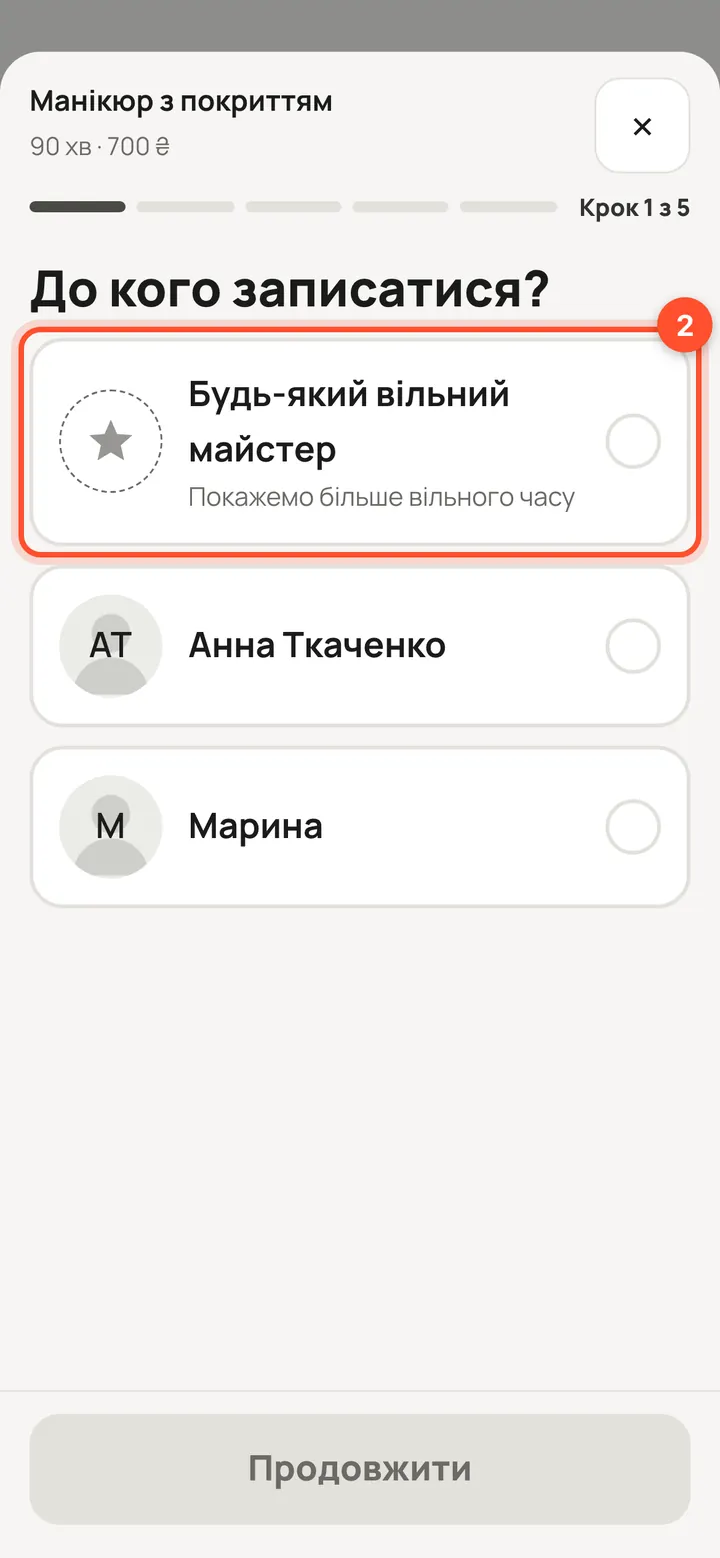
“Who would you like?” — “Any available specialist” or a particular one. If there is only one specialist, this step is skipped. Then “Continue”.
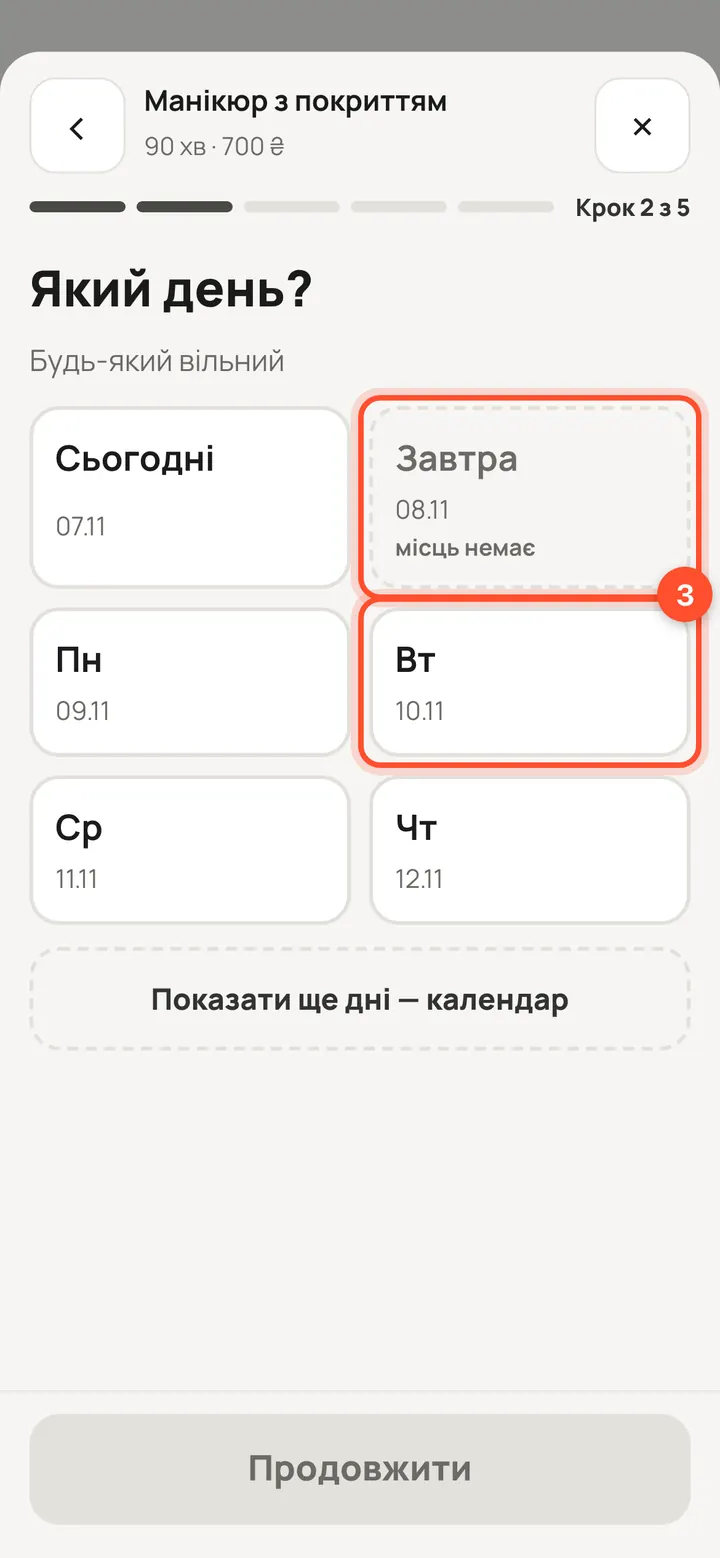
“Which day?” — the nearest days as tiles; “More days — calendar” opens the month. Pick a day, then “Continue”.
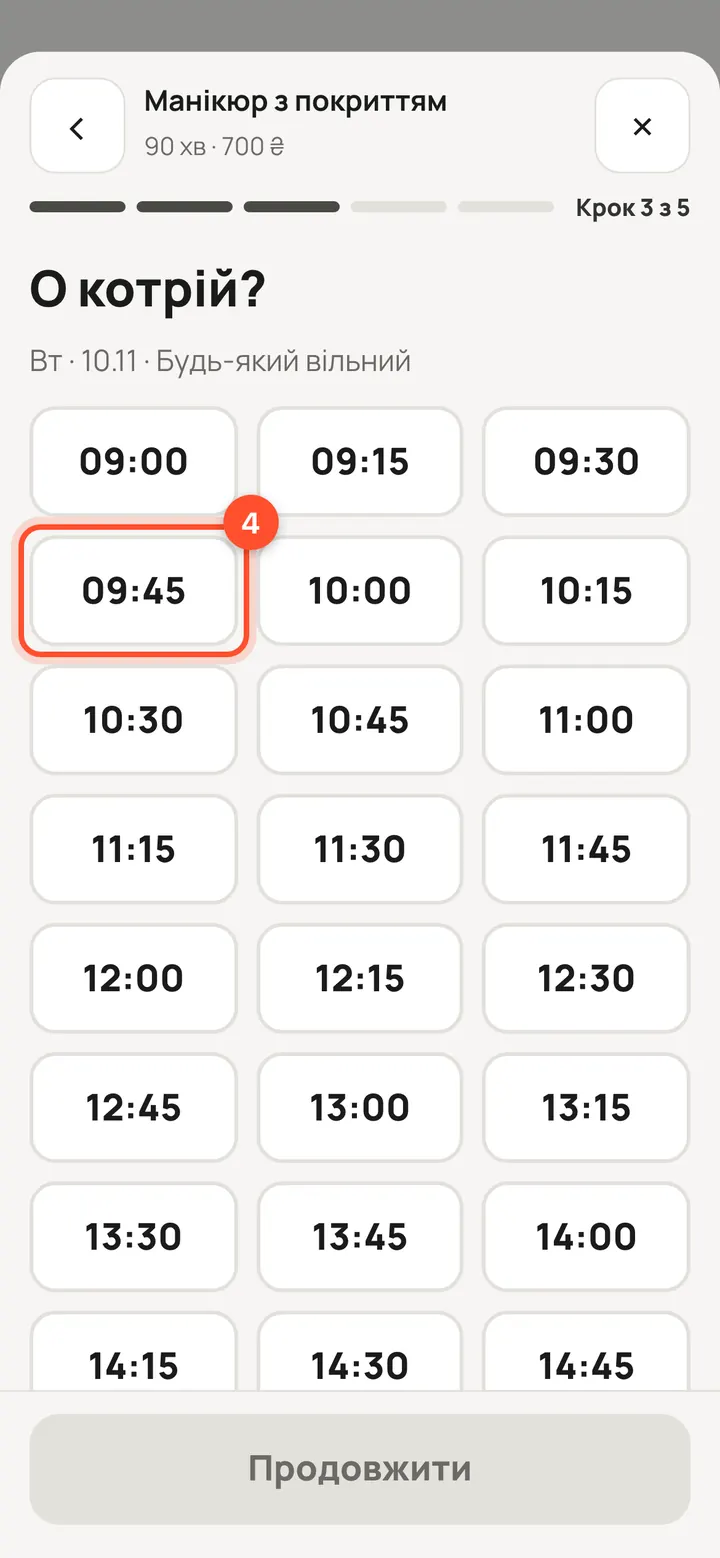
“What time?” — only free times are shown. Press a time, then “Continue”.
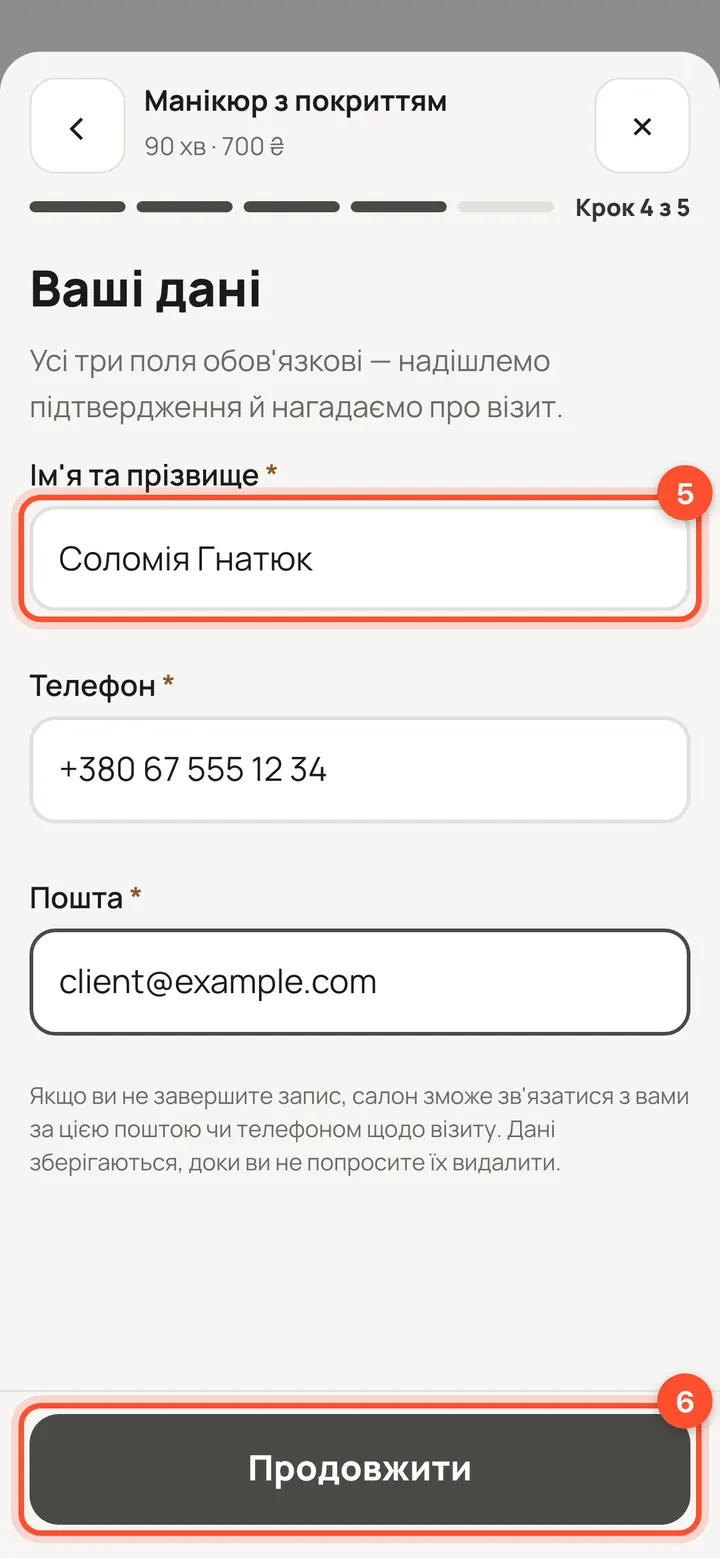
“Your details”: first and last name, phone and email — all three fields are required. Then “Continue”.
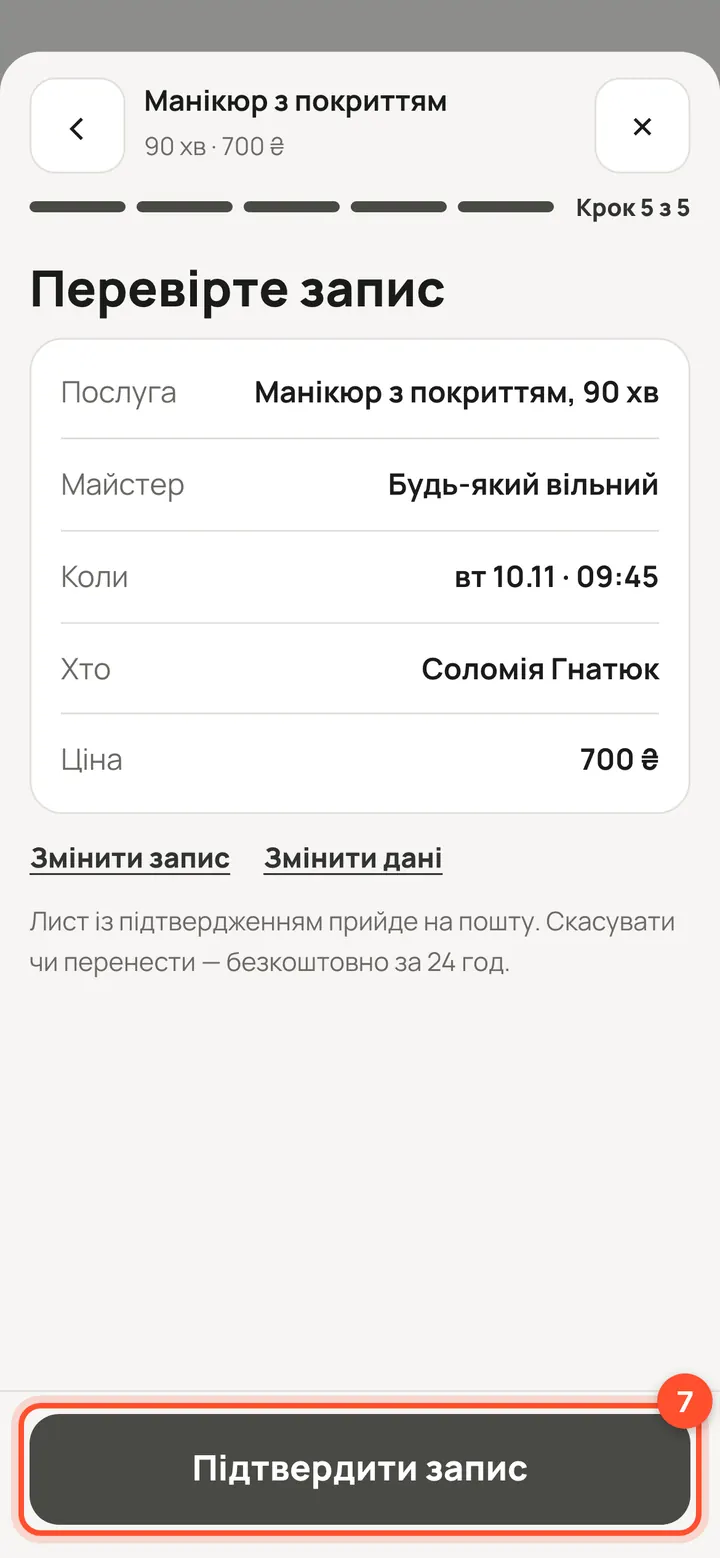
“Check your booking”: service, specialist, time, price. If it is right, press “Confirm booking”. “Change booking” and “Change my details” go back.
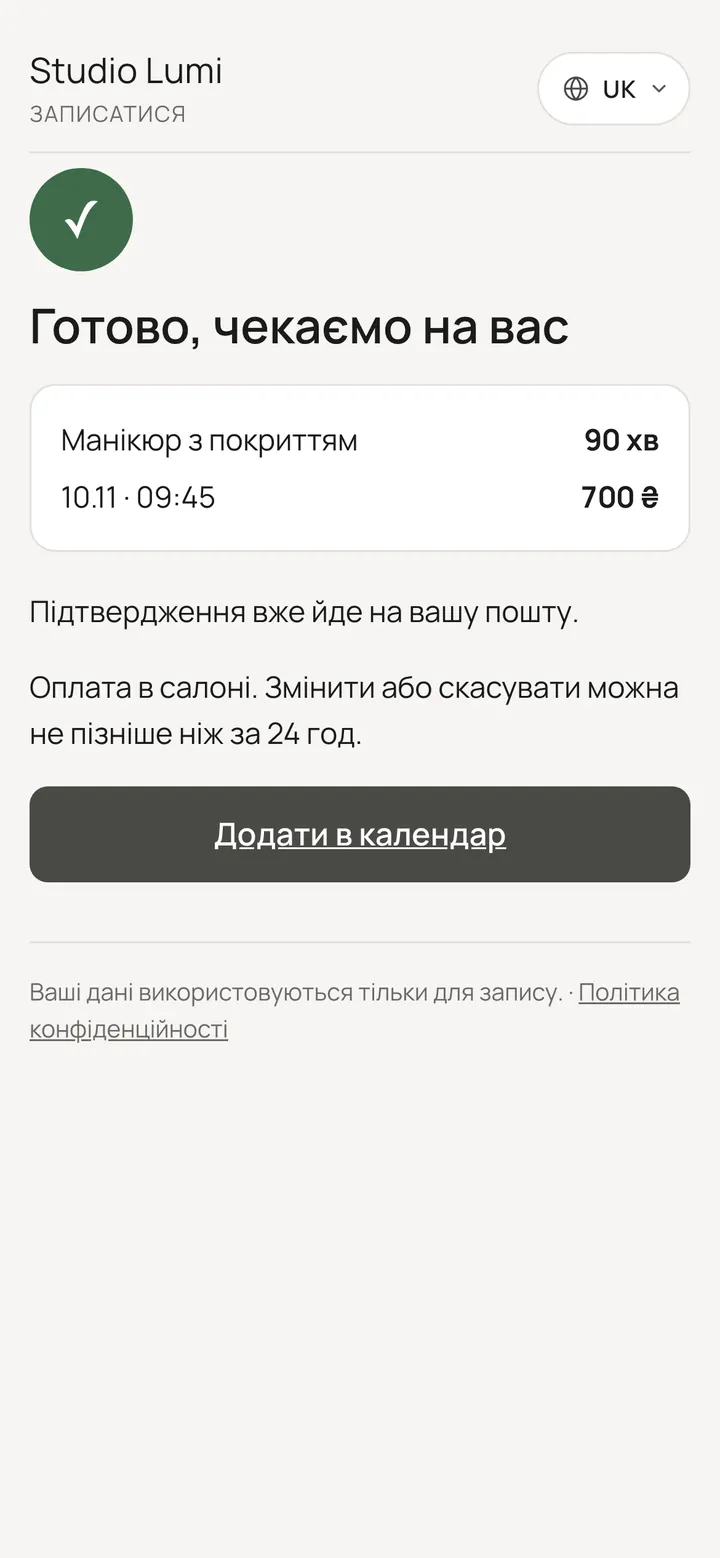
Done: the booking is created and the confirmation goes to the client's email. It appears in the salon schedule by itself.
What clients can see
You can take a service or a specialist out of online booking without deleting them. You can still book them from the panel.
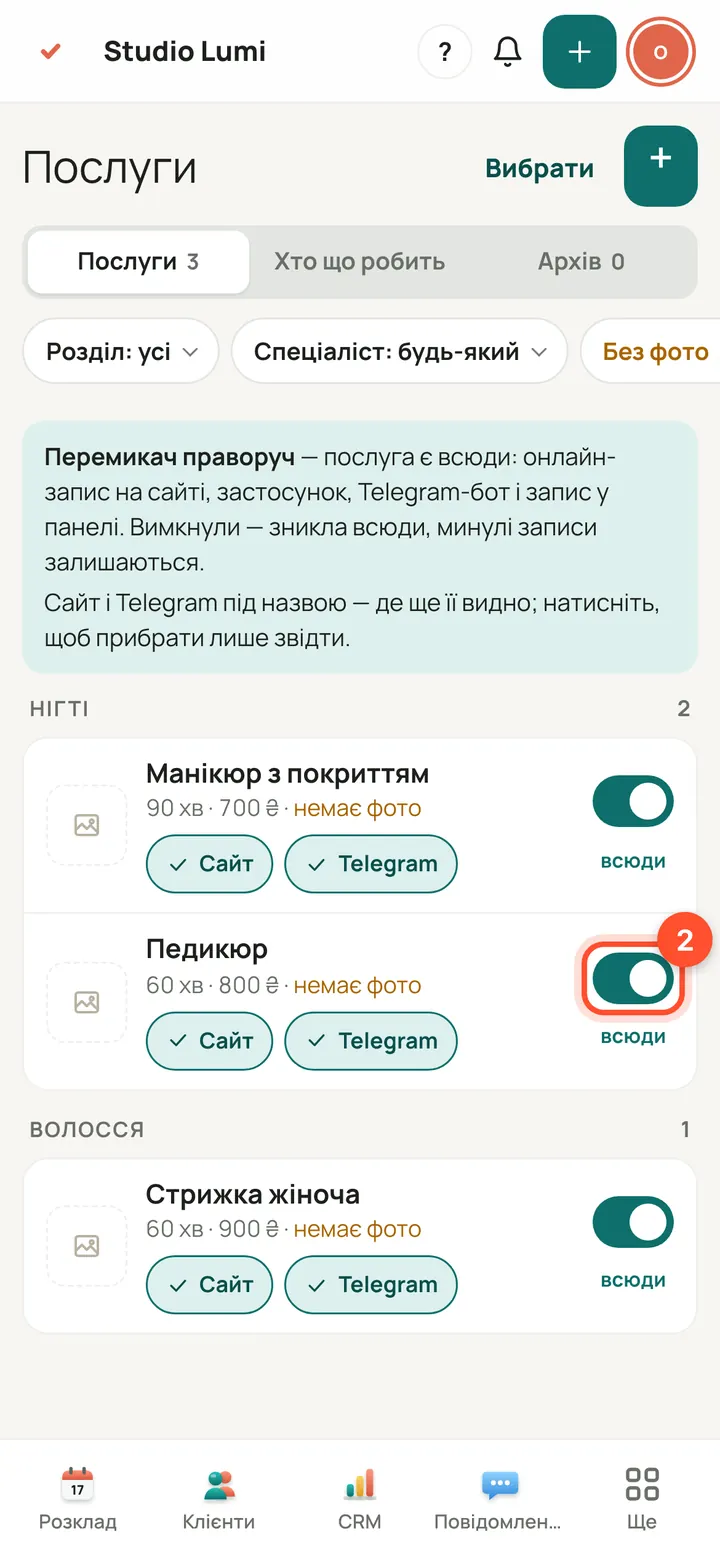
Service: panel → “Services”. In the “On” column press the icon next to the service (“Show to clients”). The icon goes dim — the service is off; press again to turn it back on.
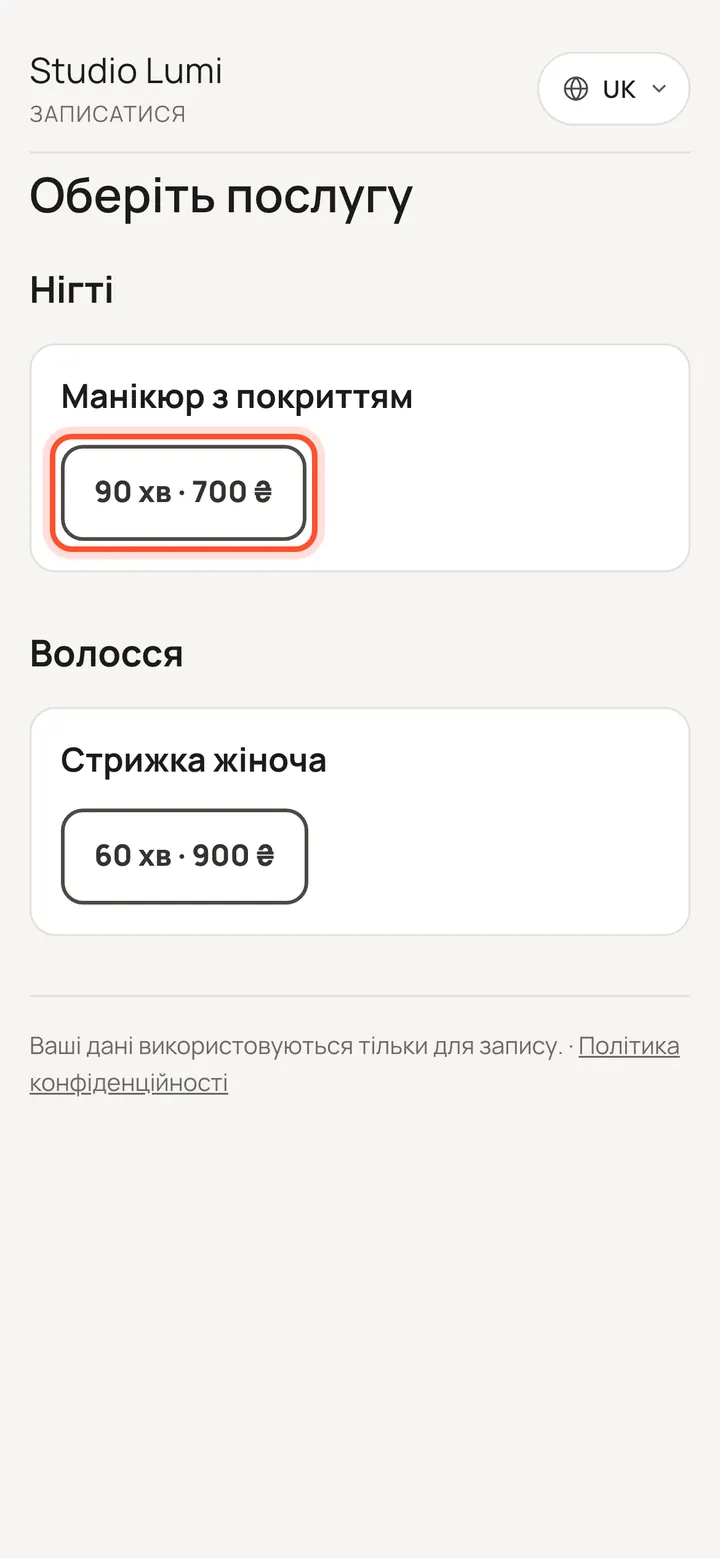
The client no longer sees the switched-off service on the booking page. Past bookings stay.
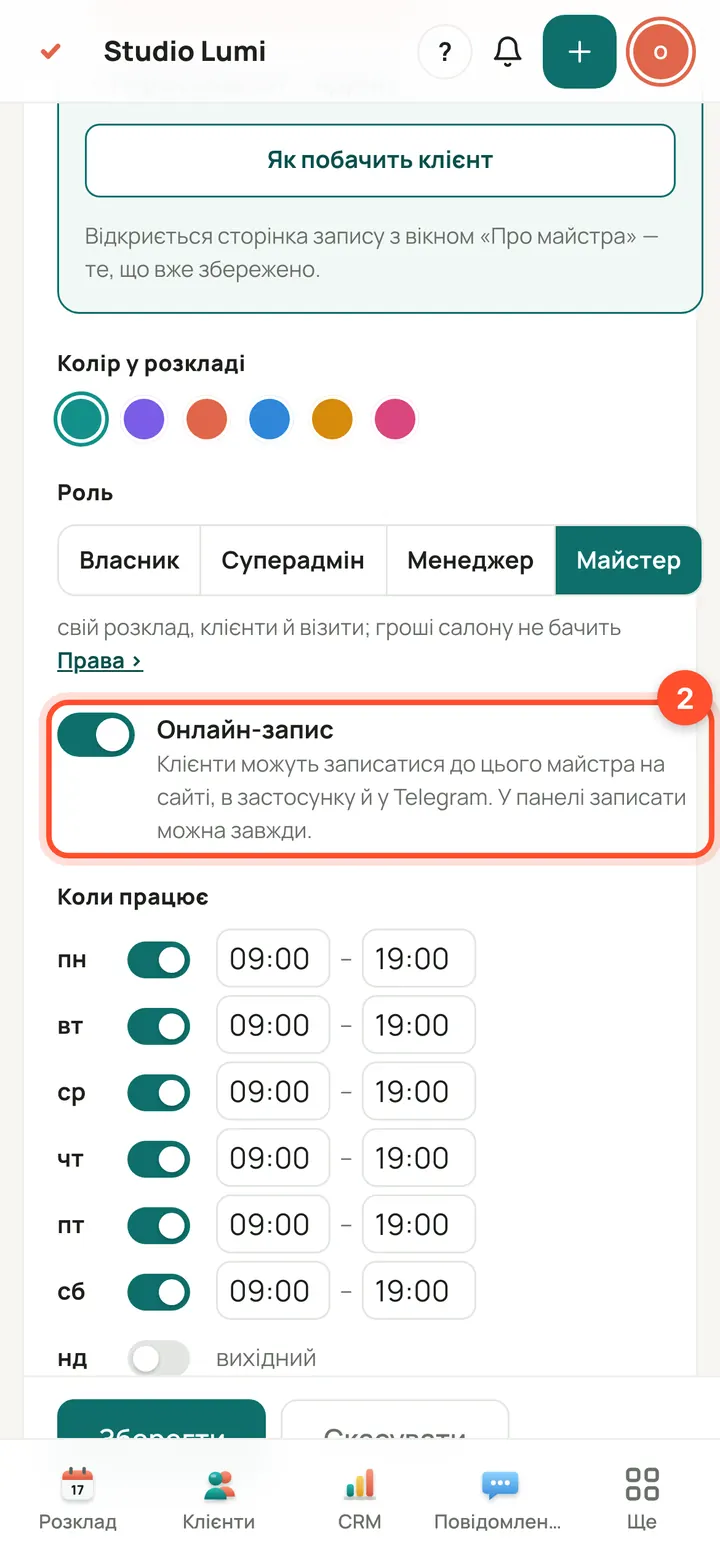
Specialist: panel → “Team” → click the person. The “Online booking” switch: clients can book this person on the website, in the app and on Telegram.
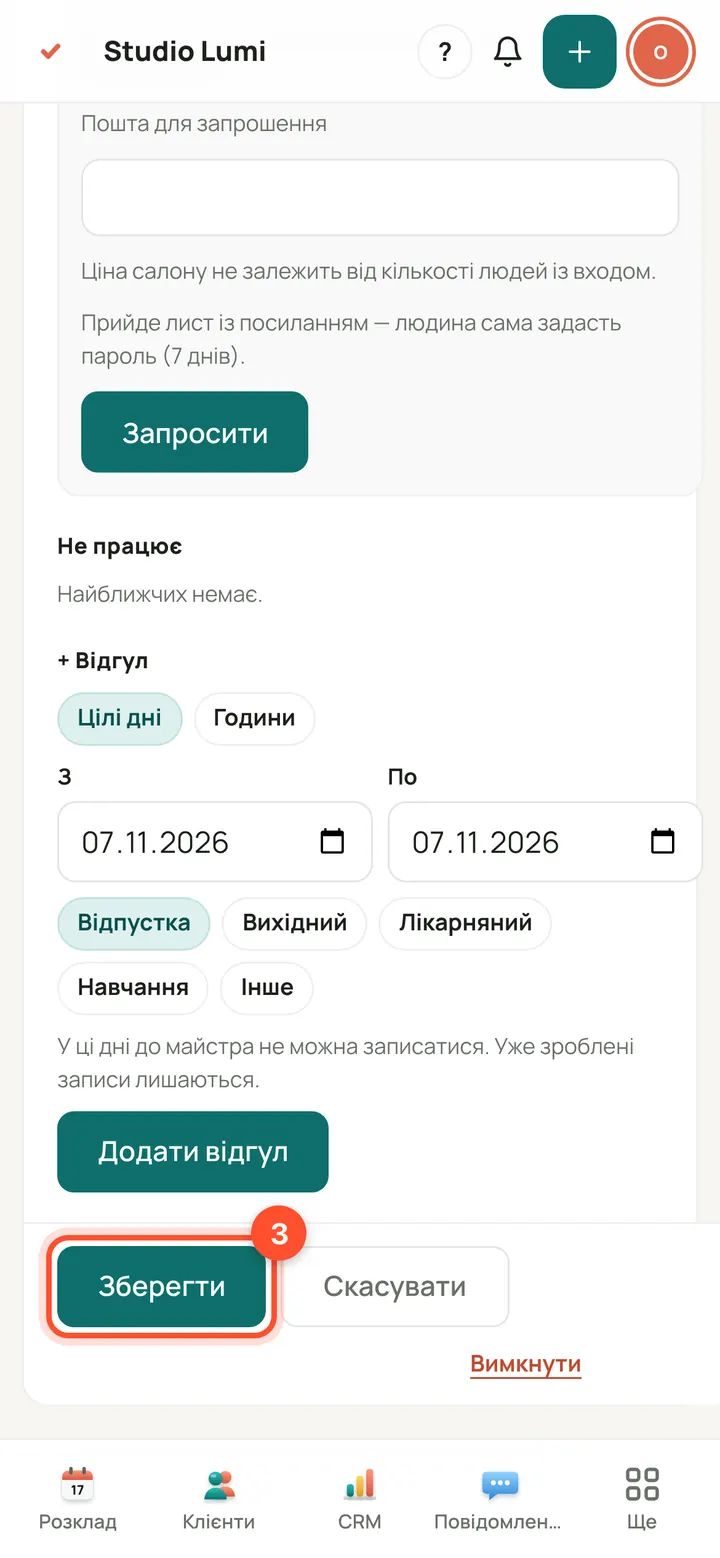
Press “Save”. In the “Team” list the person gets a “Not in online booking” tag.
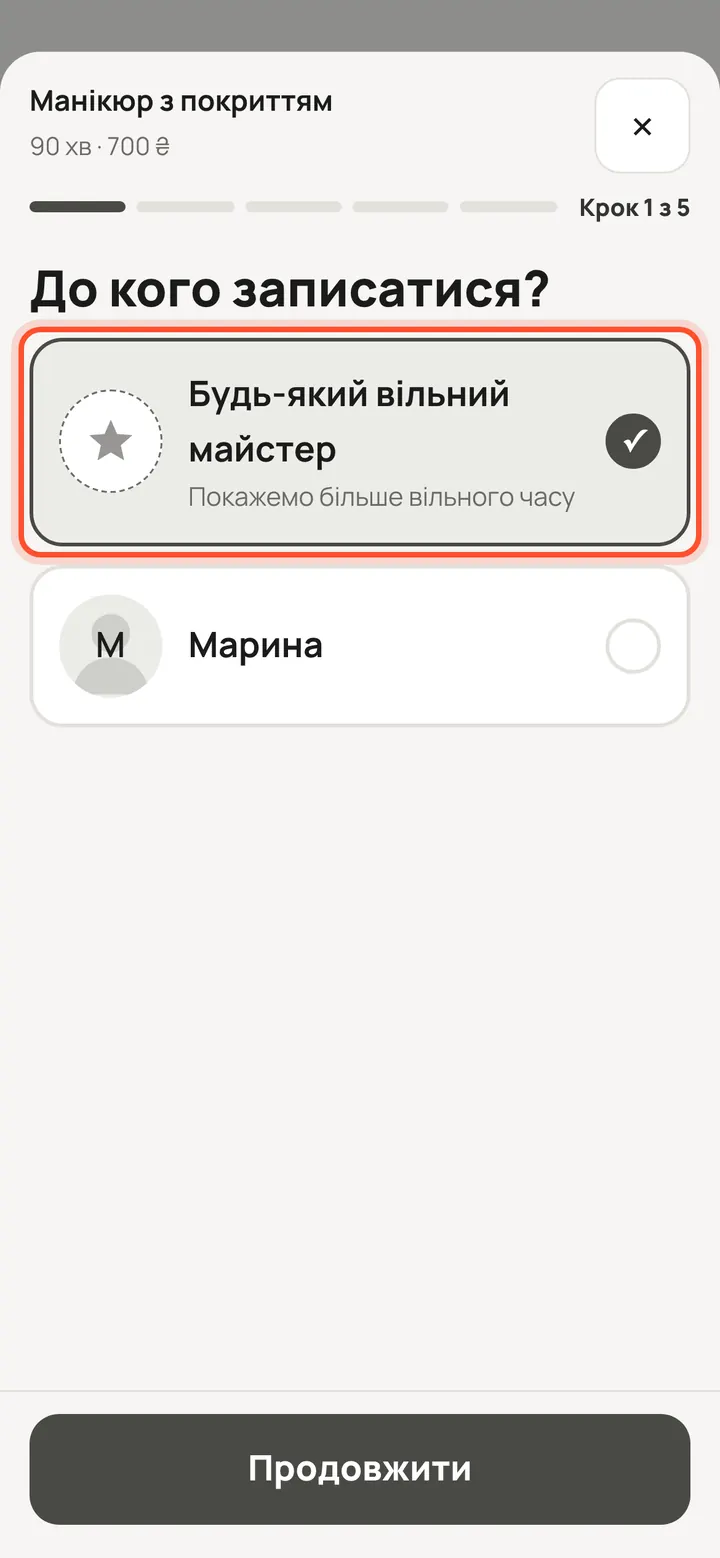
The client does not see this specialist in the list, and “Any available specialist” does not pick them either.
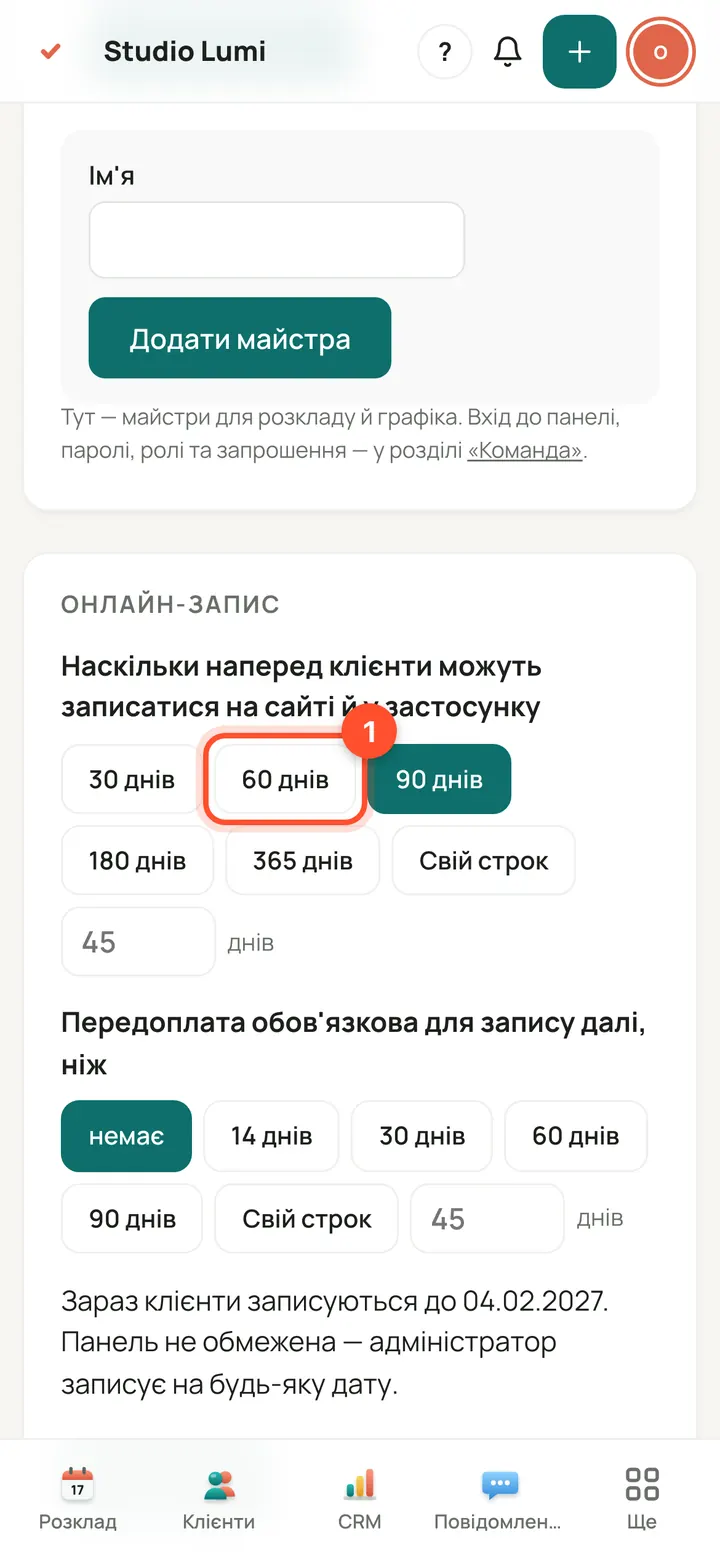
How far ahead clients book on their own: panel → “Salon” → “Online booking”. Choose 30, 60, 90, 180 or 365 days, or “Custom”.
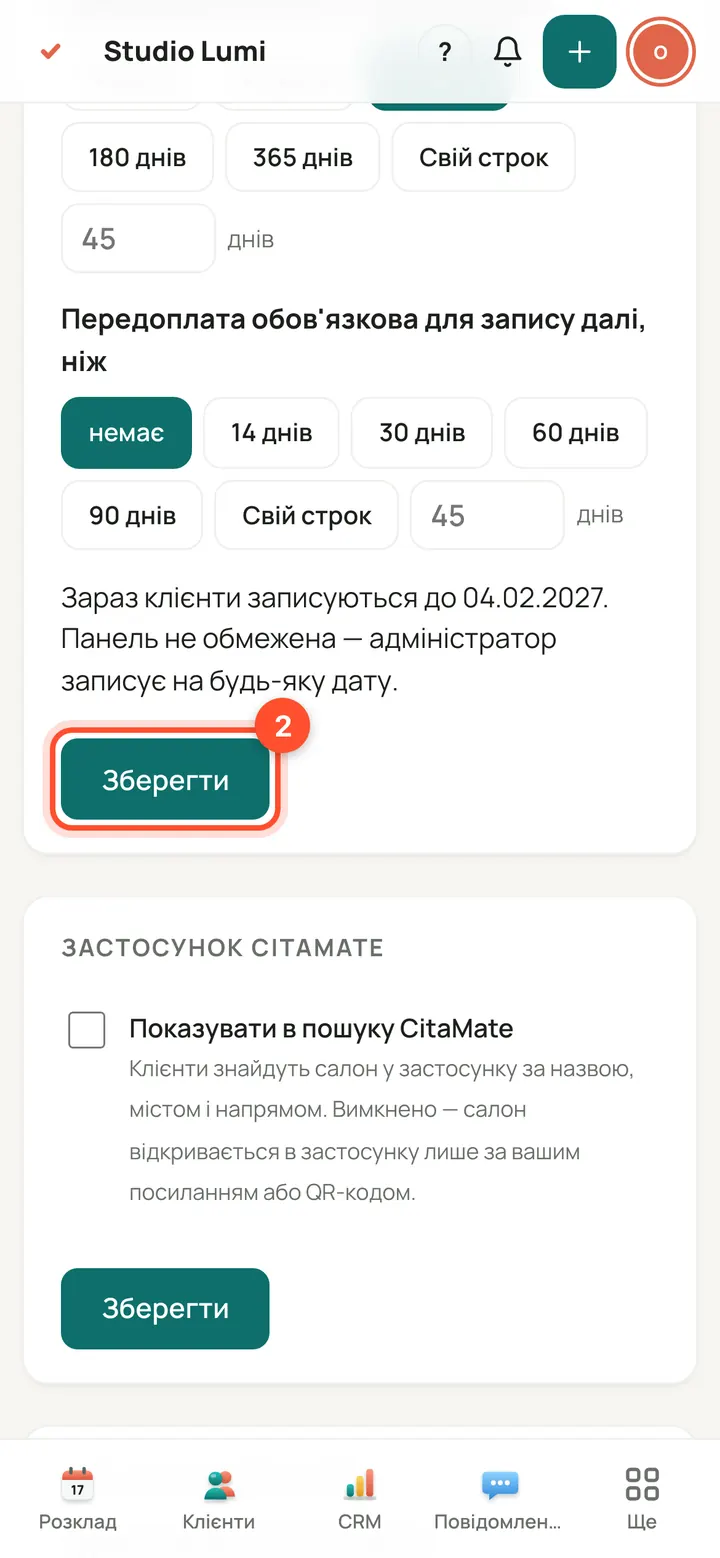
Press “Save”. Only the owner can change this. The panel has no limit: you can book a client for any date.
What the client sees when there is no room
The client never sees the reason: a day off, holiday, sick leave or a full day all read the same, “no slots left”. The reason is visible only in the panel.
On the “Which day?” step such a day is a grey tile labelled “no slots left” that cannot be pressed. Pick another day.
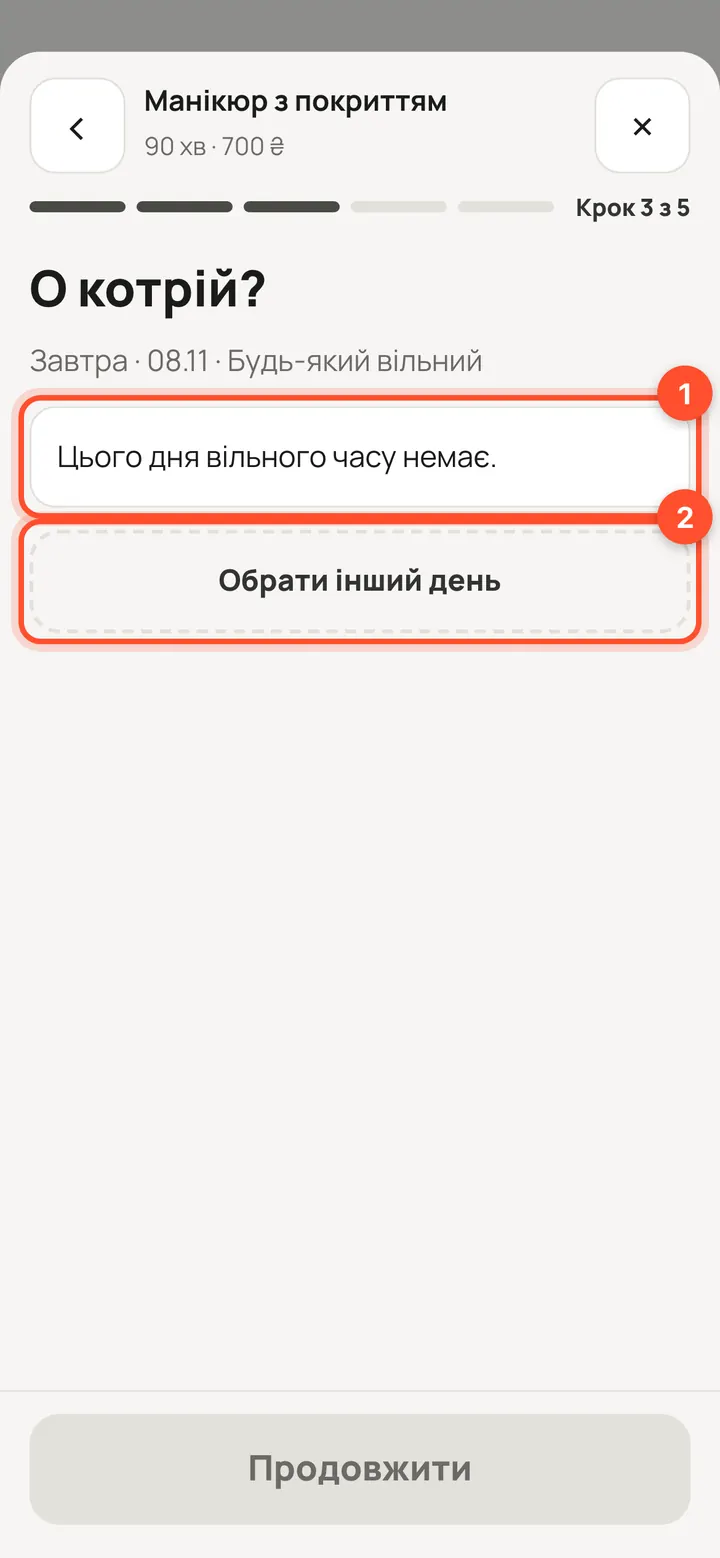
If a client still lands on a day with no free time (for example from a saved link), they see “No free time left that day.” and the “Choose another day” button.
Perguntas
What is my booking address and can I use my own domain?
The address is shown in the owner console → “Websites”. If it is not set yet, the platform issues it when a domain is connected.
Can I hide a service from the website only?
Yes. In the “Services” list each row has website and Telegram chips: press a chip to remove the service from that place only. The “On” icon switches it off for clients completely.
A client picked a time that was just taken. What happens?
The database will not allow two bookings at the same time. The client goes back to the “What time?” step with a clear message and picks another time.
What does a client see if no service is on?
A page “Online booking opens soon” with Call, WhatsApp and Write buttons, as far as the salon has a phone, WhatsApp and email set.
Who can create QR codes?
The owner, superadmin and an administrator with the clients permission. A specialist does not see the section.