Bookings and the schedule
You can book in two ways: press a free time in the schedule, or use the “Book” button at the top. Open a booking to mark “Arrived” or “No-show”, move it or cancel it: the time is freed at once.
Esta aula ainda está em inglês — a tradução está a caminho.
Where to see bookings: week, day, list
The schedule is the main screen of the panel. All the salon's bookings are visible at once; free time is the empty cells.
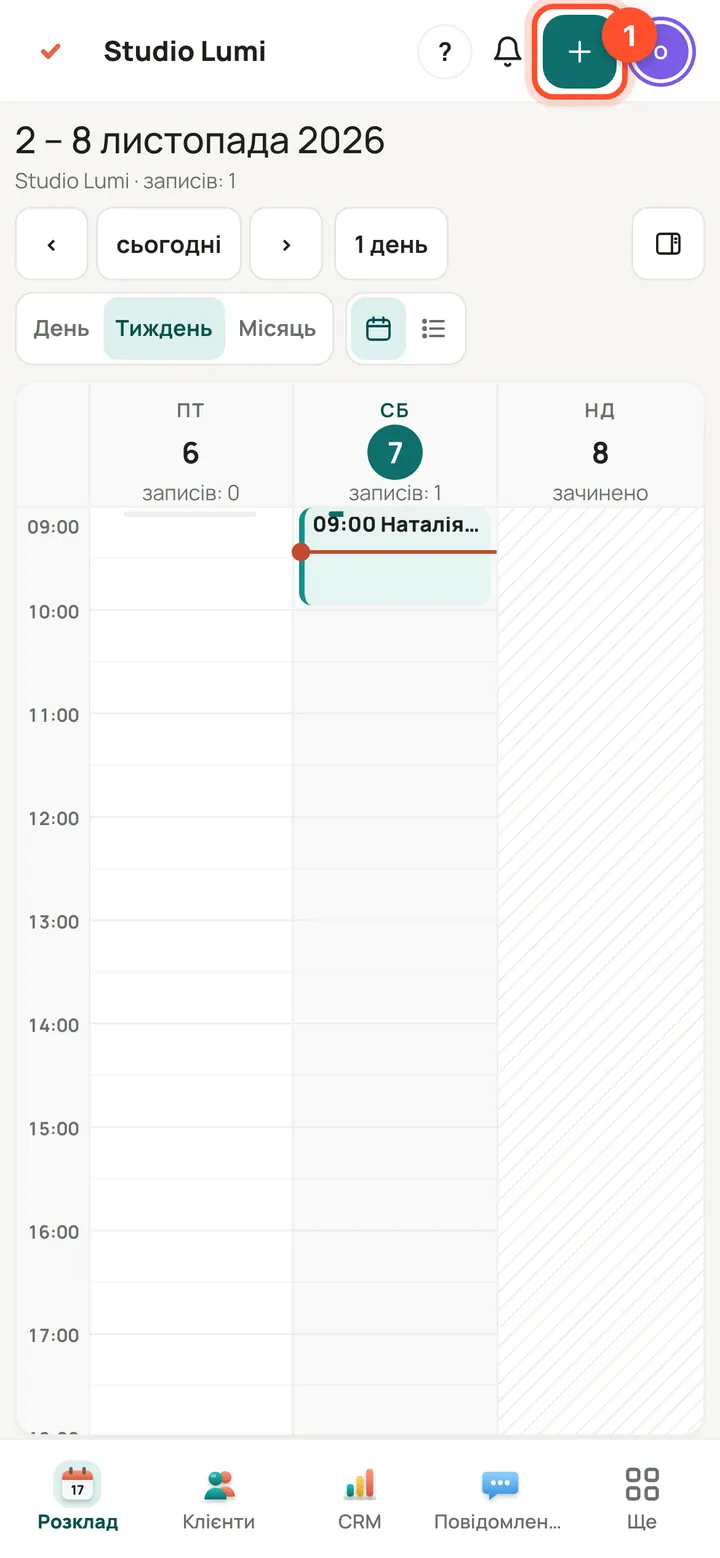
Panel → “Schedule” (on a phone, the bottom menu). The “Book” button at the top is always at hand.
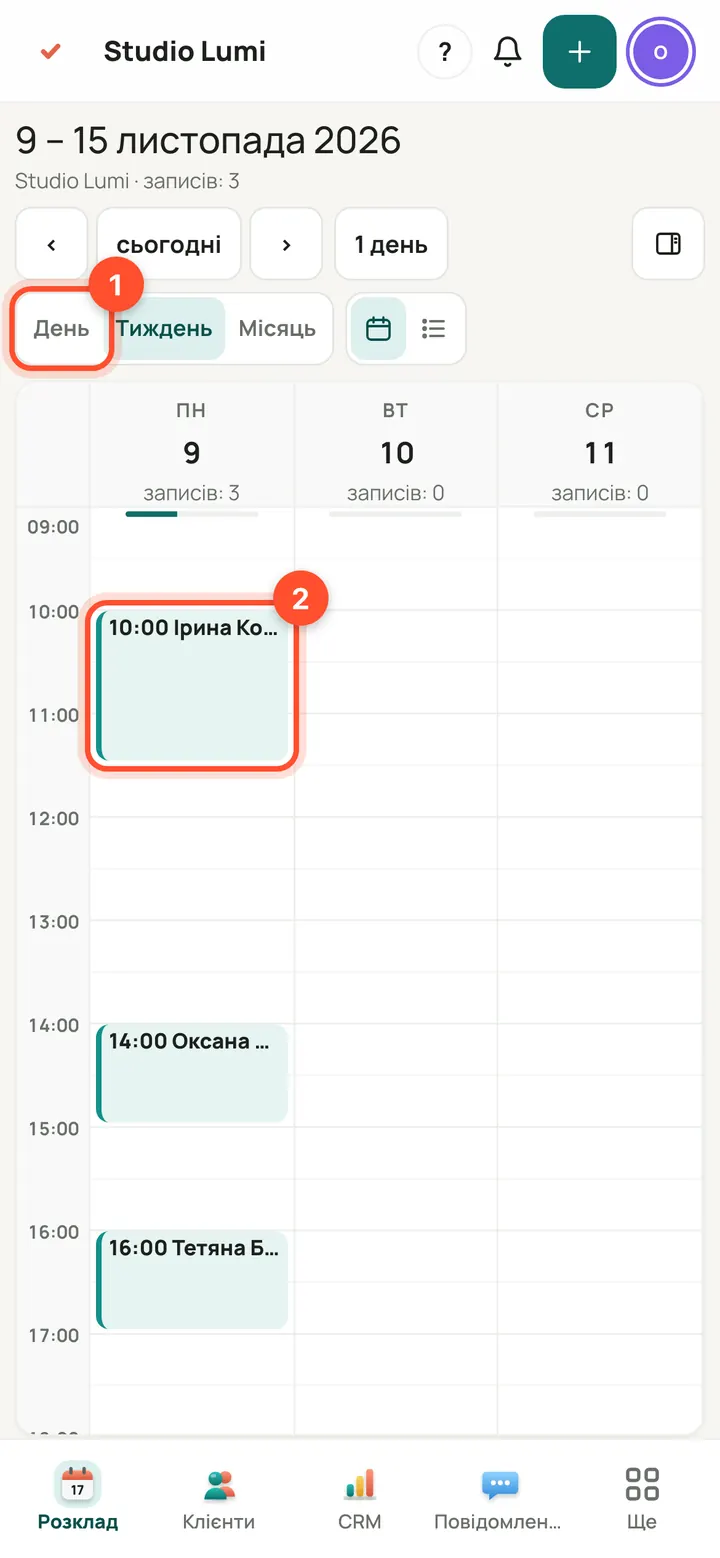
Switch at the top: “Day”, “Week”, “Month” (on a computer also “Year”). Press a booking to open its window. On the right is a mini calendar: press a day to open it, and the specialists' tick boxes: untick one to hide that specialist's bookings.
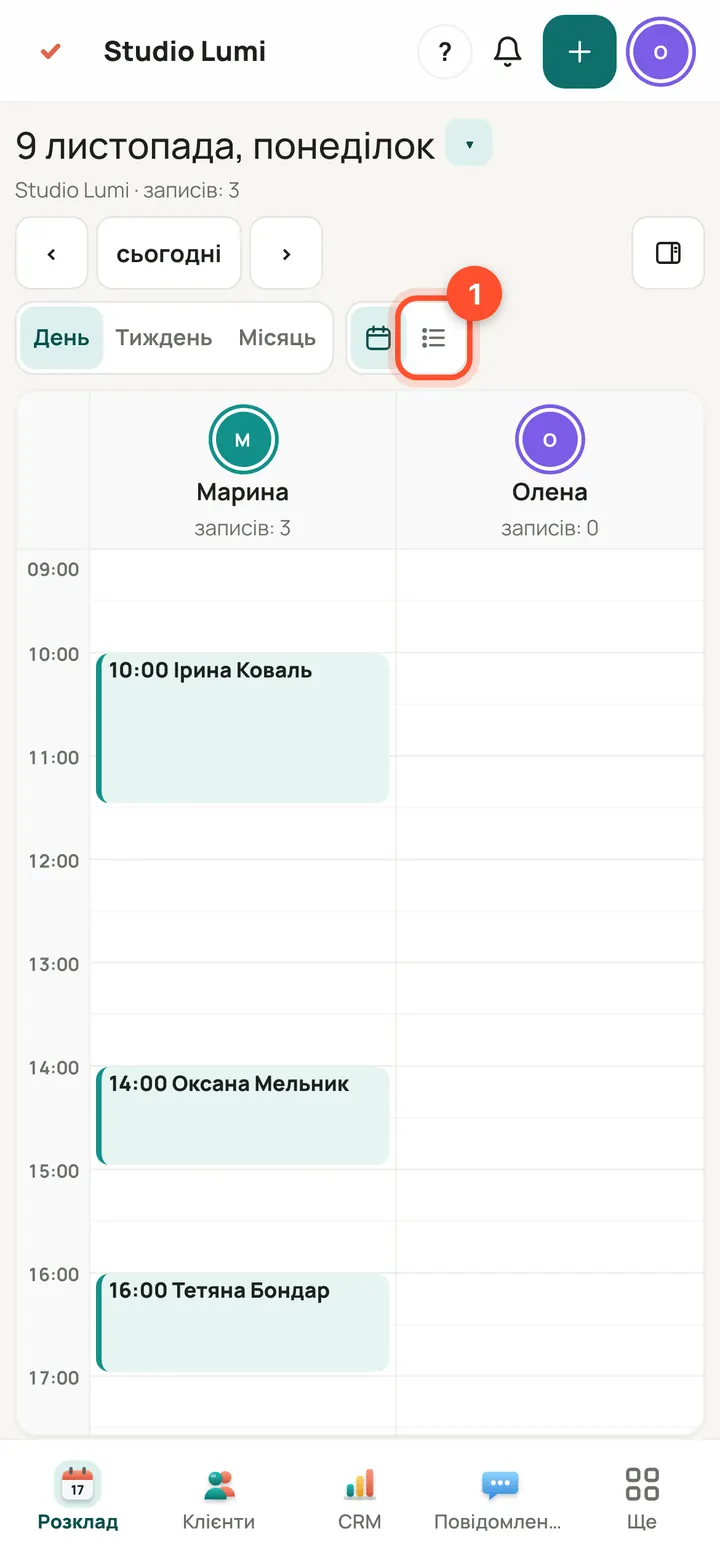
“Day” has a separate column for each specialist. The list icon next to the calendar (1) shows the same period as a list.
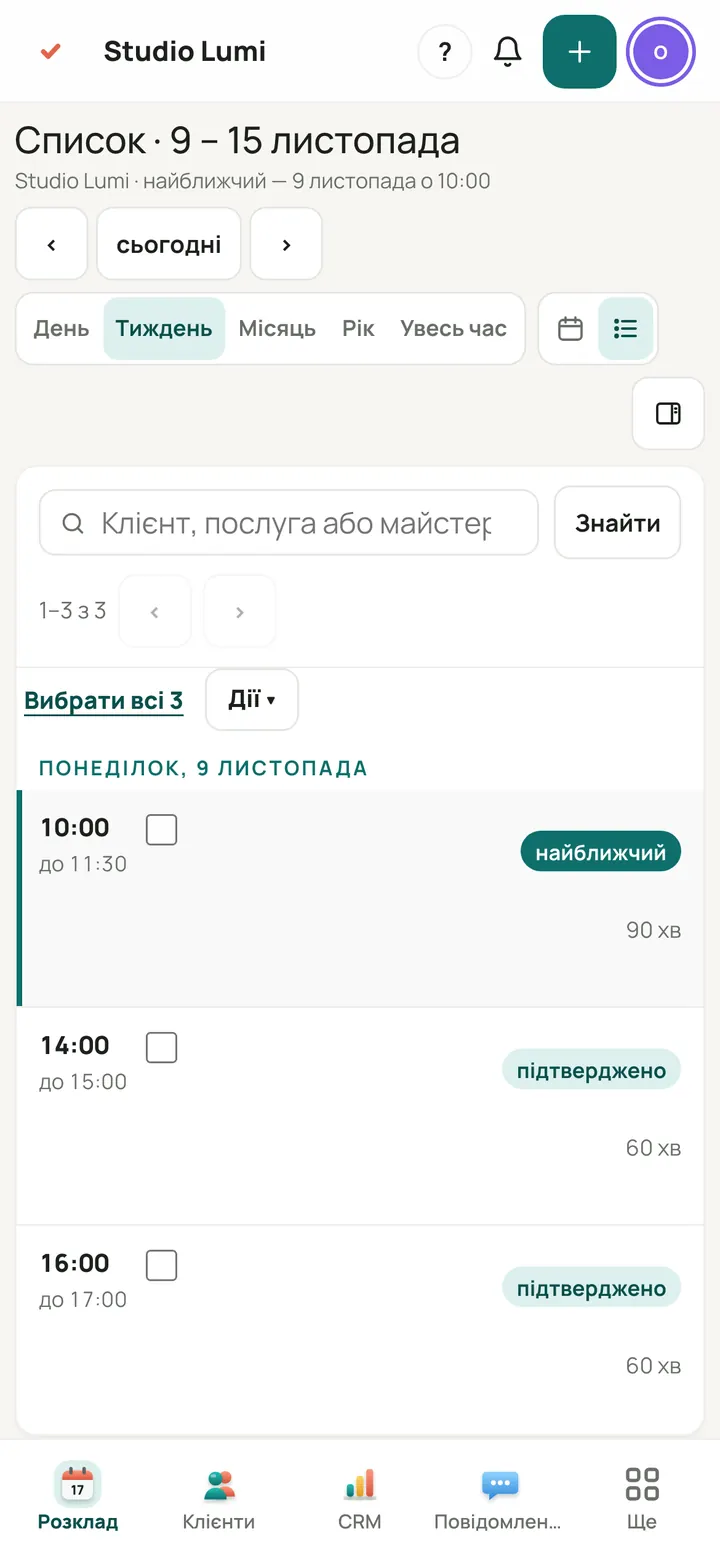
In the list the nearest bookings come first. At the top there is a search by client, service or specialist.
Book a client from the schedule
The quickest way: press a free time in the grid. The “Book a client” window opens.
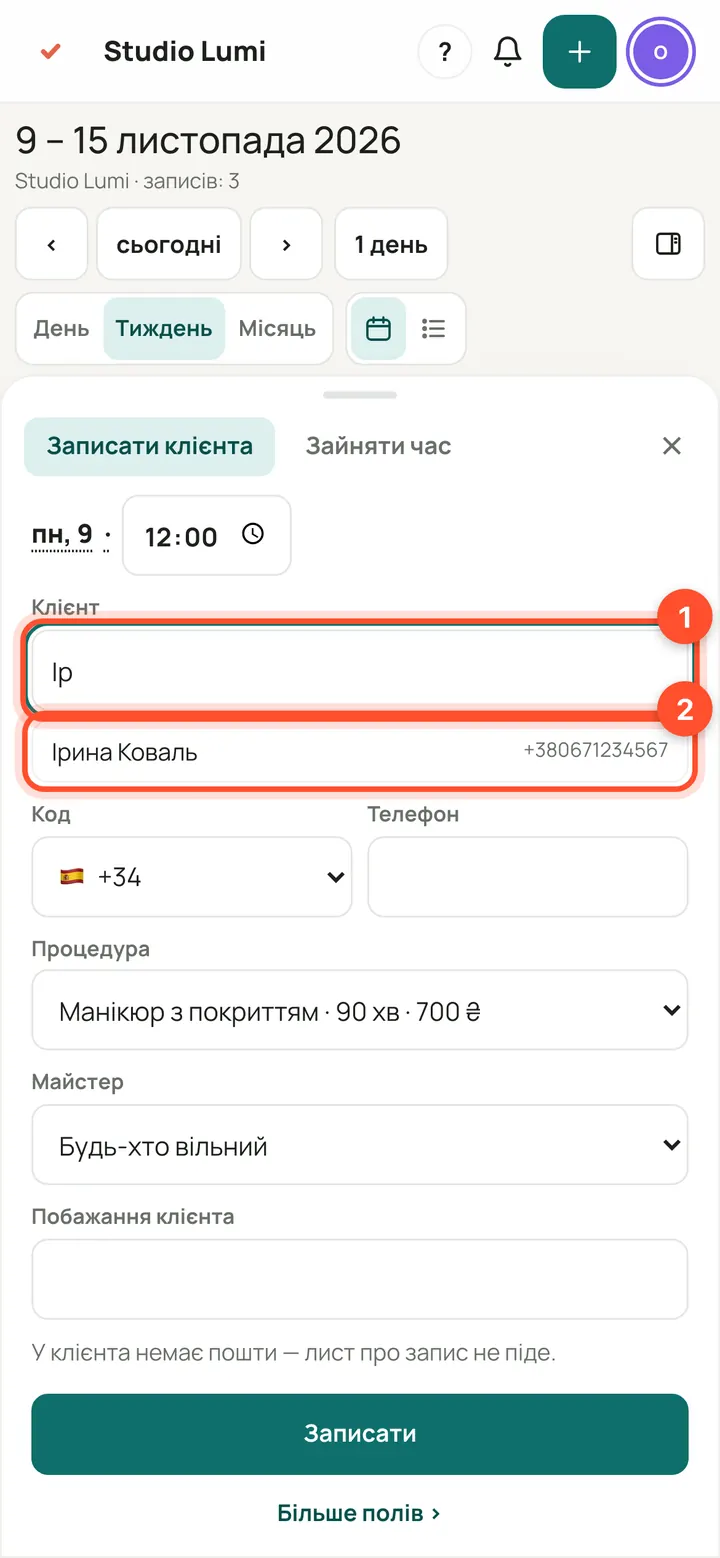
Schedule → “Week” or “Day” → press an empty time. In the “Client” field type two letters of the name: clients from your database appear below. Pick the right one. For a new client, type the full name and add a phone.
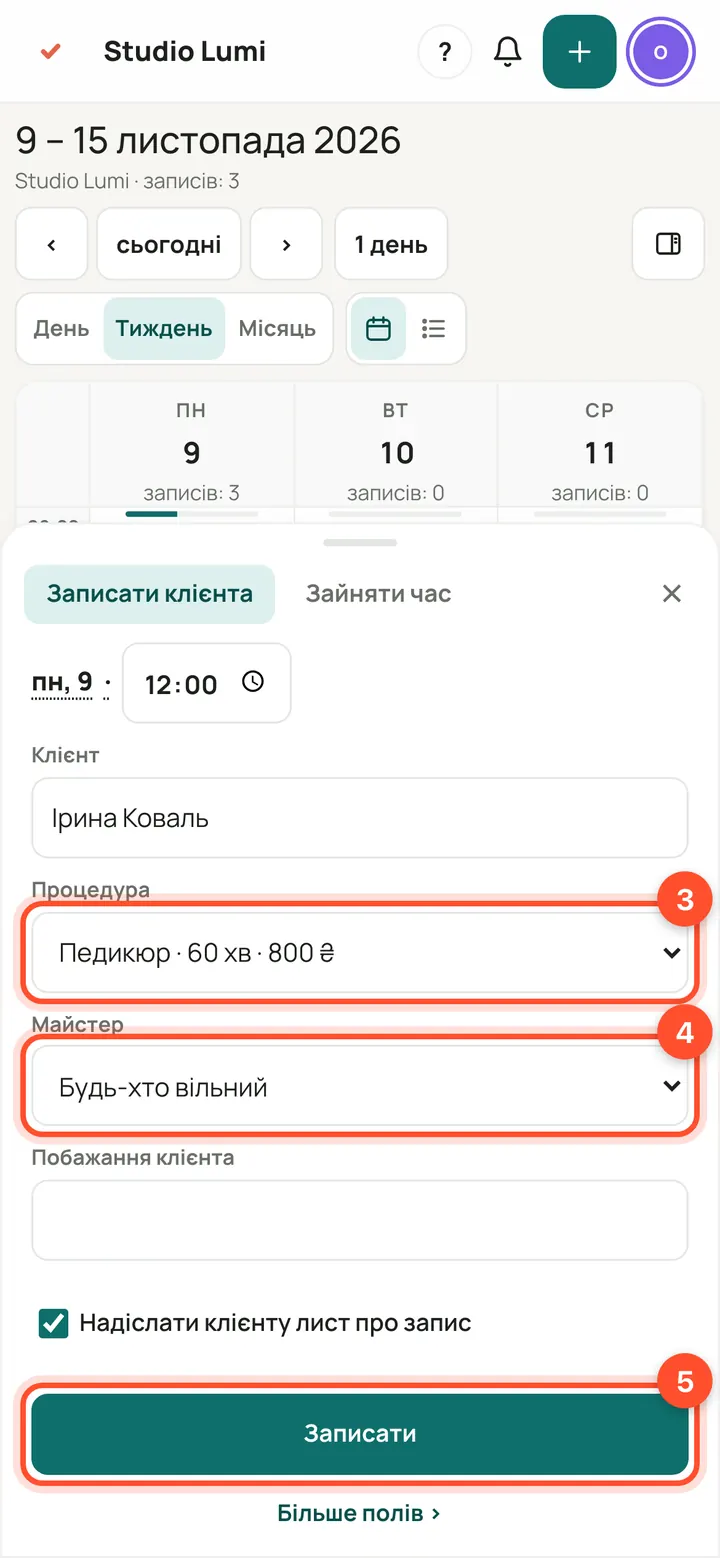
Choose the “Treatment” and the “Specialist” (“Anyone free” lets the panel pick). The “Send the client a booking email” tick is on by default: untick it if you don't want to send one. Press “Book”.
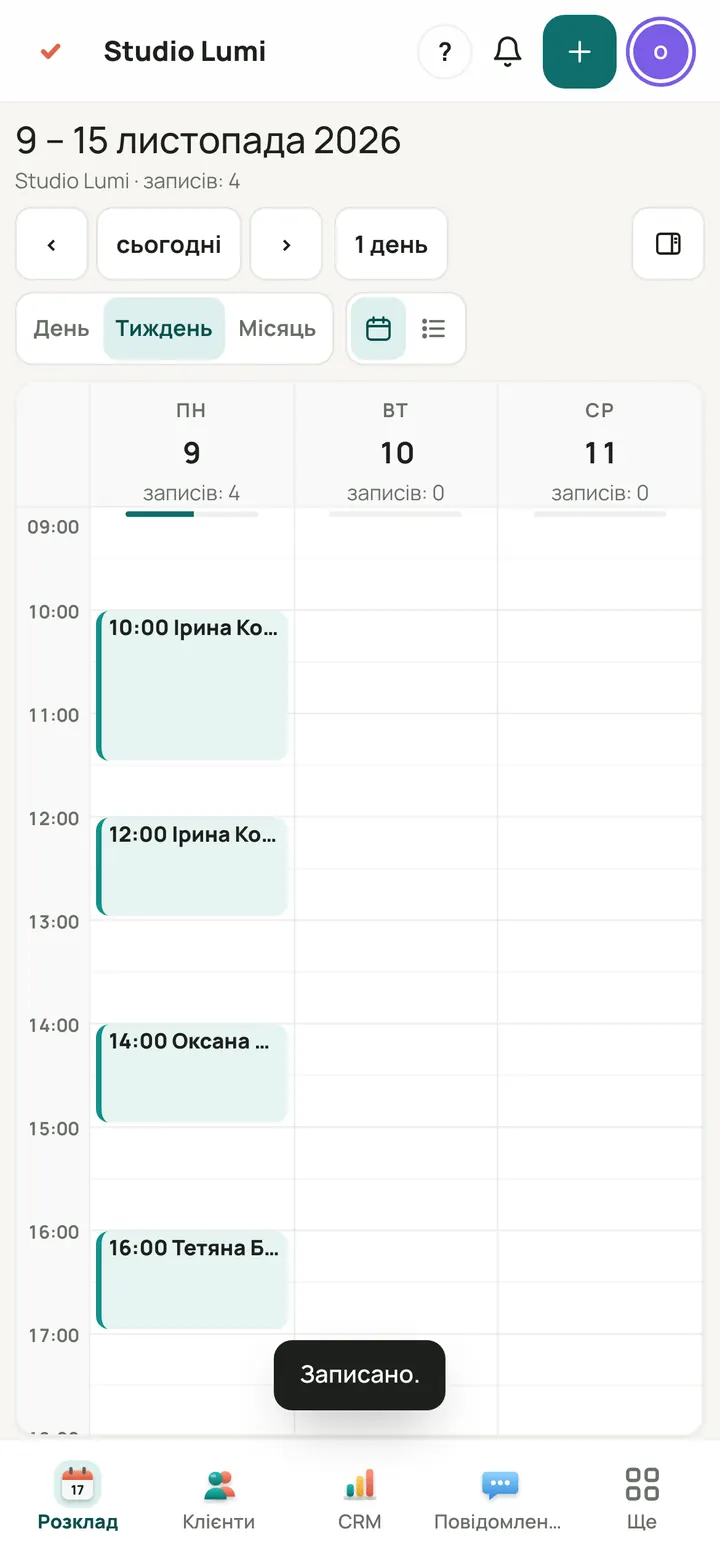
“Booked.” appears at the bottom and the new booking in the grid. If the time is not possible, the panel says why in words (busy, outside working hours).
Book with the “Book” button
For people who walked in or phoned: a name and a phone are enough, email is optional. The panel calculates the price; you don't type it.
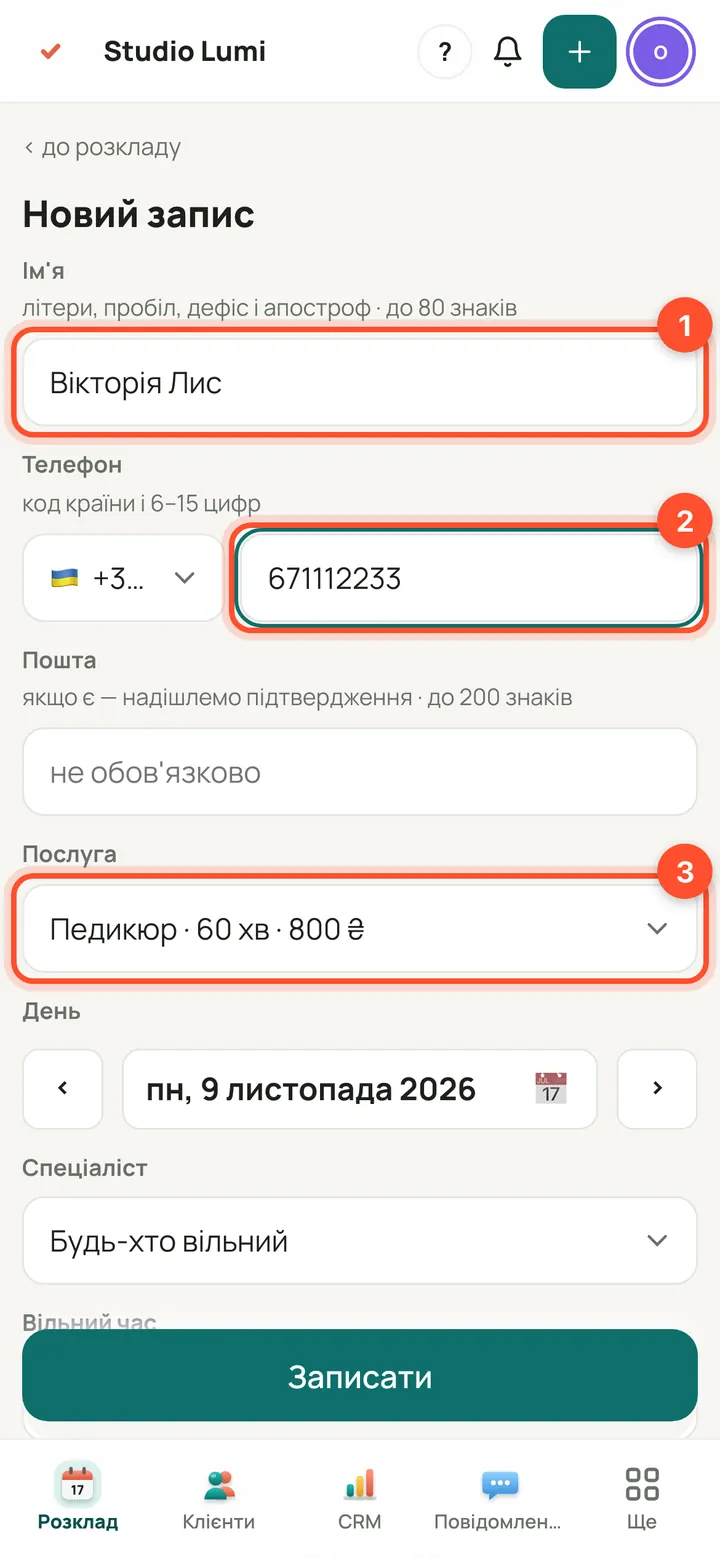
At the top press “Book” → “New booking”. Enter “Name” and “Phone” (pick the country in the list on the left) and choose the “Service”. The list of times is calculated for that service.
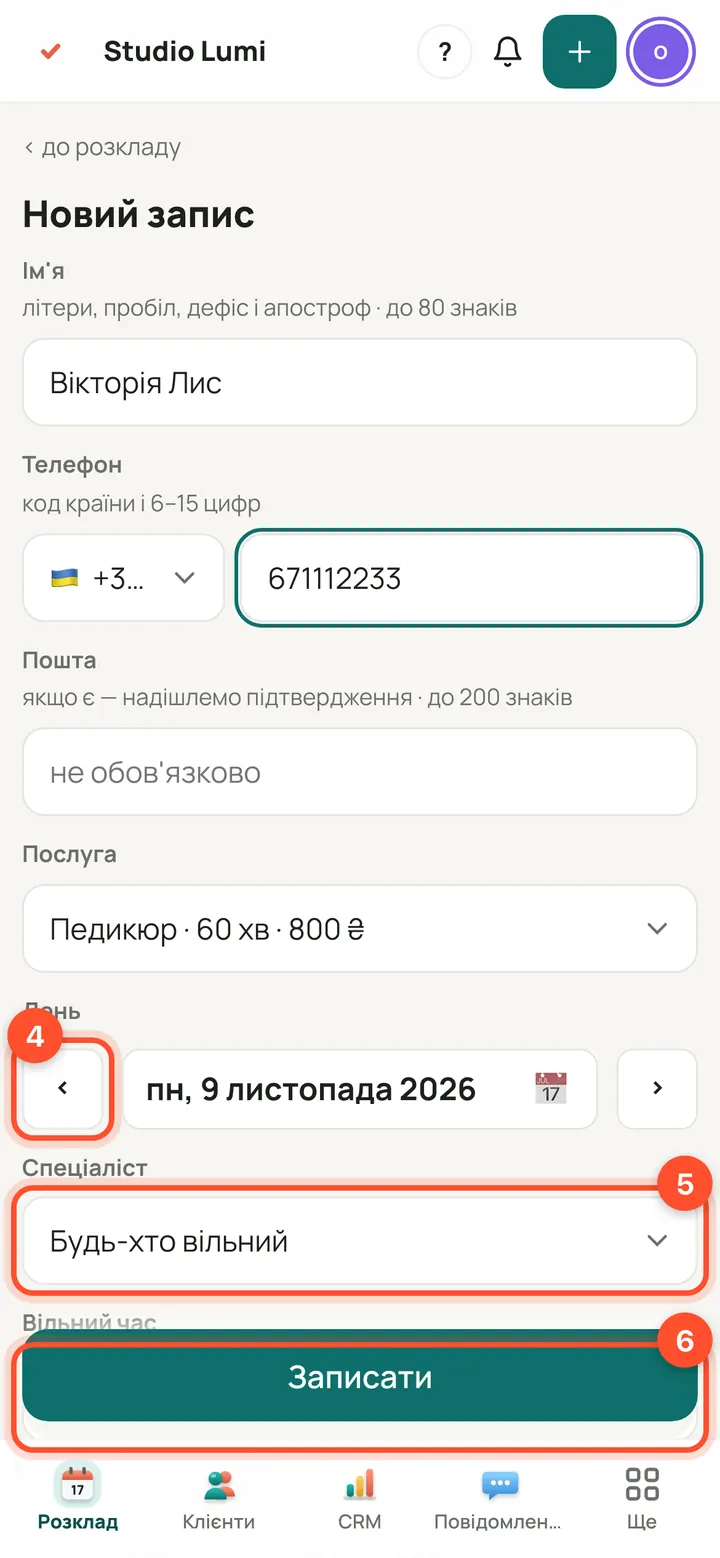
Change the “Day” with the ‹ › arrows or the calendar. “Specialist” is “Anyone free” or a particular specialist (then “Free time” shows only their hours). Pick a time in “Free time”.
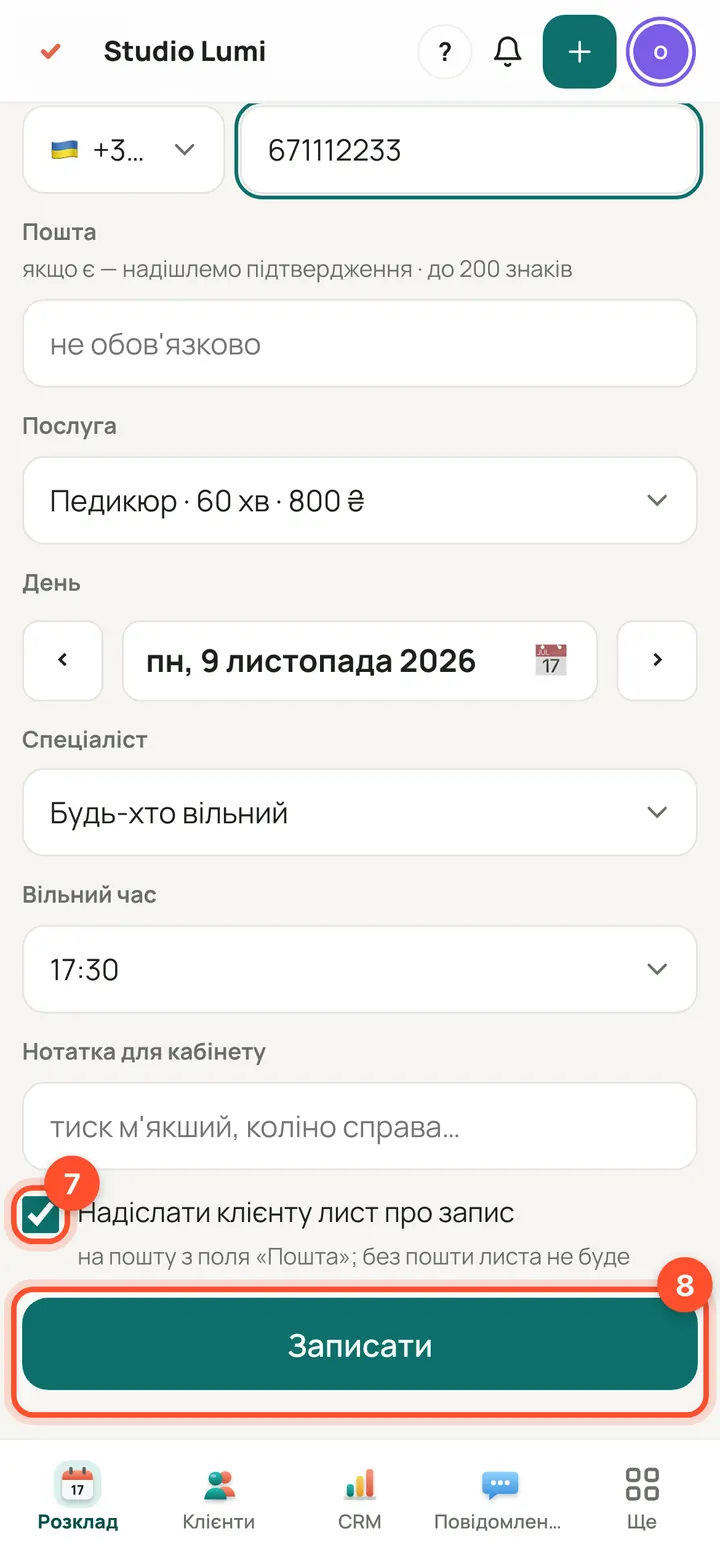
The “Send the client a booking email” tick is on by default: untick it if you don't want to send one. Press “Book”.
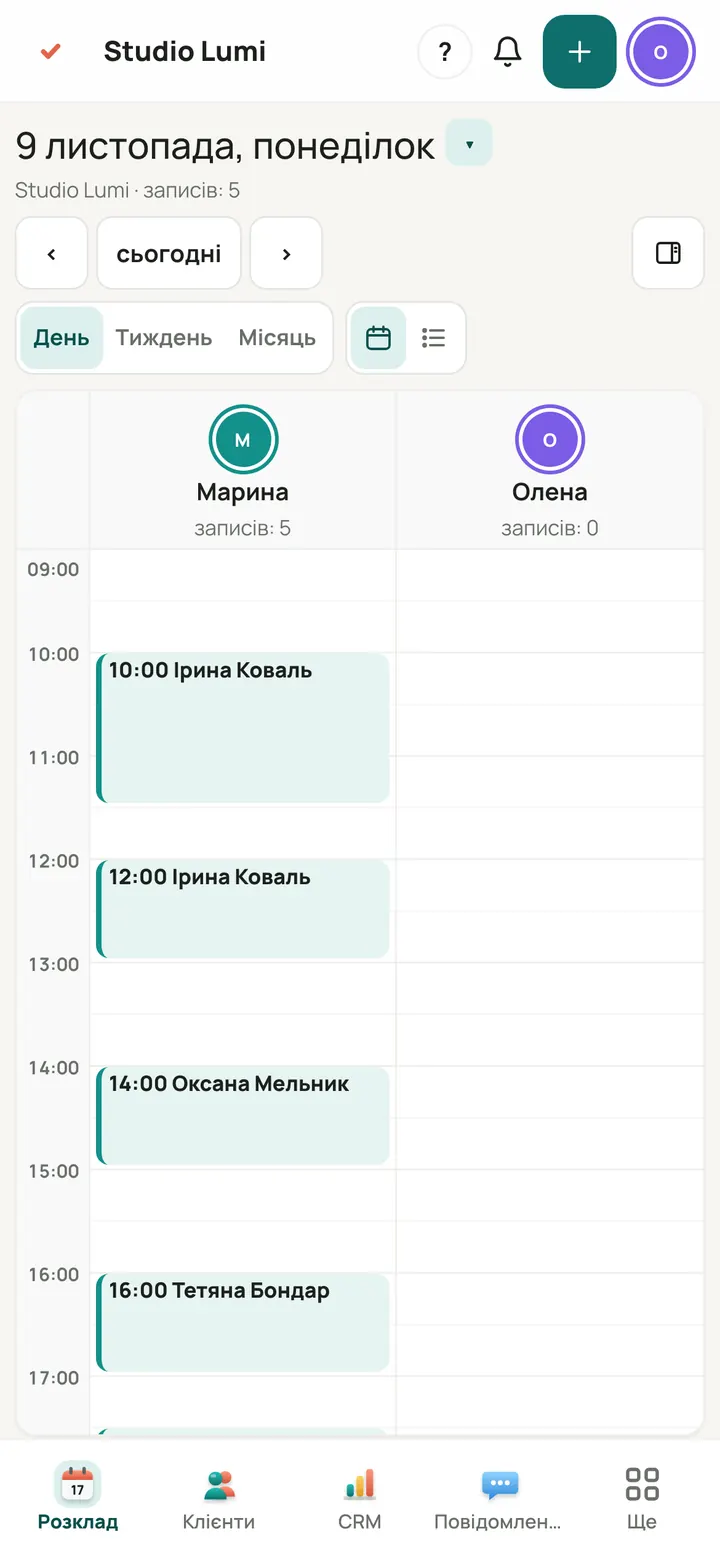
The panel takes you back to the schedule: the new booking is already in the grid.
Open a booking, mark the visit, move or cancel it
Everything is done from the booking window: press a booking in the schedule.
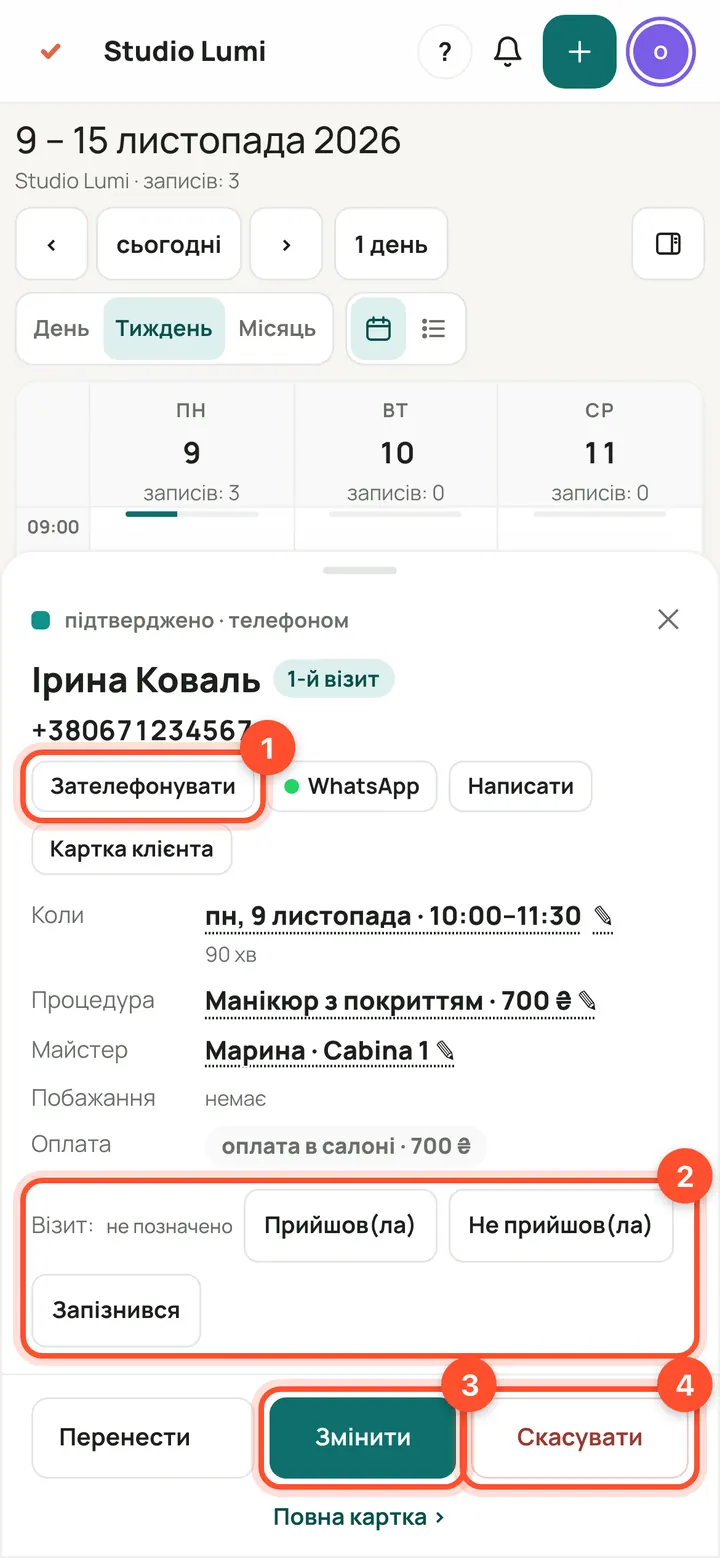
Schedule → press a booking. The window shows who it is, contacts (“Call”, WhatsApp, “Message”, “Client card”), when, treatment, specialist and payment. Below: “Visit”, “Edit”, “Cancel” and “Full card ›”.
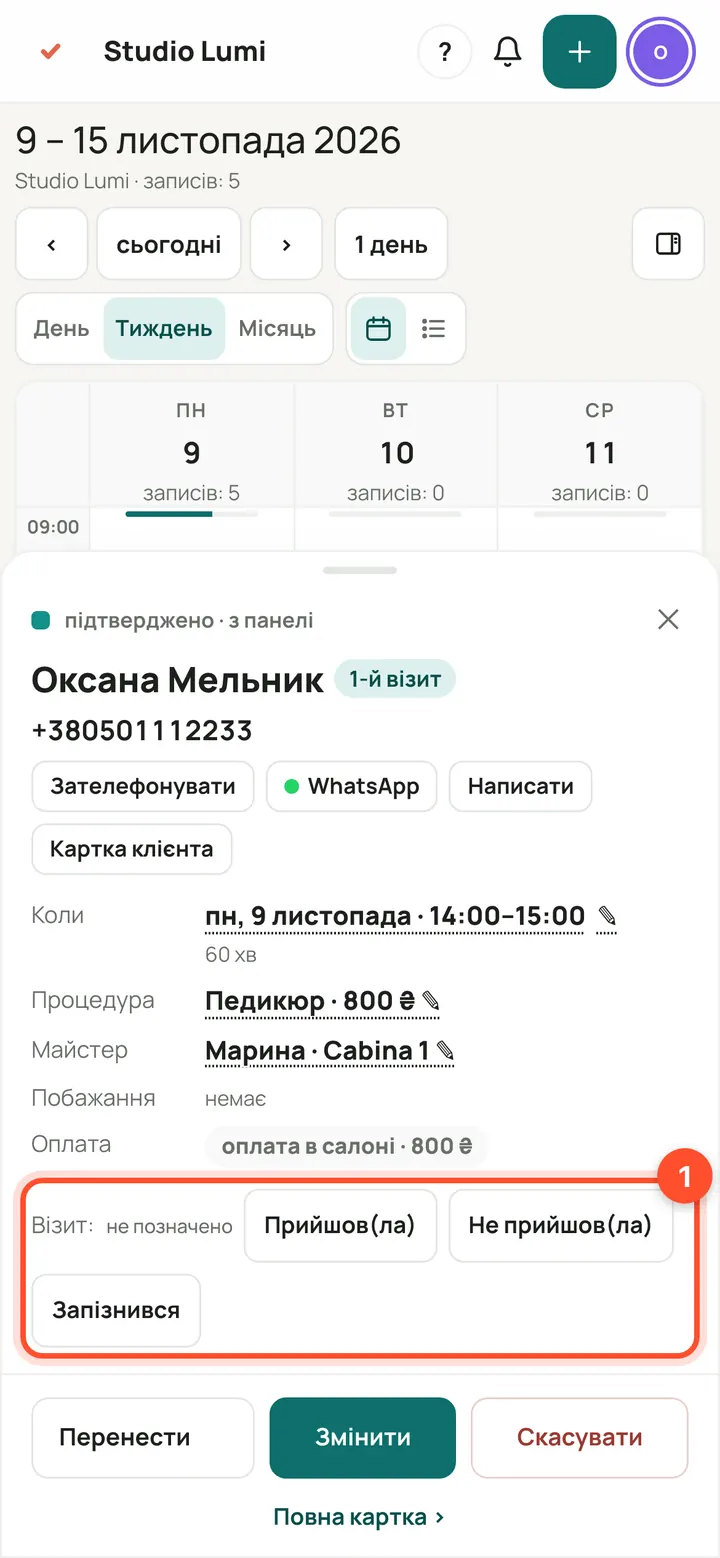
When the client arrives, press “Arrived” in the “Visit” row. If they didn't come, “No-show”. If they were late, “Late”, enter the minutes and press OK.
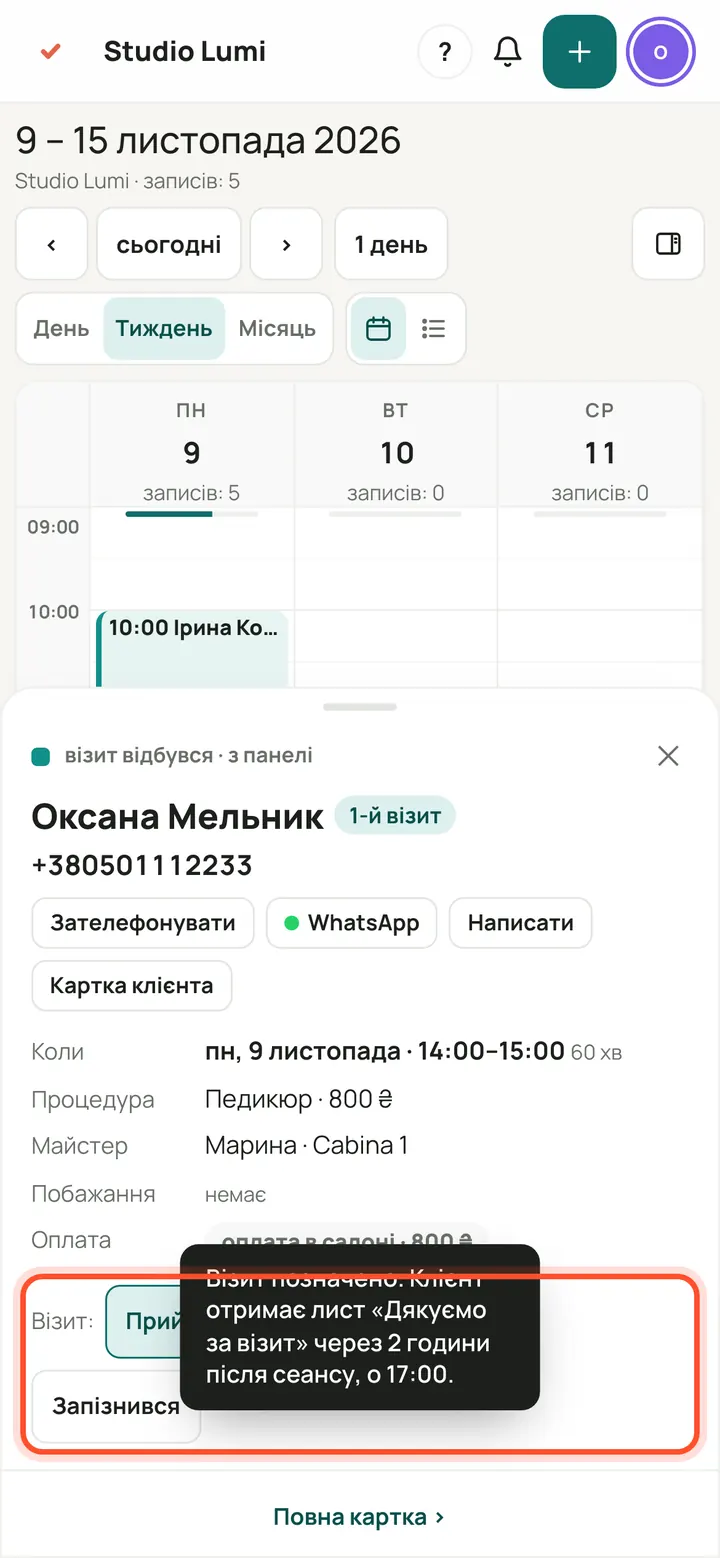
The booking is marked and the panel tells you what happens next: a “Thank you for your visit” email goes to the client 2 hours after the session. If there is no email, the panel says so in words.
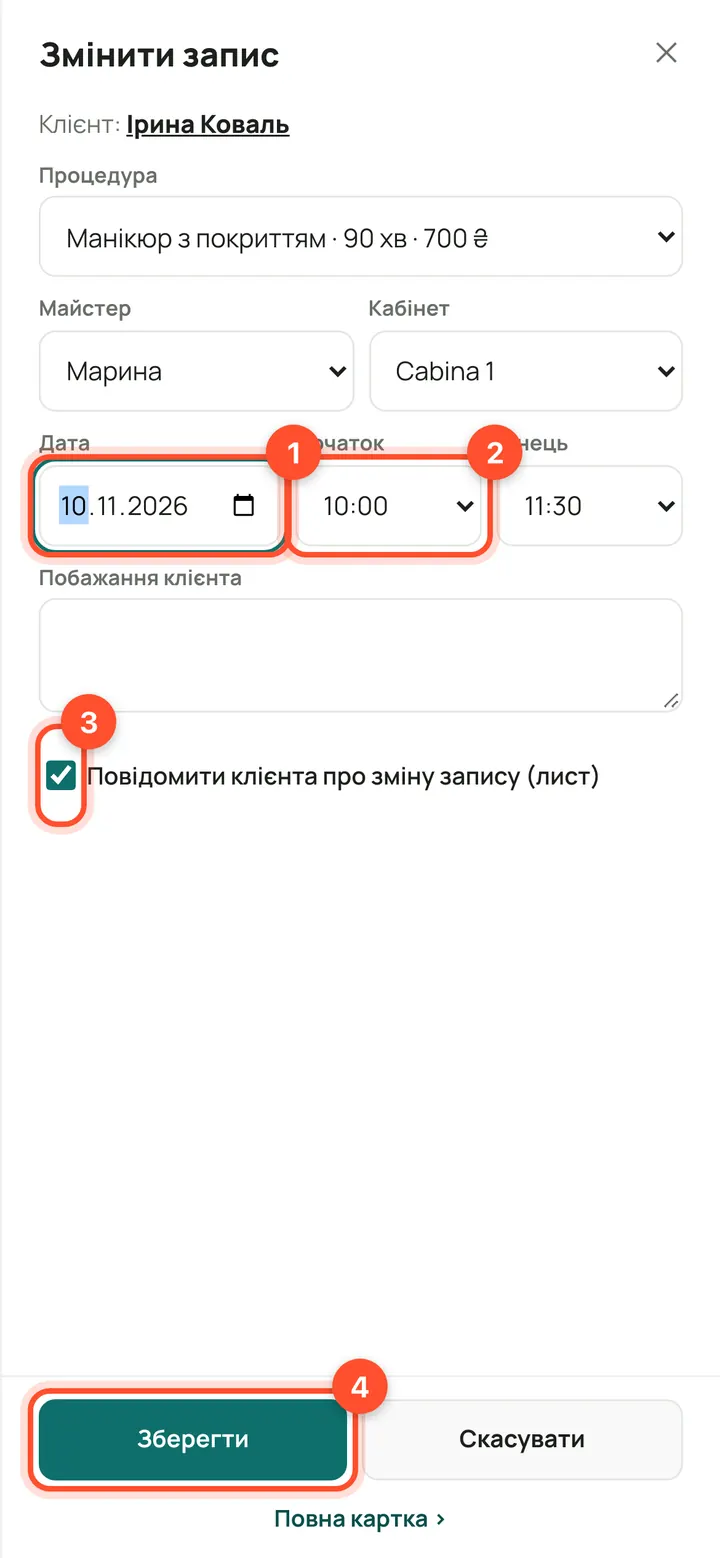
To move a booking: in its window press “Edit” (or the time line). The “Edit booking” panel opens: choose the “Date” and “Start”, keep the “Email the client about the change” tick if you want, and press “Save”.
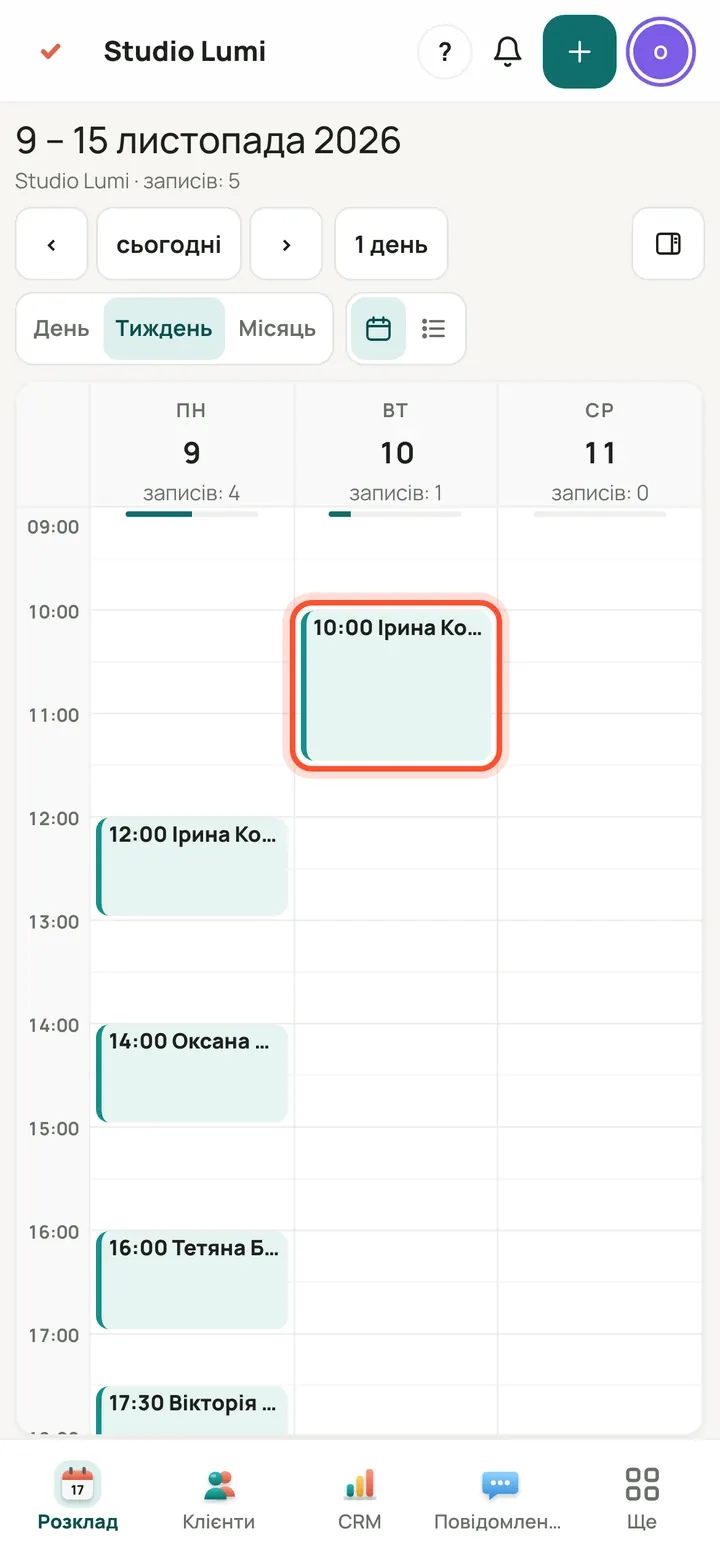
The booking has moved to the new date. If the time is taken, the panel refuses and explains in words, and nothing changes.
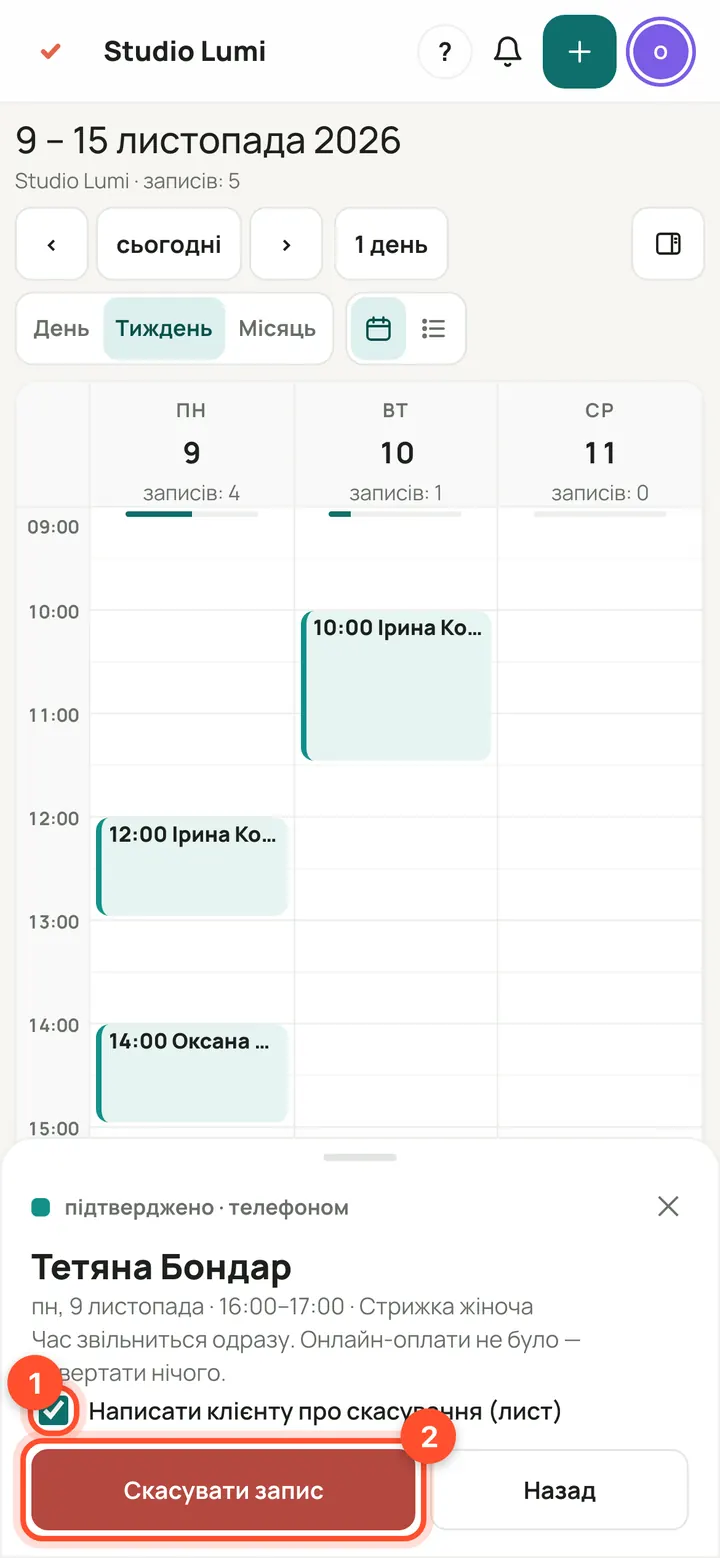
To cancel: press “Cancel” in the window. The panel asks you to confirm. The “Email the client about the cancellation” tick warns the client. Press “Cancel booking”: the booking leaves the grid and the time is free at once.
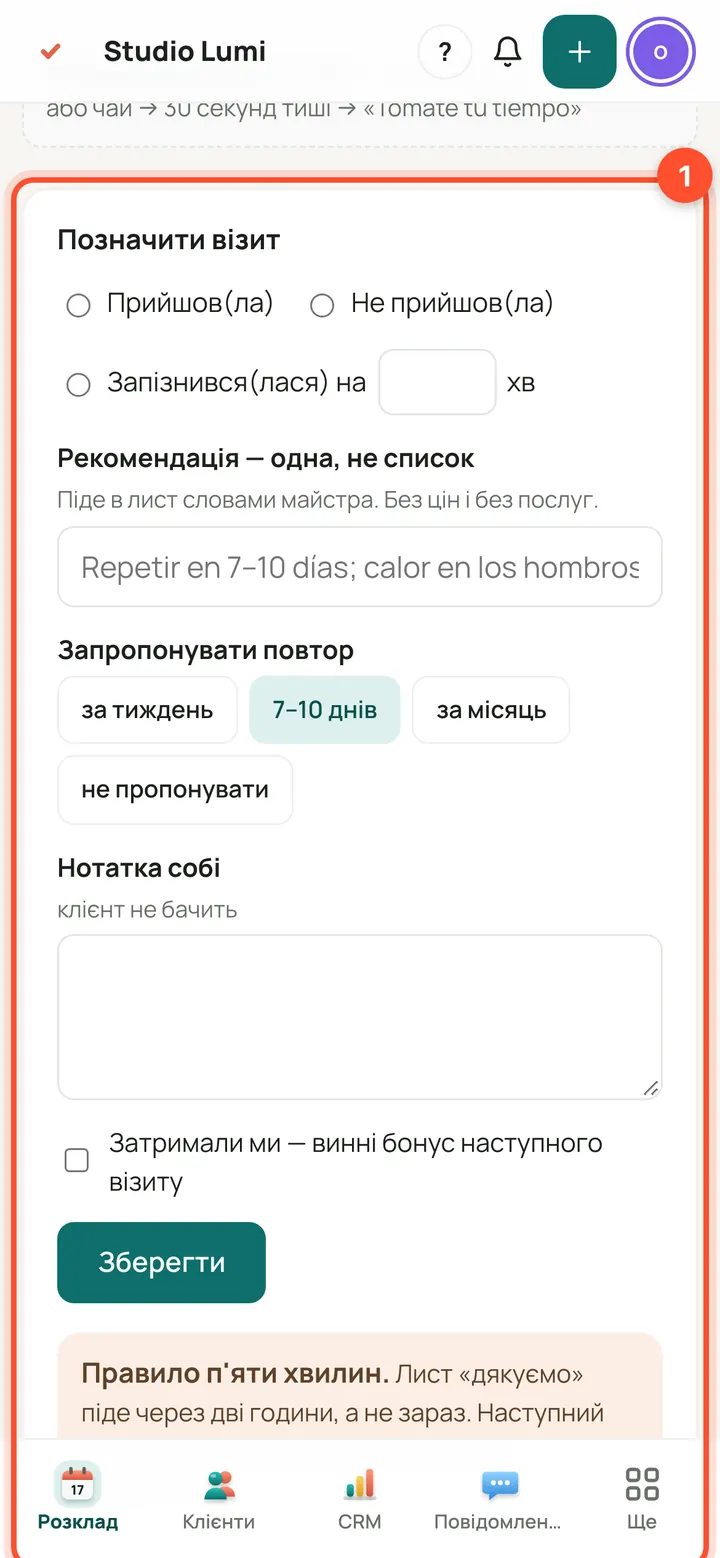
You can do the same in the full card: “Schedule” → booking → “Full card ›”. At the top is the “Mark the visit” form: “Arrived” / “No-show” / “Late by”, a recommendation for the client, a repeat, a note to yourself, then “Save”.
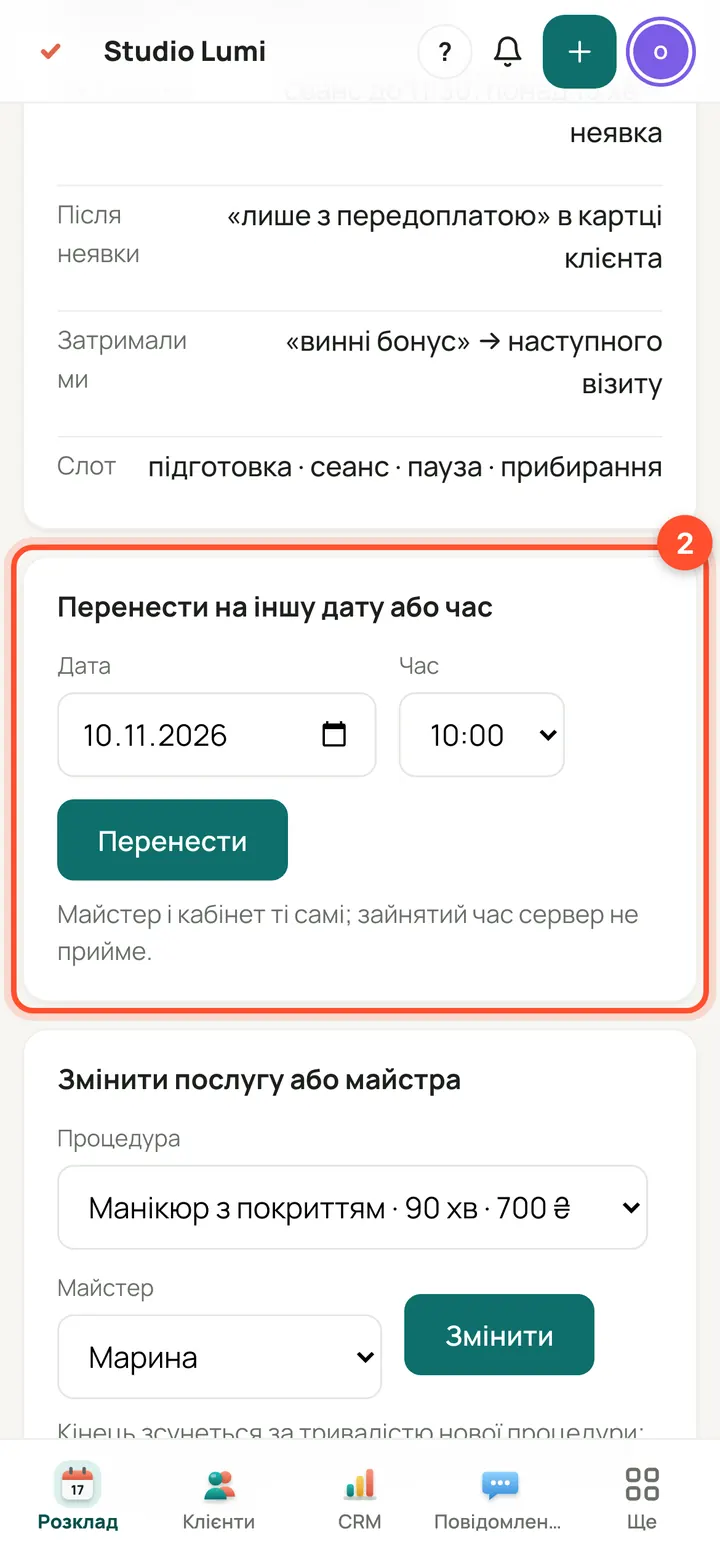
Below is “Move to another date or time”: date, time and the “Move” button. The specialist and room stay the same. On a phone this is the easiest way.
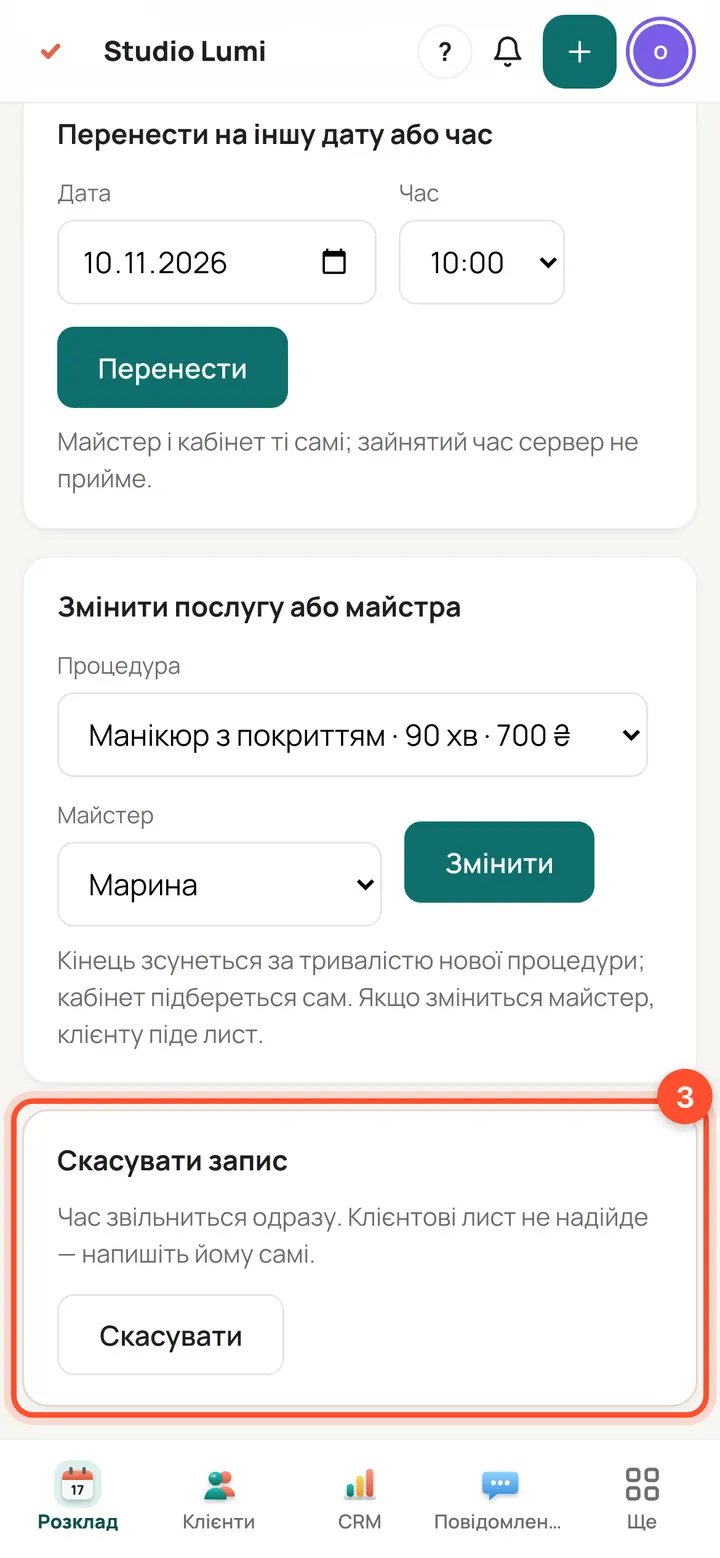
At the very bottom is “Cancel booking” with the “Cancel” button: the time is freed at once. You can also change the service or specialist here.
Perguntas
Why can't I book a time that has already passed?
The panel does not create a new booking in the past, either from the schedule or from the “Book” form. Pick a time later than now.
The client is already in the database. How do I avoid creating a duplicate?
In the “Book a client” window pick them from the list under the “Client” field. In the “New booking” form the panel recognises the person by phone or email and books them onto the same card.
What does the client receive?
A booking email goes only if the “Send the client a booking email” tick is on. Emails about moving or cancelling follow the ticks in the window. The “Thank you for your visit” email goes 2 hours after the session once you mark “Arrived”. If the salon or the client has no email, the panel says so in words and the booking is still saved.
What happens if the client is late or doesn't come?
The panel counts being more than 15 minutes late as a no-show. After a no-show the client card gets a “prepayment only” mark, which you can remove with the cross.
The booking was paid online. How do I cancel it?
A booking paid online can't simply be cancelled: the cancel window shows a “Refund … and cancel” button, and the money goes back to the client. Only the owner or an administrator can cancel without a refund, and that is chosen explicitly.
What does a specialist without administrator rights see?
Without the “Schedule of all specialists” permission a specialist sees only their own bookings. Without the “Create and change bookings” permission a specialist can only mark “Arrived” and “No-show” on their own booking. The client's phone in a booking is visible to the owner and administrators.