Your own Telegram bot: booking and notifications
You create the bot in BotFather and paste its key in “Connections”. The bot writes new bookings (with a “Confirm” button), changes, cancellations and shop orders to the salon's group; clients book in it themselves and specialists get their own bookings in a private chat.
Esta aula ainda está em inglês — a tradução está a caminho.
Create a bot and connect it to the salon
Each salon has its own Telegram bot: clients book through it and the salon gets notifications. Telegram does not let anyone create a bot for you, so you do it yourself once in BotFather. It takes two minutes.
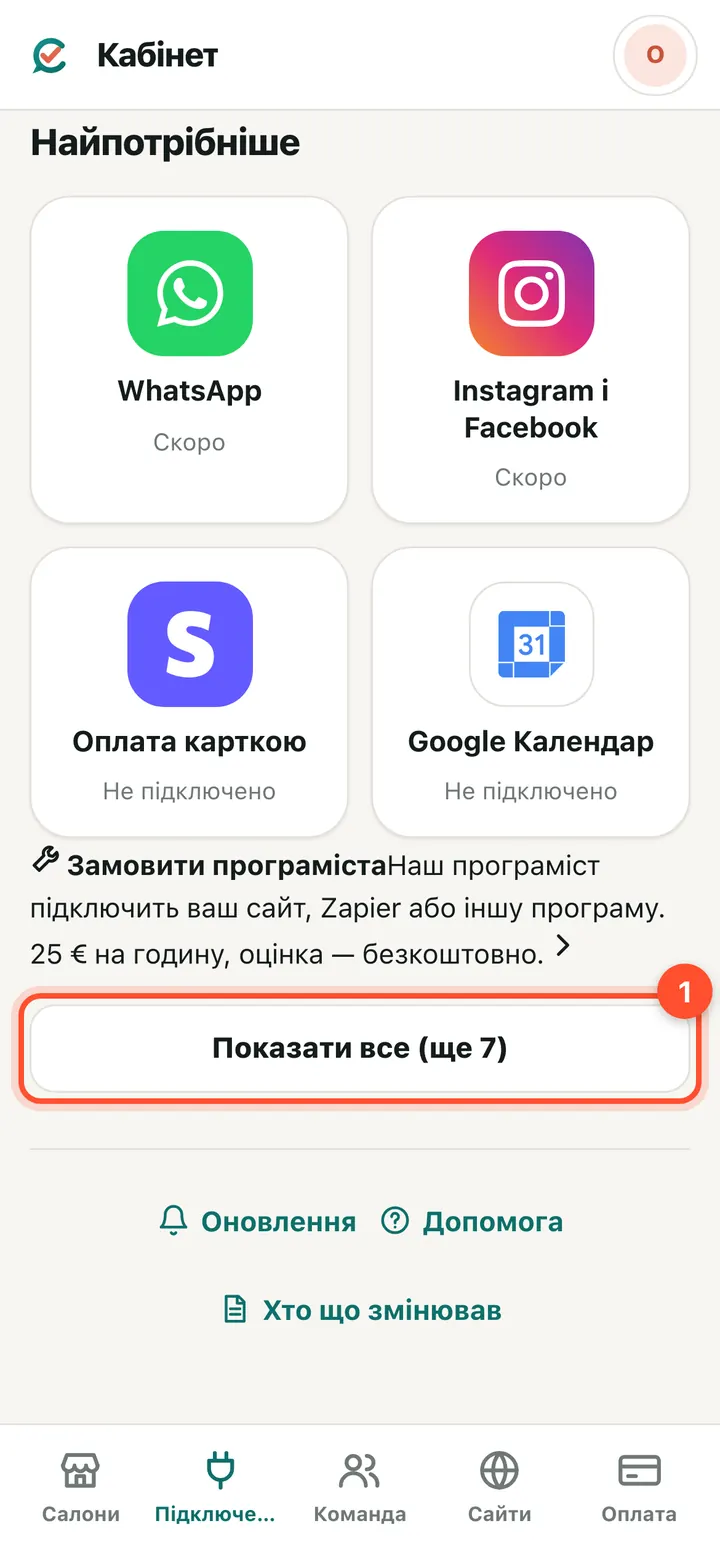
Owner console → “Connections” → “Show all”.
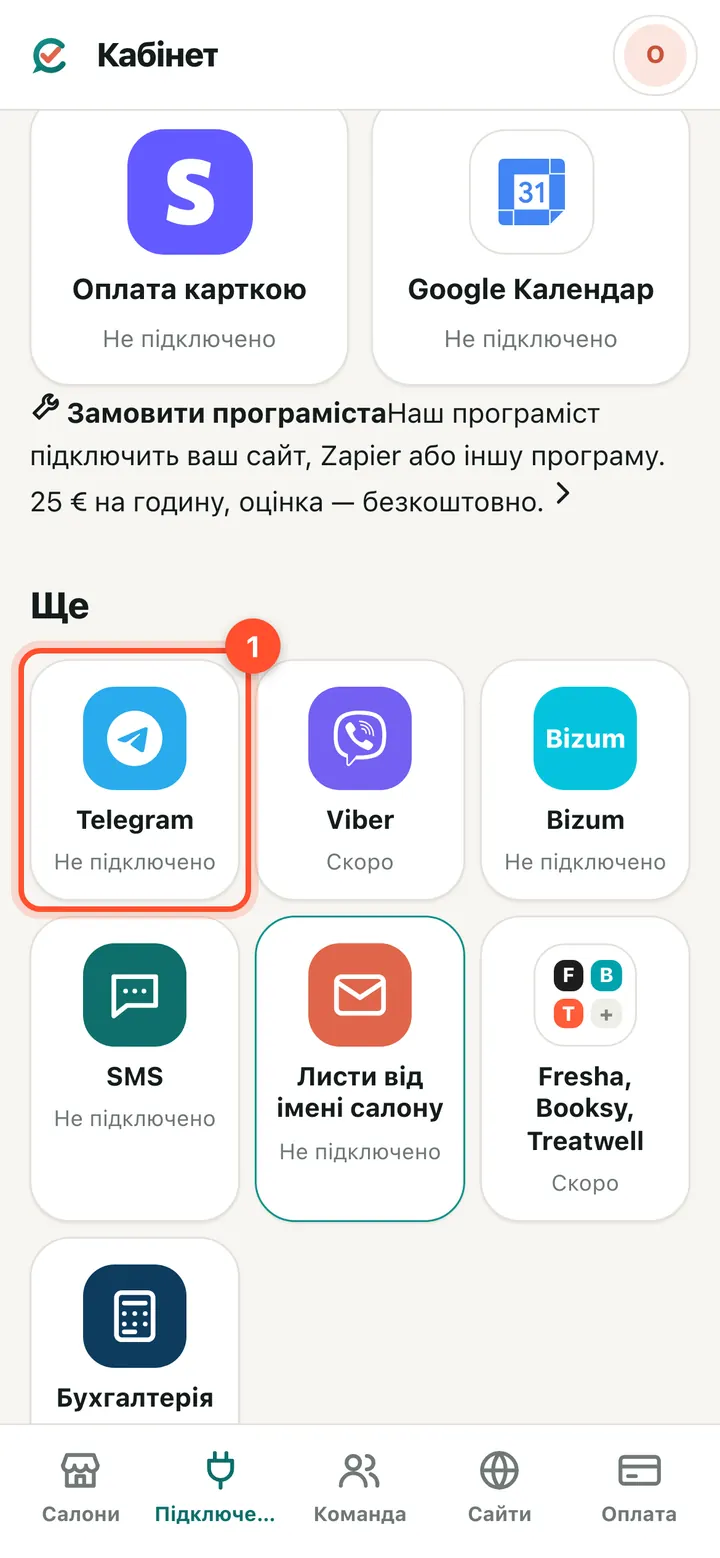
Press “Telegram”.
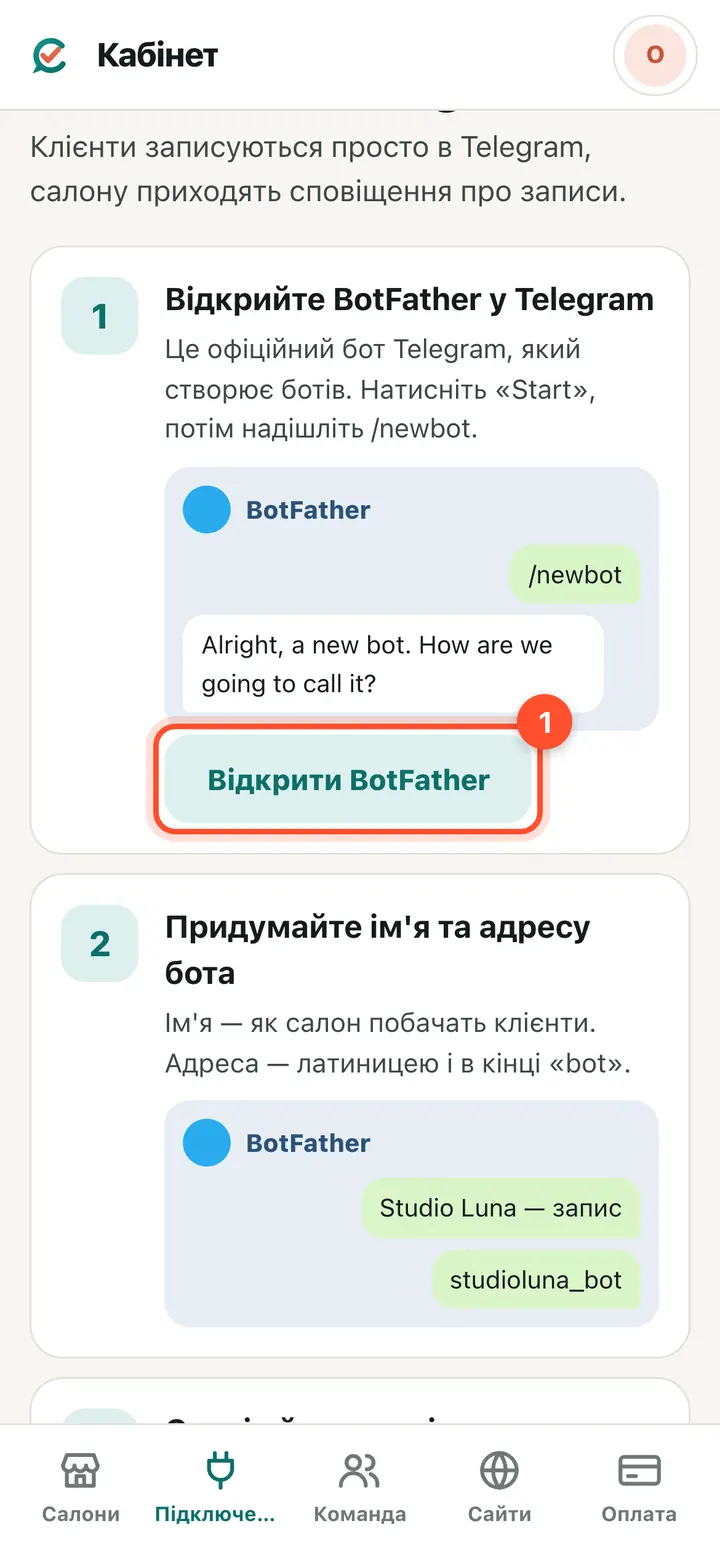
The page shows three steps with pictures. Press “Open BotFather”: it is Telegram's official bot that creates bots. Press “Start” and send /newbot. Choose a name (clients will see it) and a Latin address ending in “bot”. BotFather replies with a long string after the words “Use this token”: that is the bot's key.
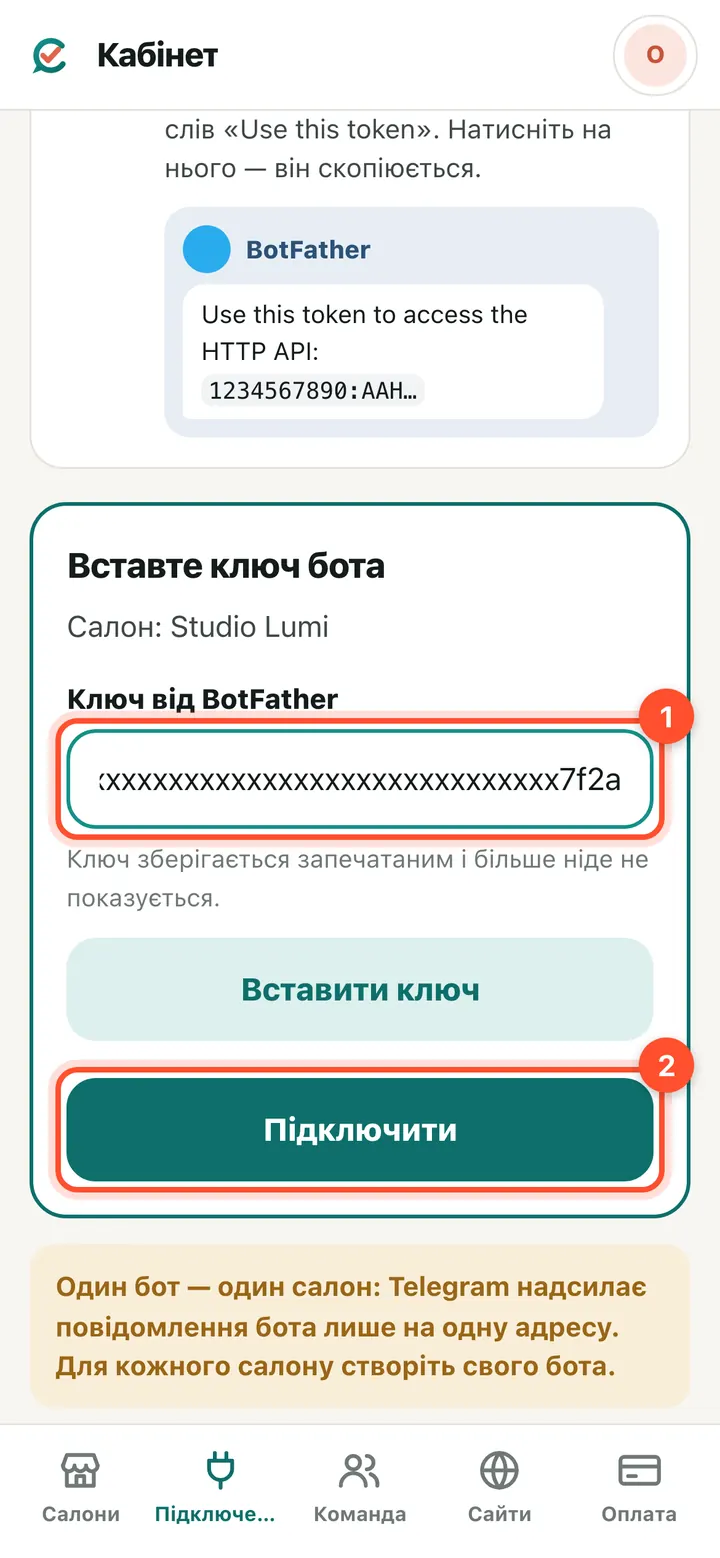
Copy the key and come back to the page. In the “Key from BotFather” field press “Paste key” (it pastes from the clipboard) or paste the string yourself, then “Connect”. The key is stored sealed and is never shown in full again.
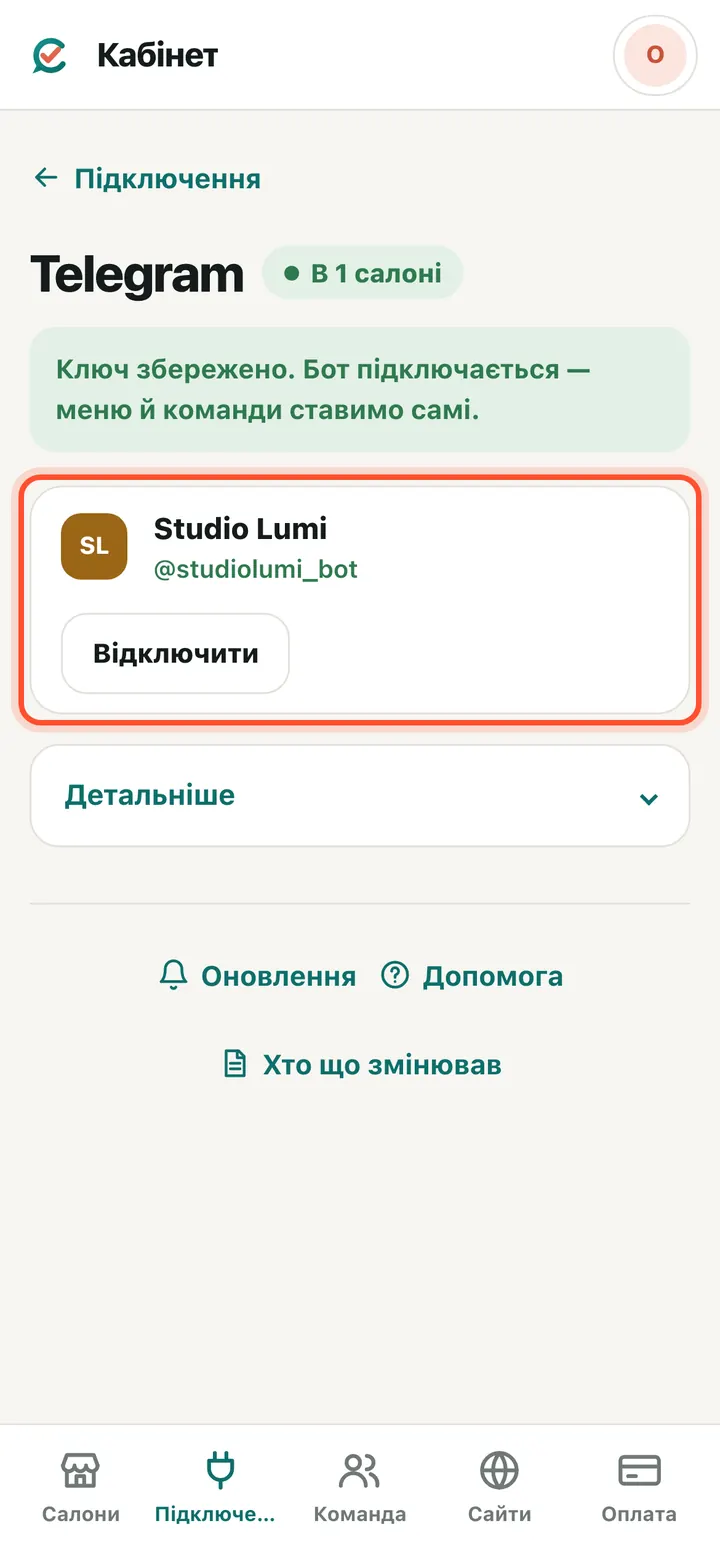
The salon appears in the Telegram card with your bot's name. The bot gets its message address, menu and commands by itself, so nothing else needs setting up in BotFather. One bot works with one salon only: if you have several salons, create a bot for each. Then press “More” → “Open in the salon”.
Salon notifications in a group
The salon gets notifications in a Telegram group: new bookings, changes, cancellations and shop orders. You create the group, and only the owner and administrators should be in it.
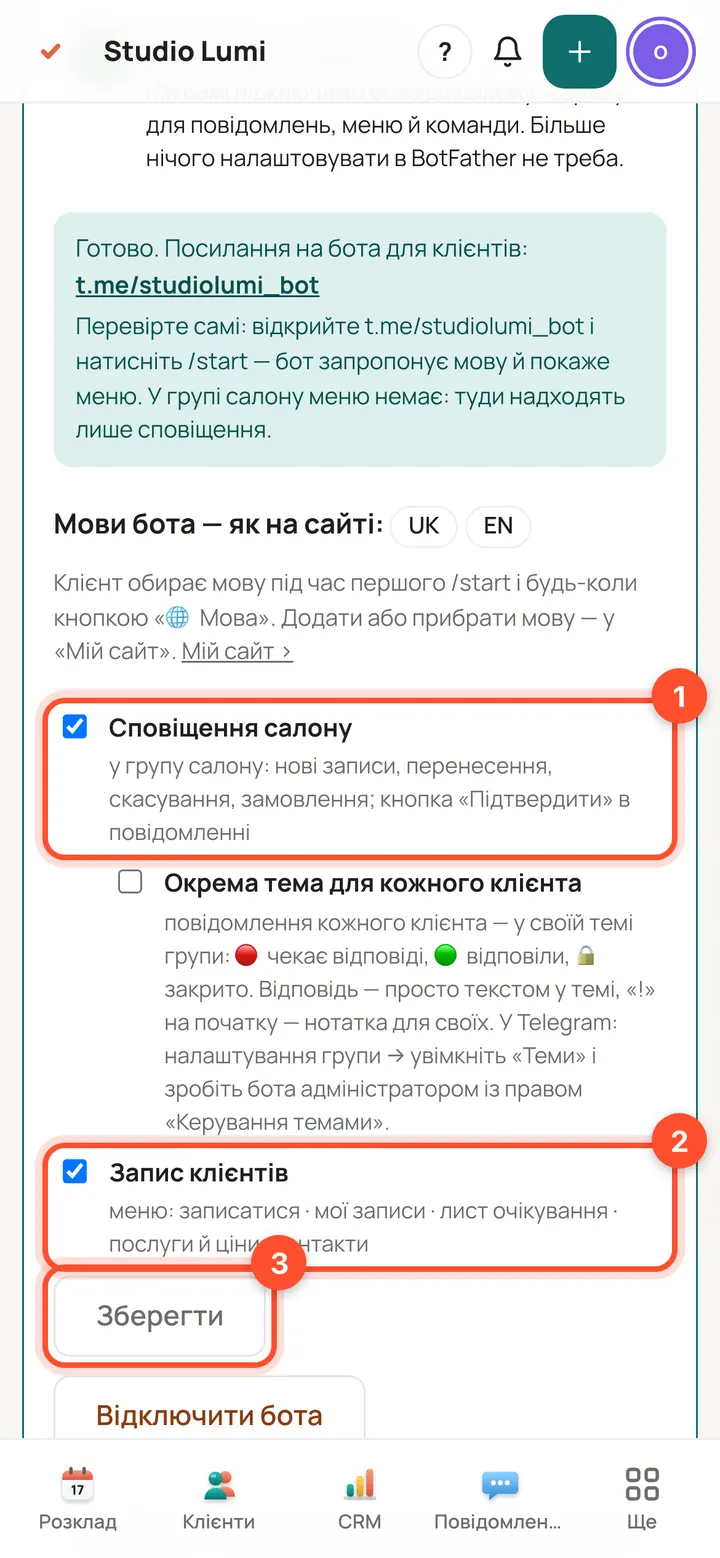
The salon's Telegram page opens in the panel. Tick “Salon notifications” (to the group) and “Client booking” (the bot menu for clients) and press “Save”. The link to the bot that you can give to clients is here too.
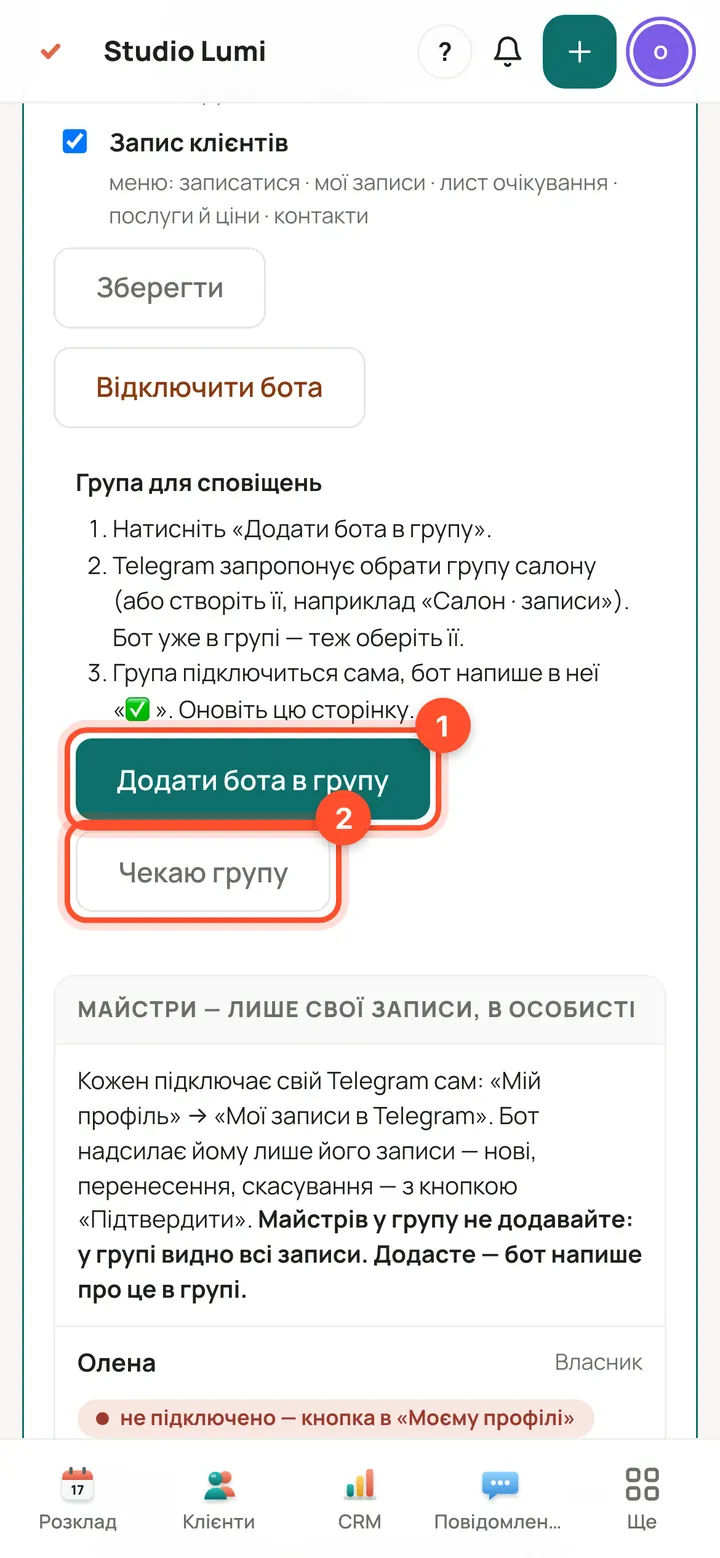
A “Notification group” block appears. Press “Add bot to group”: Telegram offers to choose the salon's group (or create a new one). The group connects by itself and the bot writes “✅” in it. If that doesn't work, use the fallback, the “Waiting for group” button.
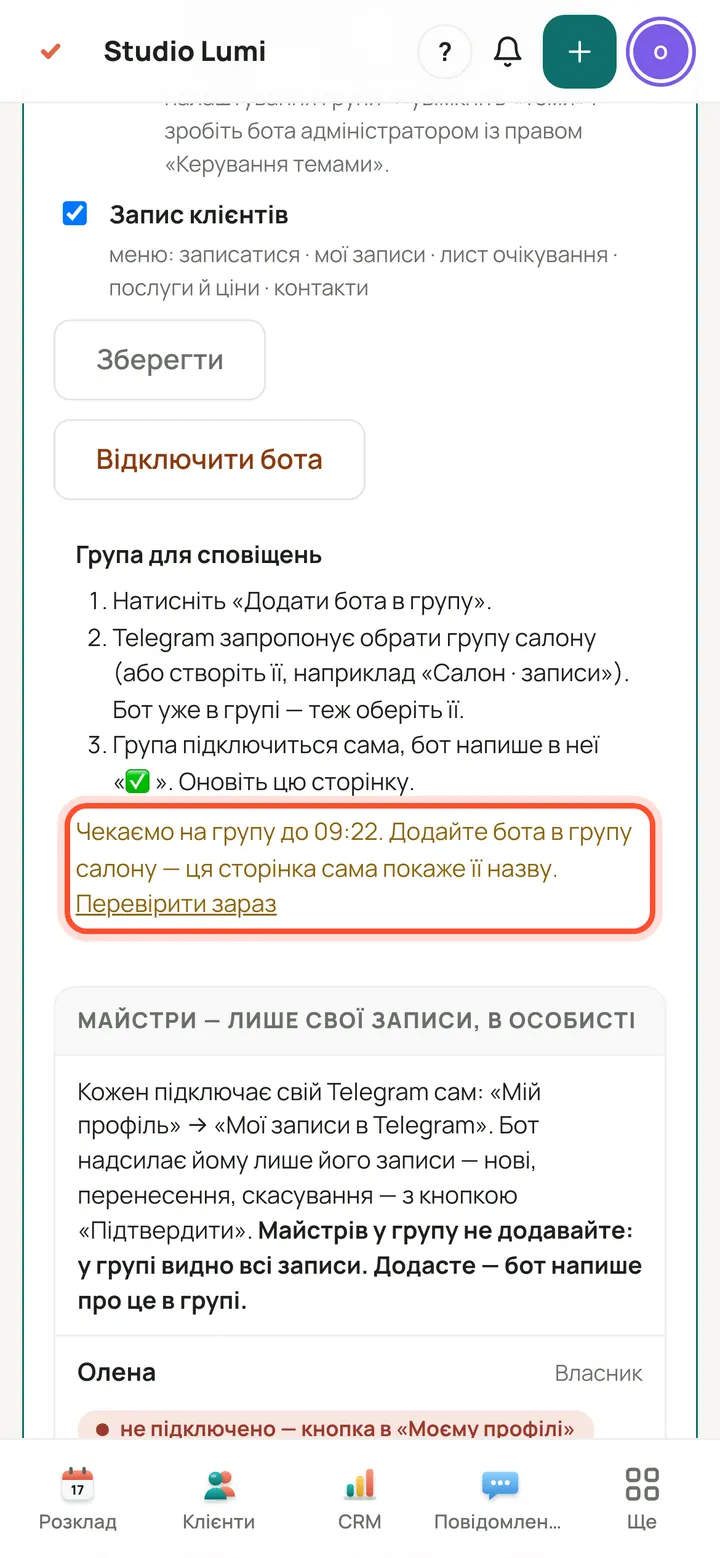
“Waiting for group”: the page waits for the group for a limited time and refreshes by itself. In that time add the bot to the salon's group.
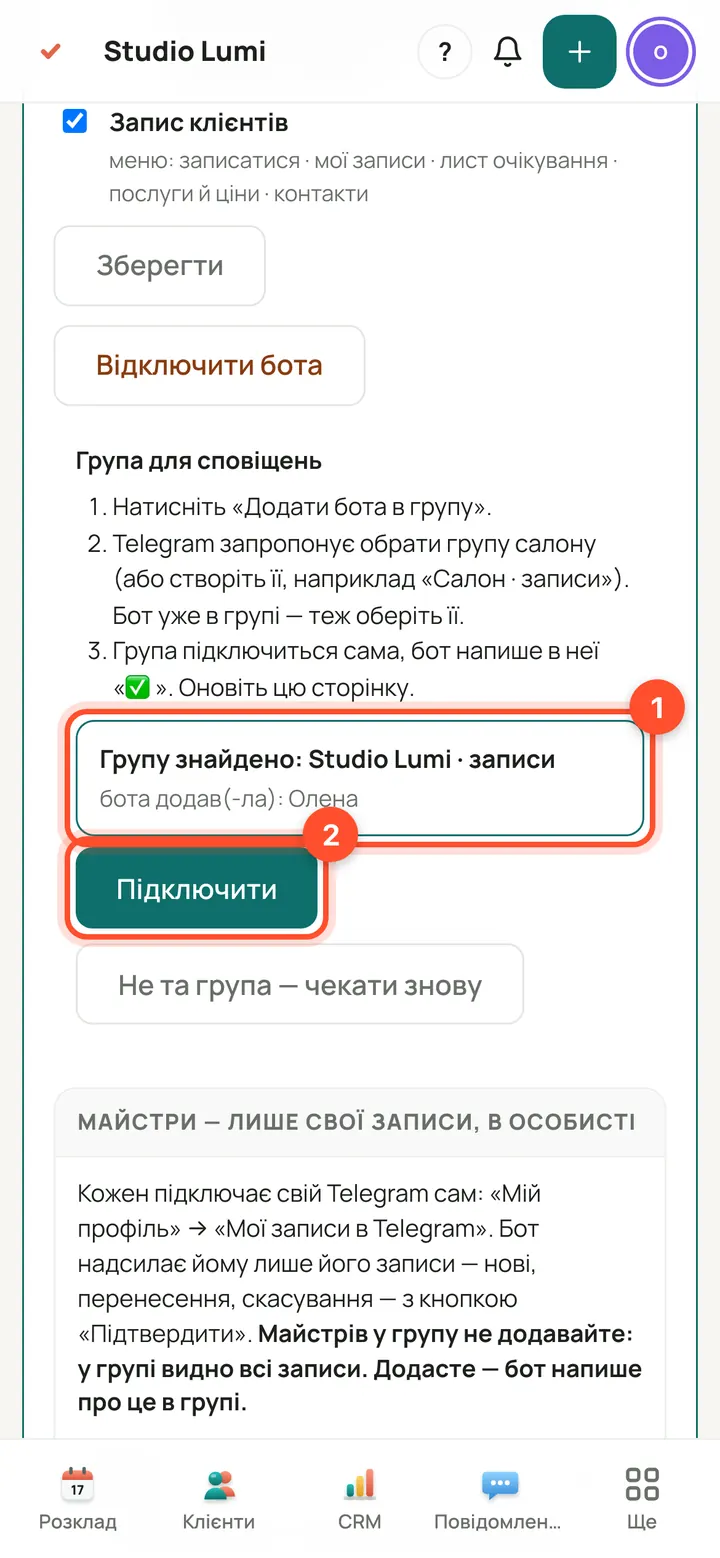
The page shows the name of the group it found and who added the bot. If it is your group, press “Connect”. If not, press “Wrong group — wait again” (only the first group the bot was added to becomes the candidate).
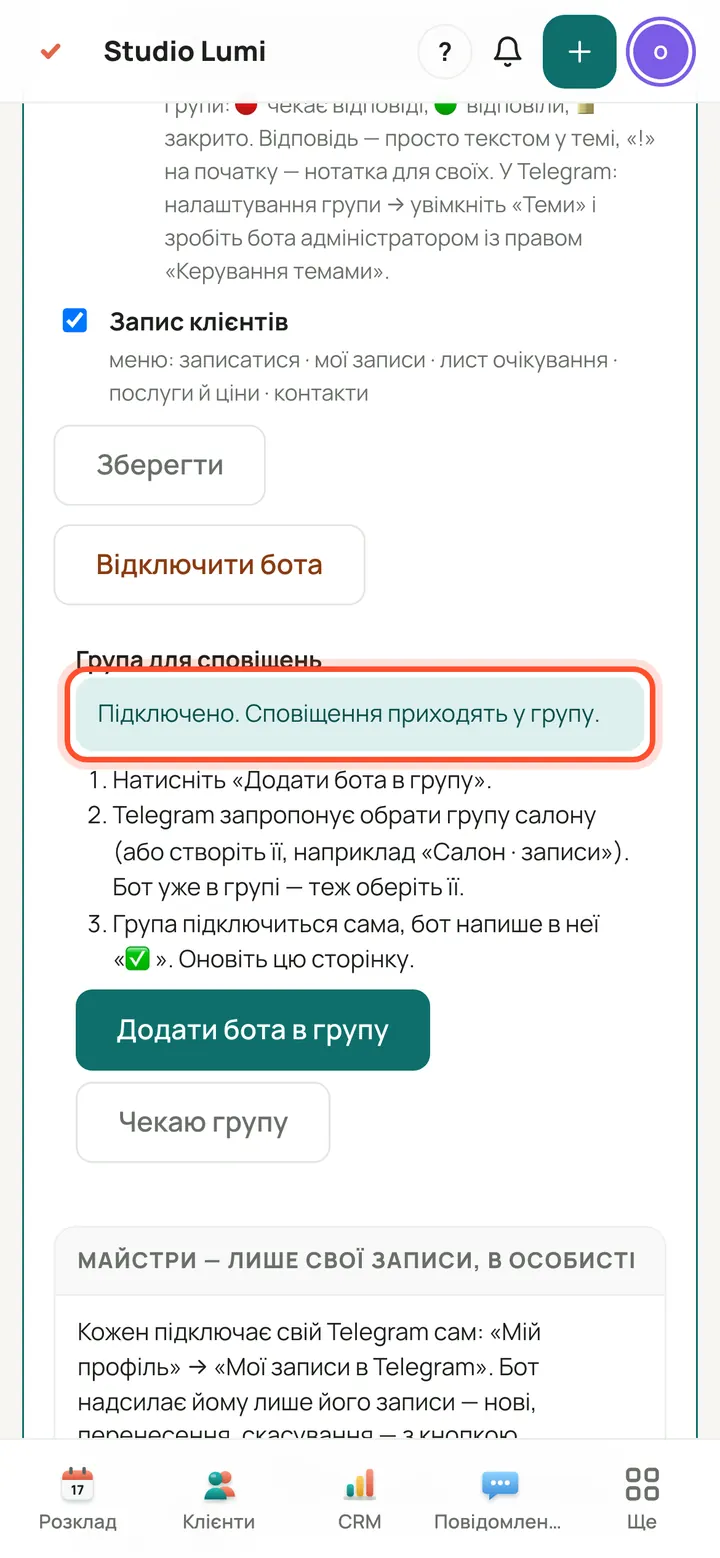
Done: “Connected. Notifications go to the group.” The bot writes a first message in the group; from now on bookings, changes, cancellations and orders arrive here.
What the bot writes to the group: bookings and shop orders
The pictures show real bot messages from a demo salon.
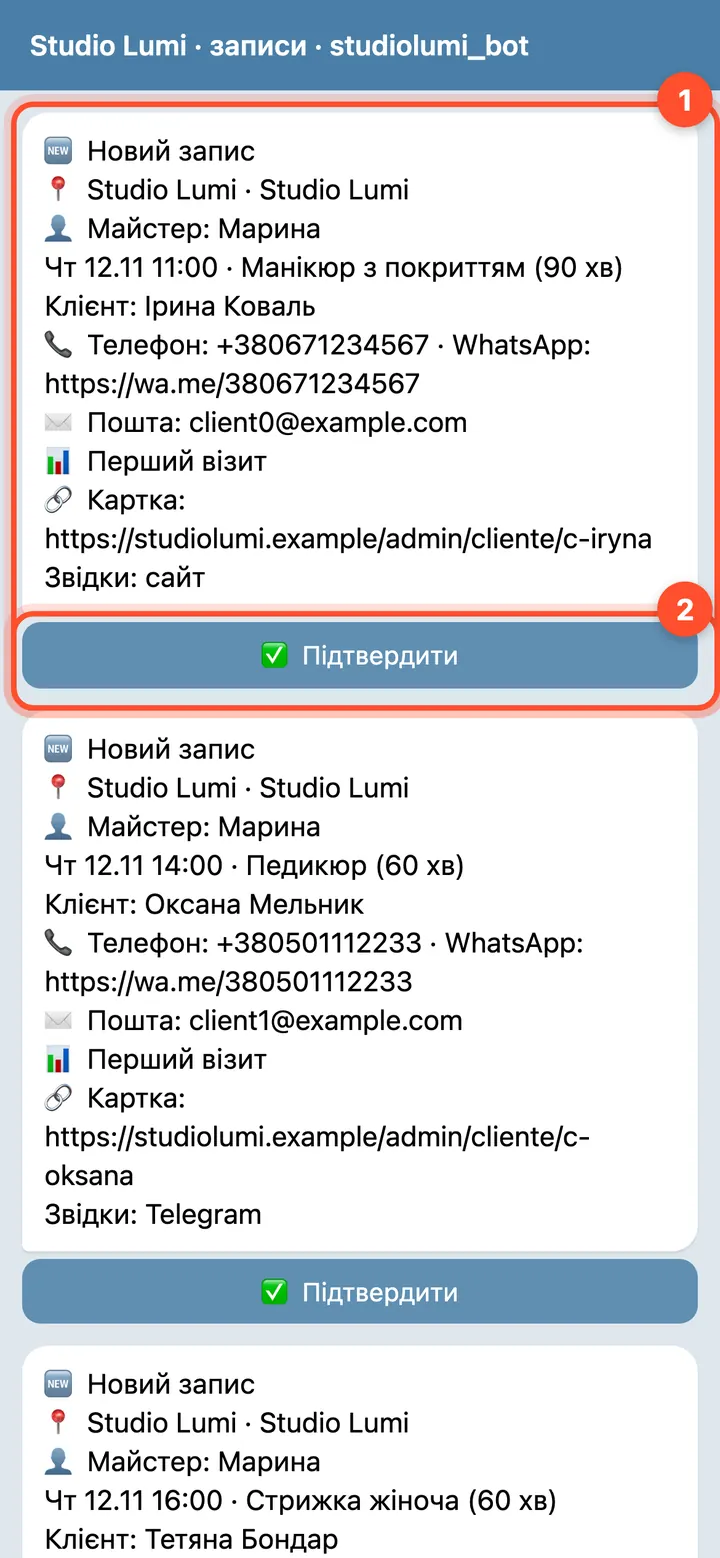
“🆕 New booking”: salon, specialist, time and treatment, the client, their phone with a WhatsApp link, email, a link to the client card and “Source” (site, Telegram, app, panel). Below the message is the “✅ Confirm” button: press it in the group and the booking records who confirmed it; pressing again says it is already confirmed. Bookings from the site, app and bot arrive at once (with online payment, after payment); bookings made in the panel arrive at the next check, a few minutes later.
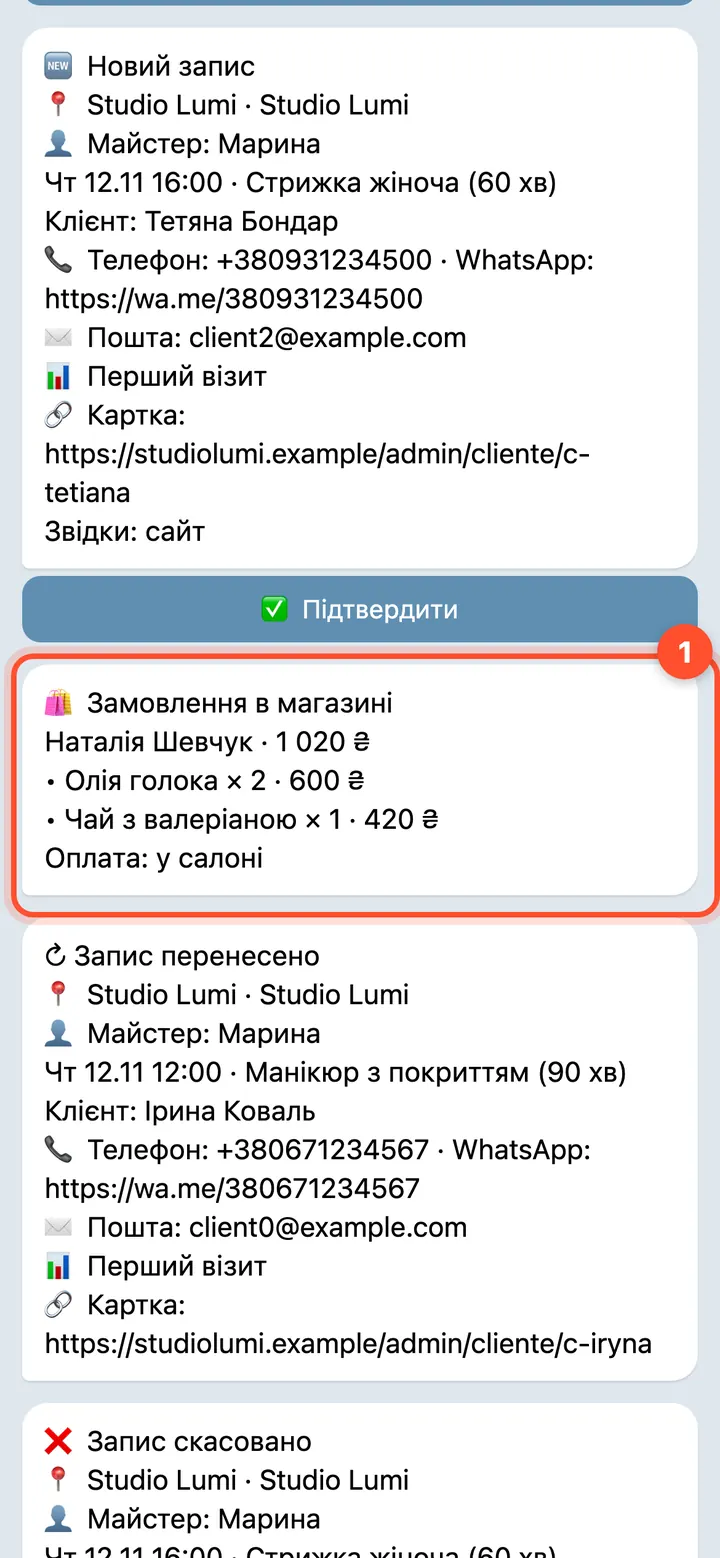
“🛍 Shop order”: the buyer, the total, a line for each product (“product × quantity · amount”, plus the variant if there was one) and “Payment: …”. The buyer's phone and email are not in the message. The order arrives once, at the next check, a few minutes after it is placed; cancelled orders do not arrive.
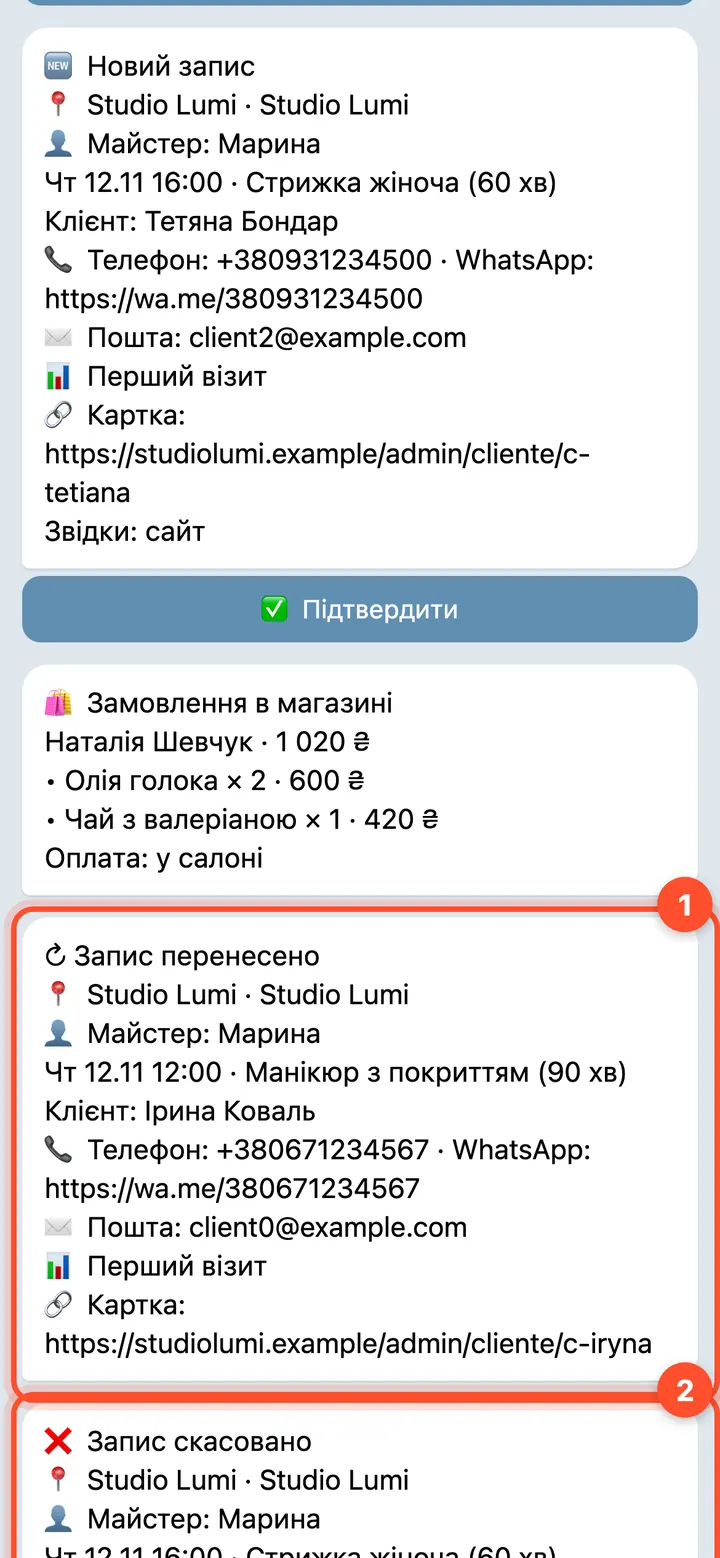
A change (“↻ Booking rescheduled”) and a cancellation (“❌ Booking cancelled”) arrive in the group the same way, without a button.
Client booking through the bot
Give clients the link to the bot: booking in it goes the same way as from the site and the app.
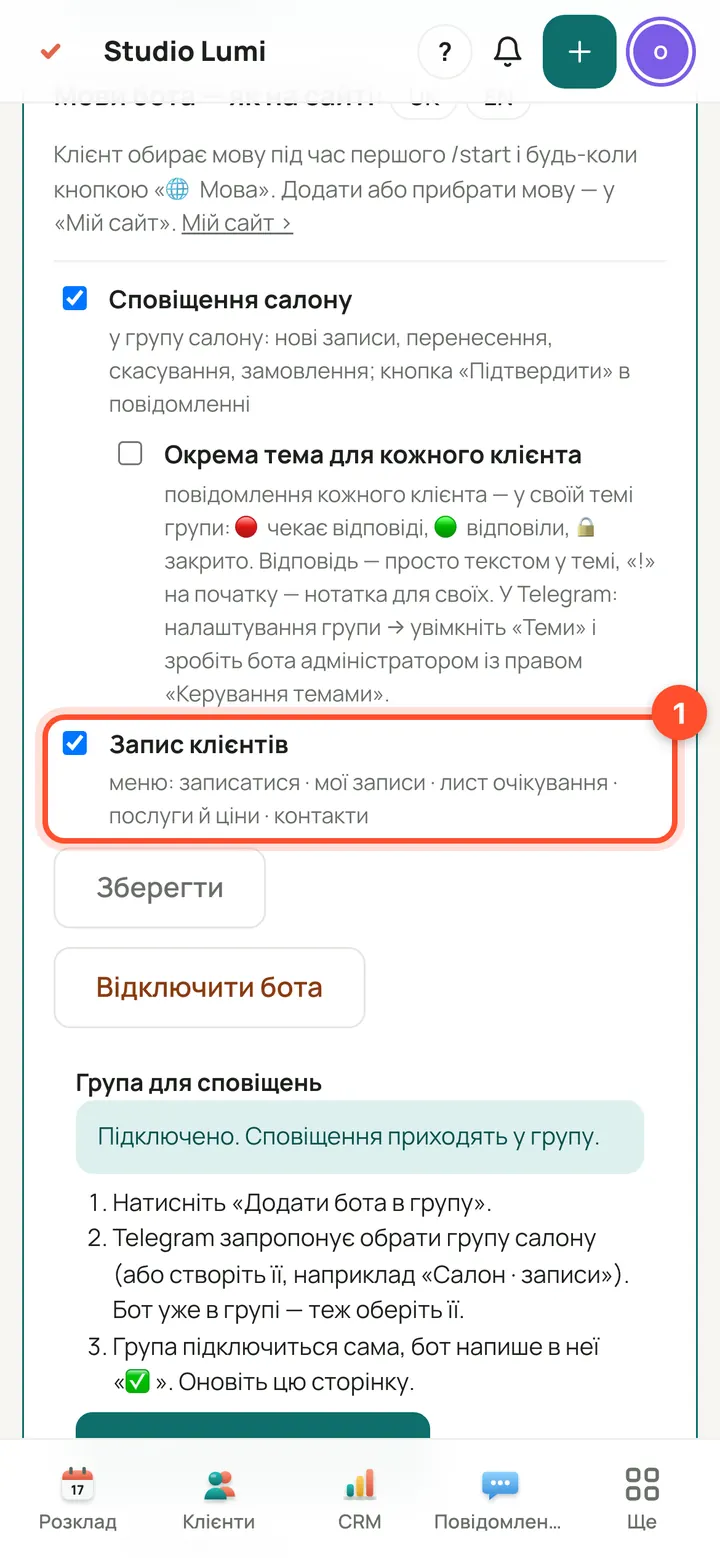
The “Client booking” tick turns on the bot menu. The client opens the bot, presses /start, the bot offers a language and then the menu: “📅 Book”, “📋 My bookings”, “🔔 Waiting list”, “✨ Services and prices”, “📍 Contacts”, “❓ Help”. Booking: service → specialist (if there are two or more) → day → time → confirmation. Without a phone number no booking is created, so the bot asks for it. A day before and 2 hours before, the client gets a reminder with “I'll be there” and “Reschedule” buttons. Any free text goes to the salon's “Messages”, and the reply goes back to the client in Telegram.
A specialist gets their own bookings in a private chat
There is no need to add specialists to the group: each one with their own panel login connects their own Telegram — six steps, about a minute. Specialists see this guide in their own panel (“Support” → “Guides”) in the language they use the panel in.
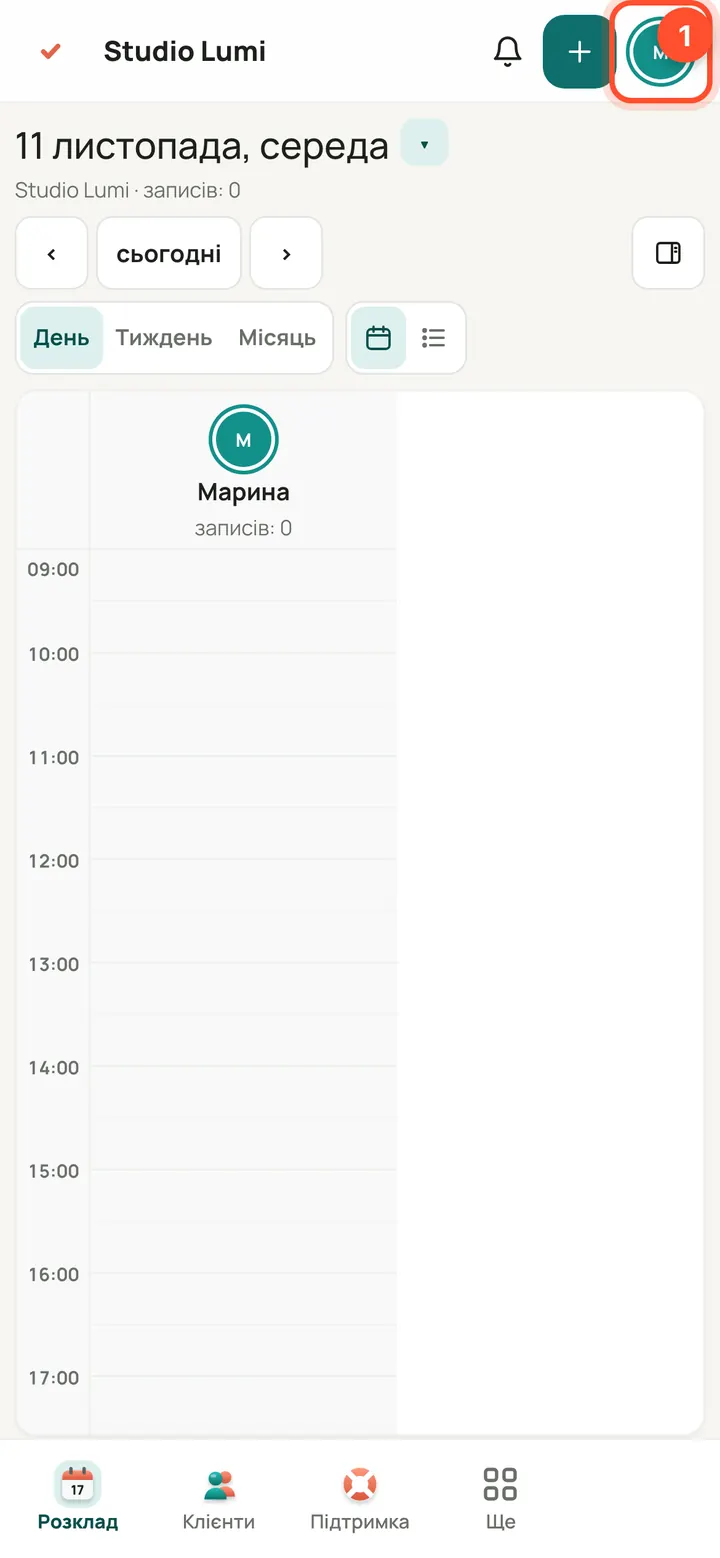
The specialist signs in to the panel with their own login and taps the circle with their initial at the top right (on a computer, their name at the bottom left). This is “My profile”.
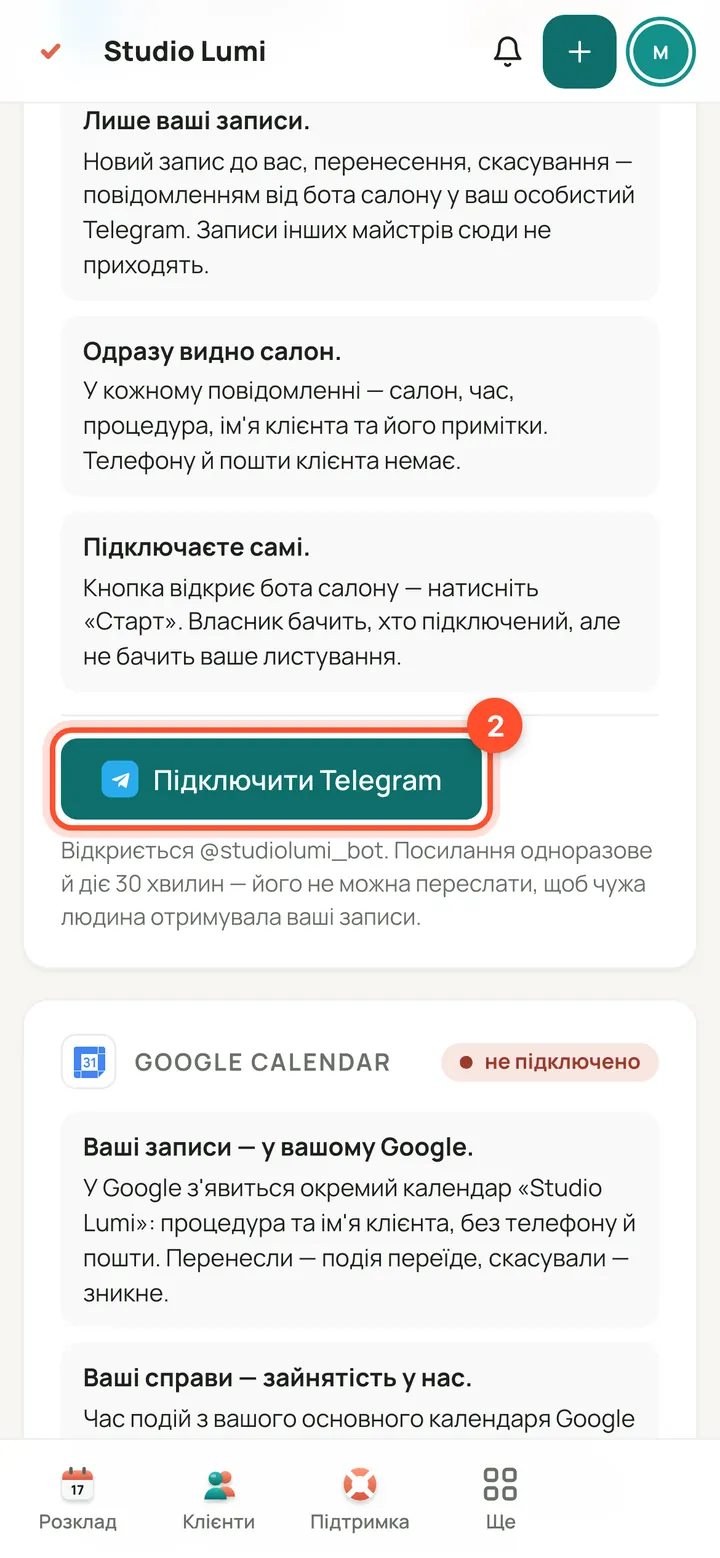
In “My bookings in Telegram”, tap “Connect Telegram”. The link is single-use and valid for 30 minutes — it can't be forwarded, so no one else gets your bookings.
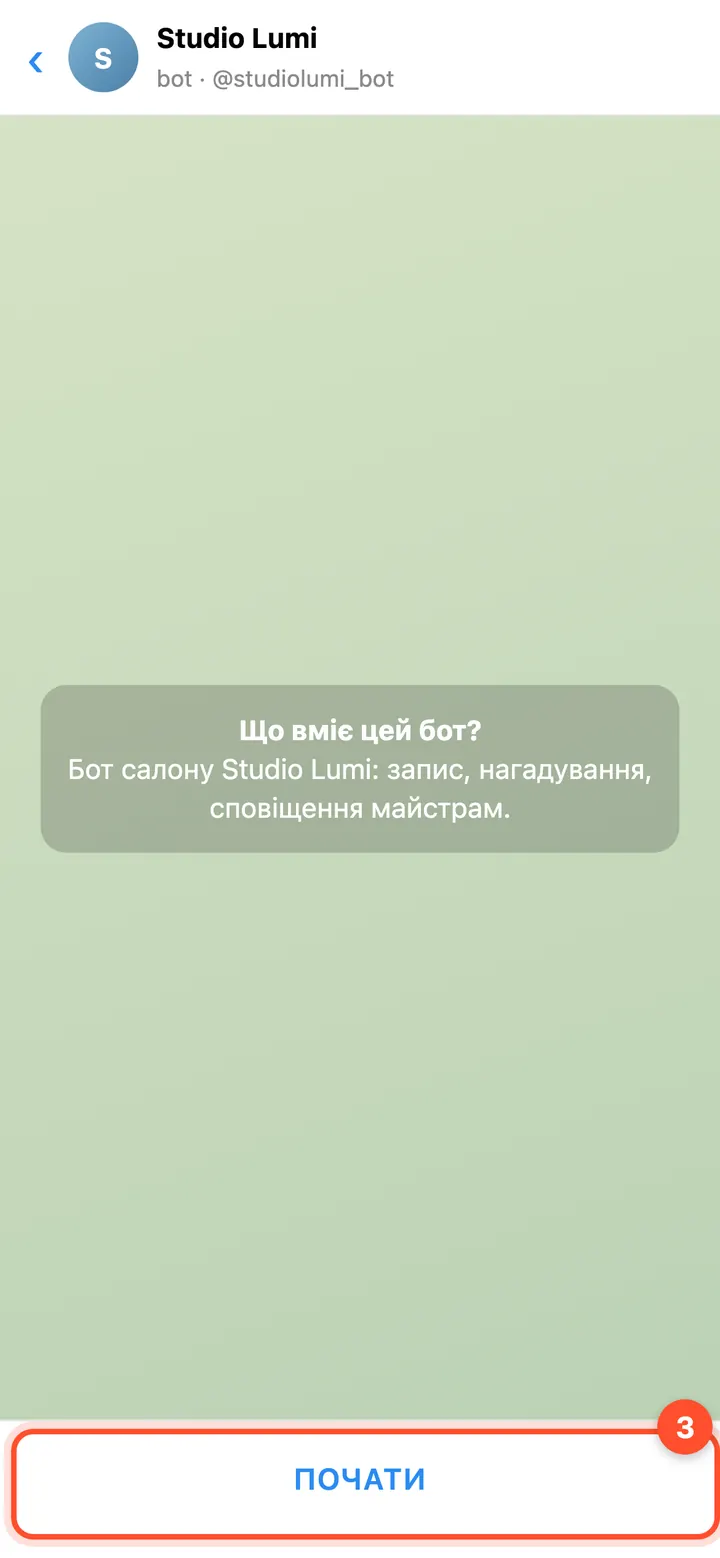
Telegram opens a chat with the salon's bot. Tap “Start” at the bottom. If nothing opens or more than 30 minutes have passed, go back to your profile and tap “Connect Telegram” again.
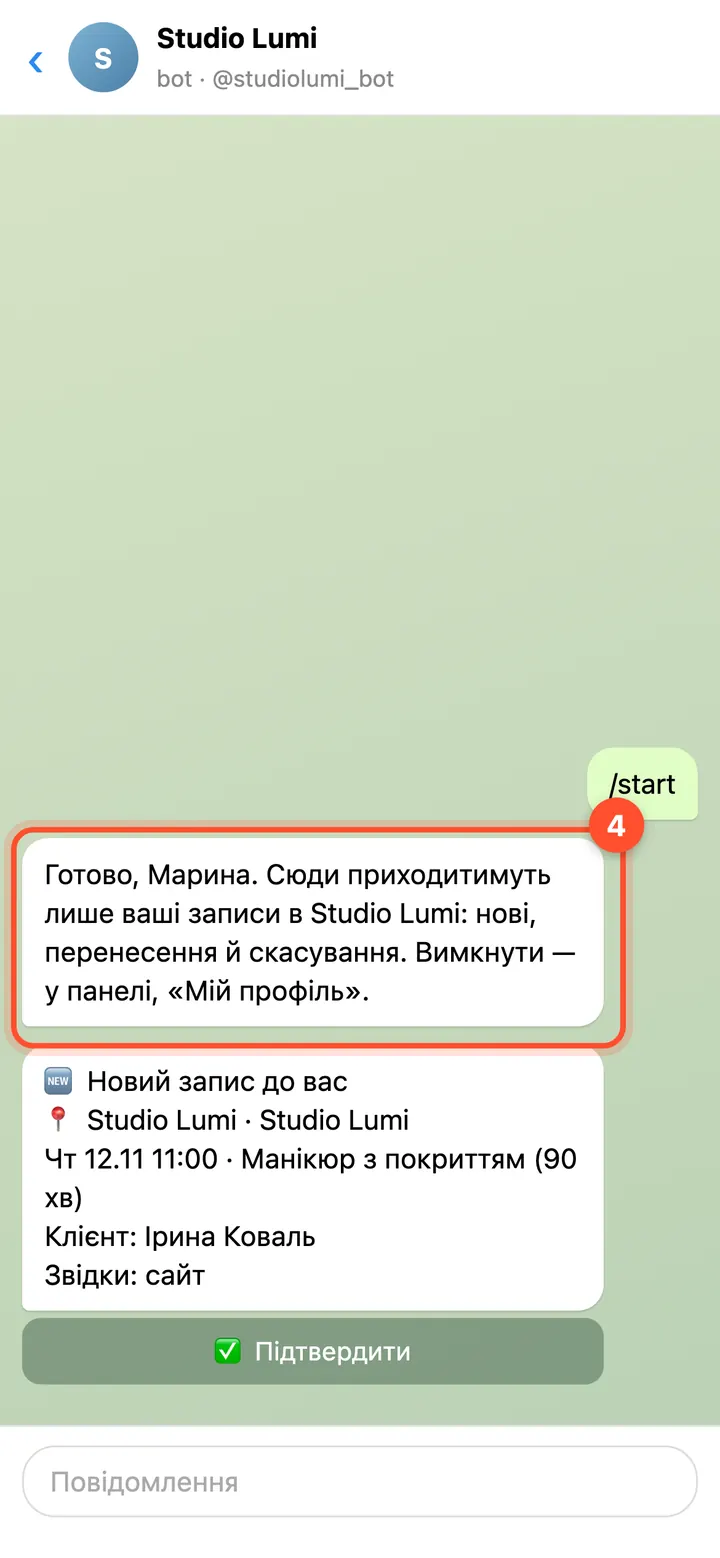
The bot replies that you're all set: from now on only your bookings at this salon will arrive here.
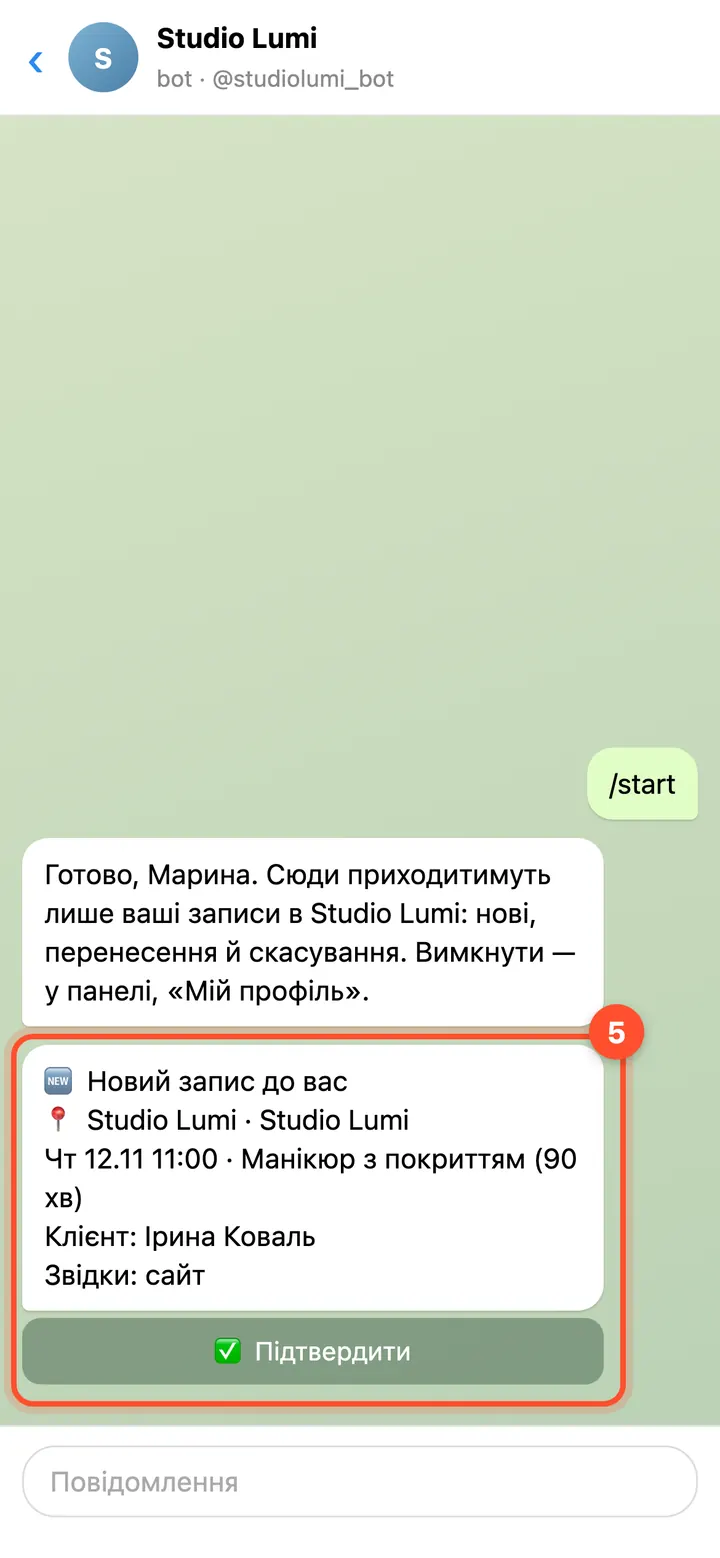
This is what a new booking looks like: salon, day and time, service, client's name and where the booking came from. No client phone or email. The “Confirm” button marks the booking as seen by you. Changes and cancellations of your bookings arrive the same way.
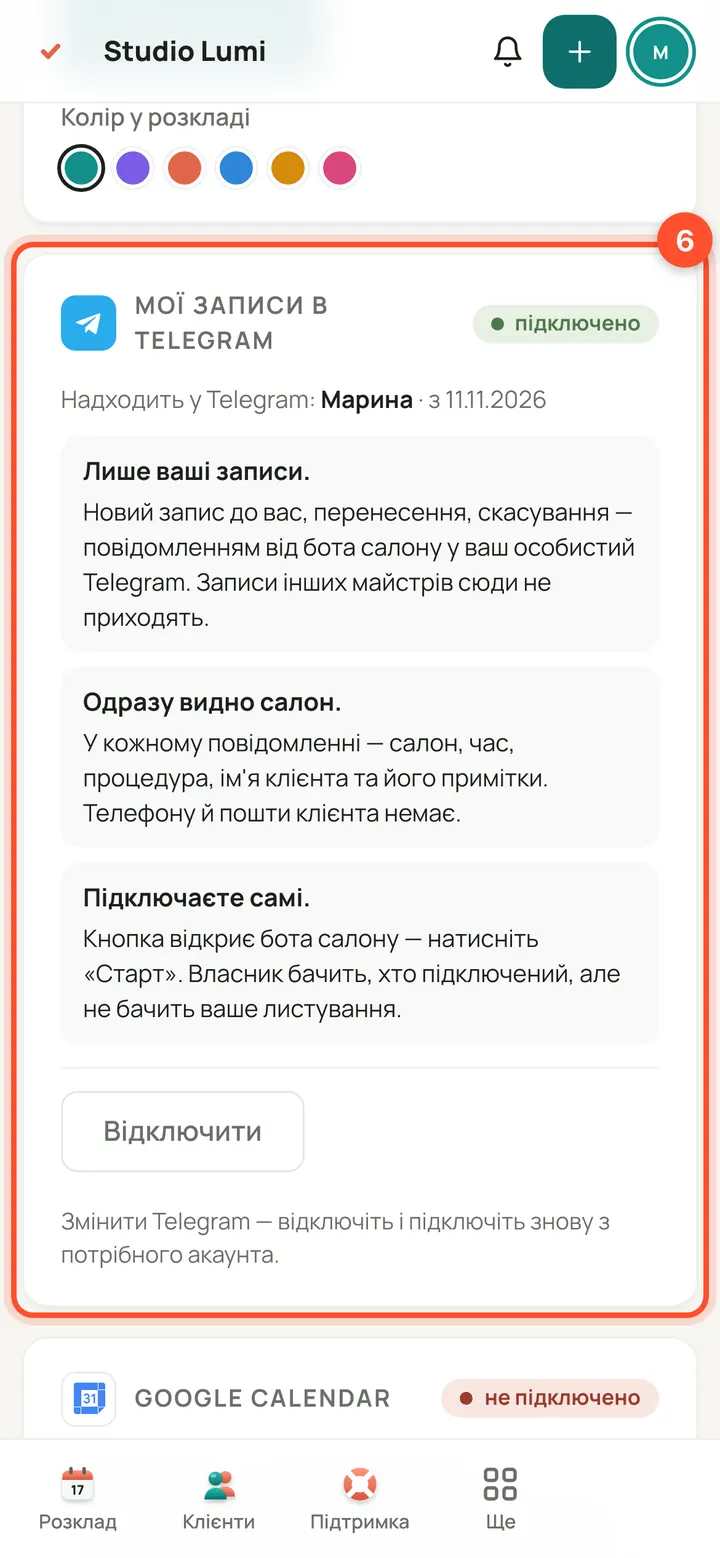
Your profile shows “connected” and your Telegram name. To switch accounts, tap “Disconnect” and connect again. Bookings arrive while the salon has “Salon notifications” on (the owner does this, section above). The owner sees which specialists are connected but not your chat with the bot.
Perguntas
I lost the bot's key or want to change it. What do I do?
Get the key from BotFather and paste the new one on the salon's Telegram page in the panel using the “Replace key” button. The old key stops being used and the message address is set again by itself. The saved key is never shown in full, only its last 4 characters.
The bot doesn't answer. What should I check?
Open the salon's Telegram page and read the status line. “Telegram rejected the key — please check it”: paste the key again. “key saved · sending is off on this server”: the platform owner turns sending on, so write to support. The bot's name with @ means it is connected; then check that the “Client booking” tick is on.
It says to first set the salon's booking site address. What is that?
The bot needs the salon's online booking address: Telegram sends messages to it. Set it in the panel under Salon → Online booking, then paste the key again.
The bot was removed from the group. What happens?
Notifications stop arriving and a red line appears on the salon's Telegram page: “the bot was removed from the notification group — notifications are not arriving”. Add the bot to the group again with “Add bot to group”.
Is the client's phone visible in the group?
Yes. The bot writes the client's whole card to the salon's group: phone, email, notes and marks, including health ones. So only the owner and administrators should be in the group. A specialist's private messages carry no client contacts or health text. A shop buyer appears in the order message by name only.
Can one bot serve two salons? How do I disconnect it?
No: Telegram sends a bot's messages to one address, so each salon has its own bot. The owner console will not accept the key of a bot that already works in another salon. To disconnect, use “Disconnect bot” on the salon's Telegram page or “Disconnect” in the card in the owner console: the message address is removed and the key is erased.